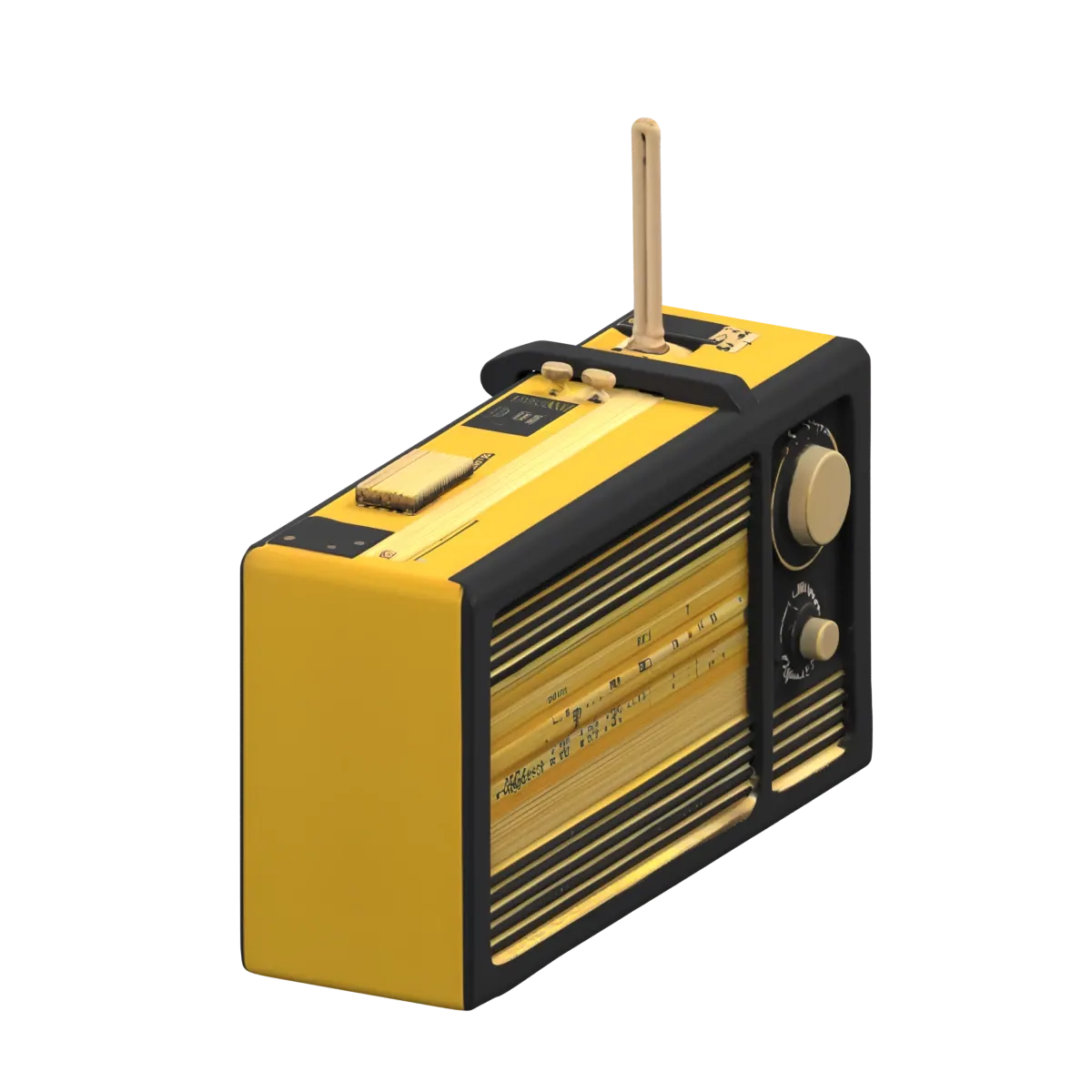
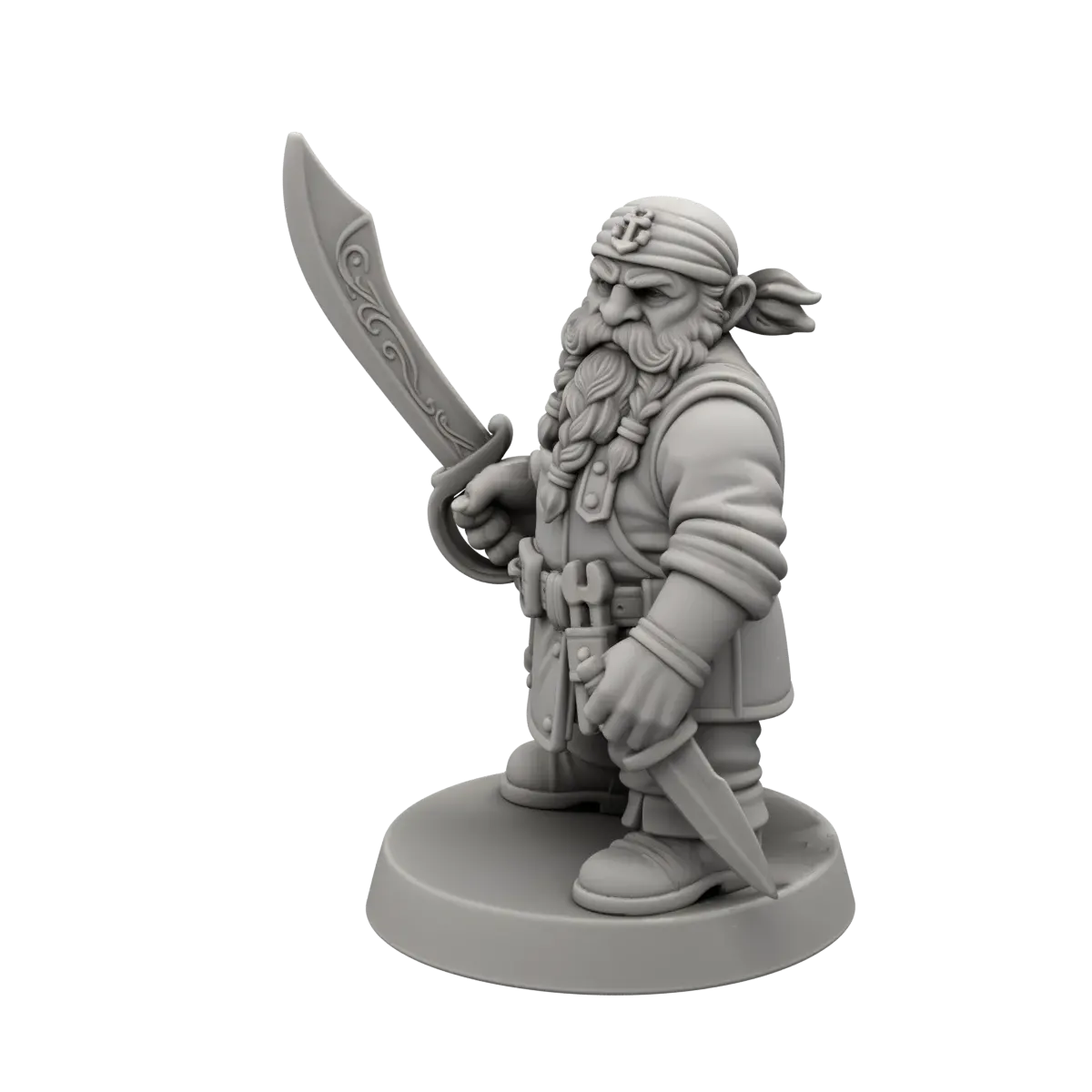
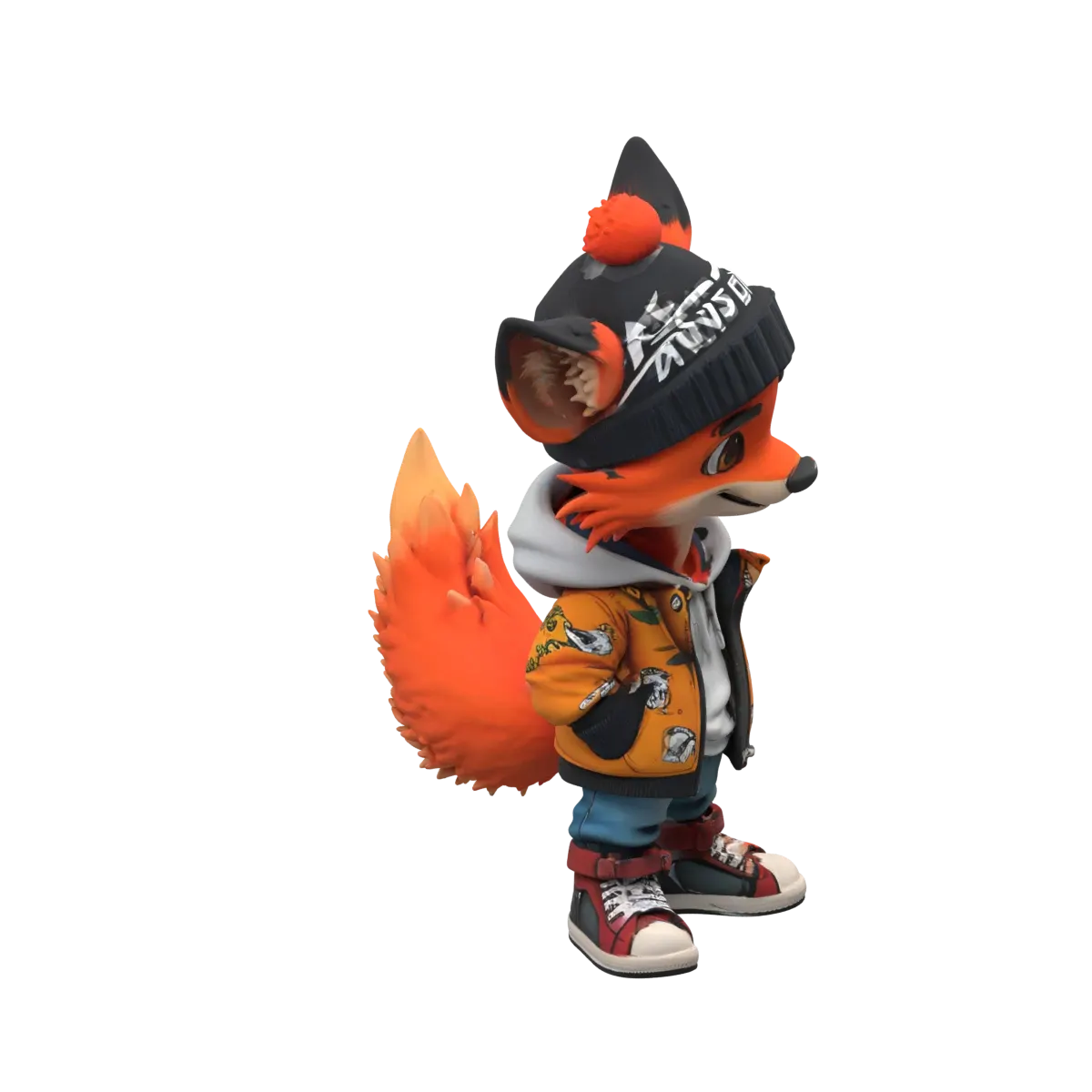
- Quality tier: Medium
- Mesh detail: 500K Triangle
- File format: GLB
- Reference matching: Follow reference

Create 3D props for your game scenes from images, text, sketches, or multiple views. Inspect the model, then continue preparing it in Blender or your game engine.
30 free credits once after email verification. Preview your result; unlock AI file downloads with a credit pack or subscription. See plans.


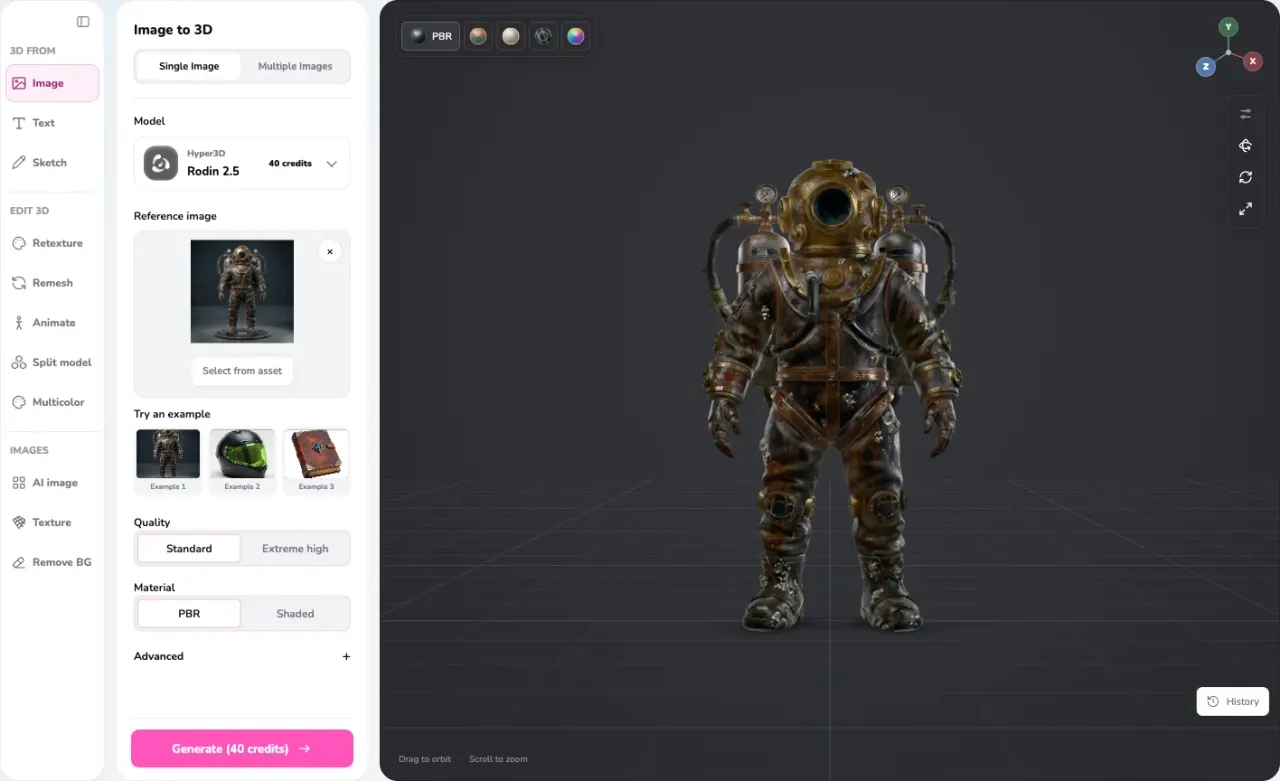
Turn one clear reference into an inspectable 3D model.
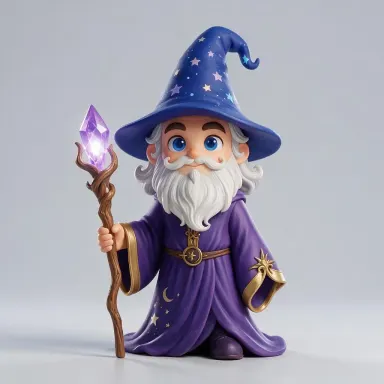
Start with Image
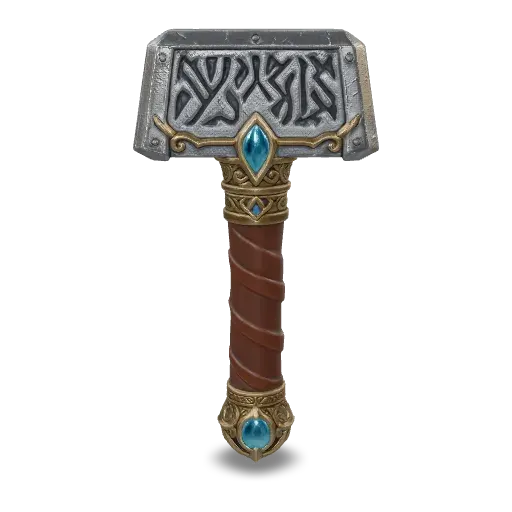
Describe one object, its material, and its visual style.
Start with Text

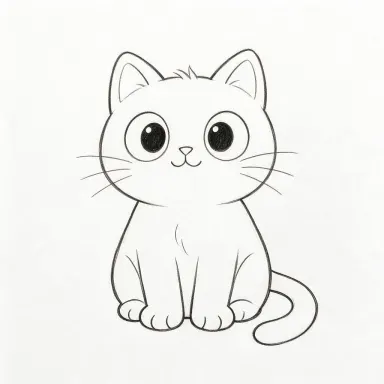
Give clean lines depth while keeping the original silhouette.
Start with Sketch

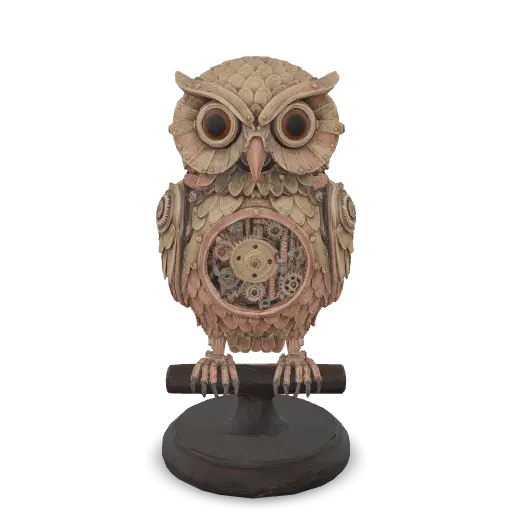
Combine several views of the same object into one model.
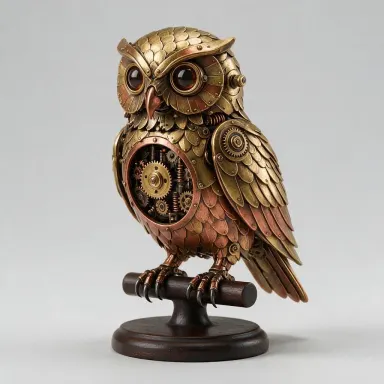
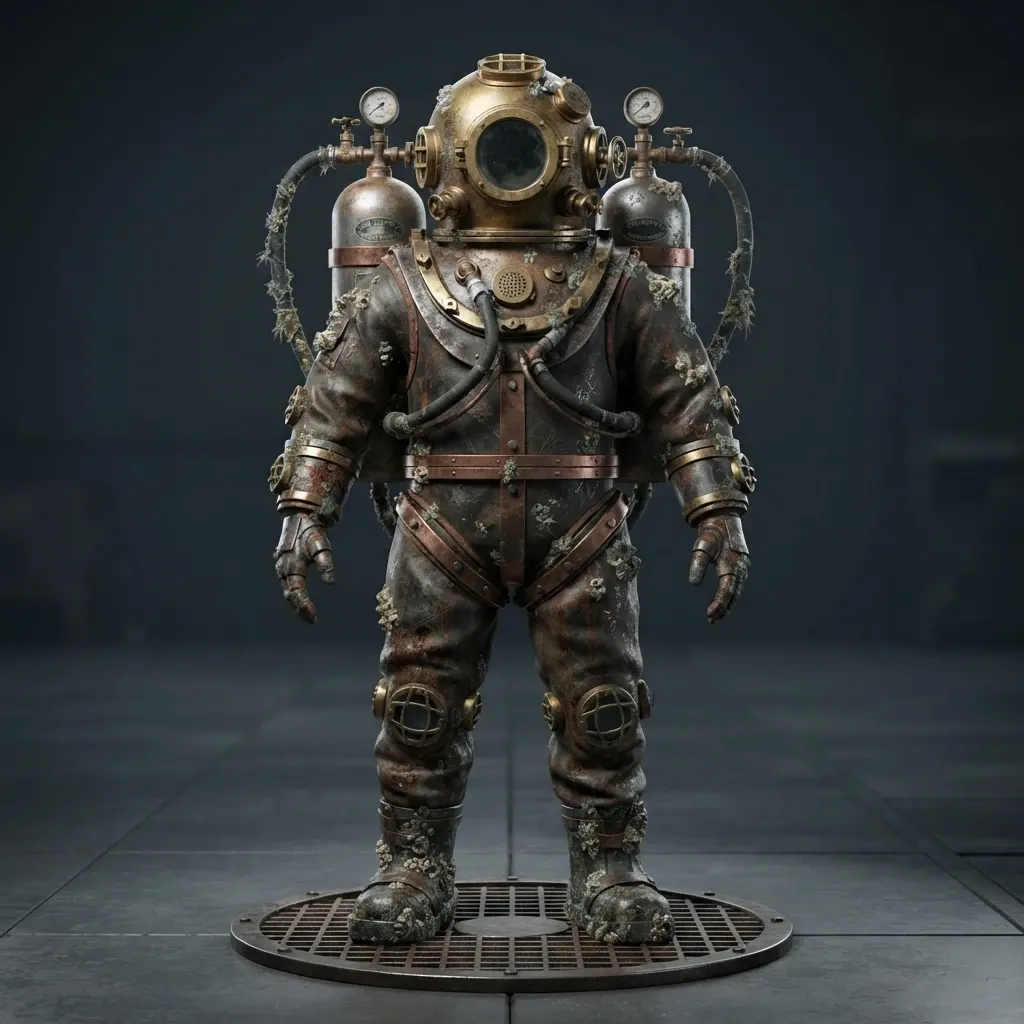
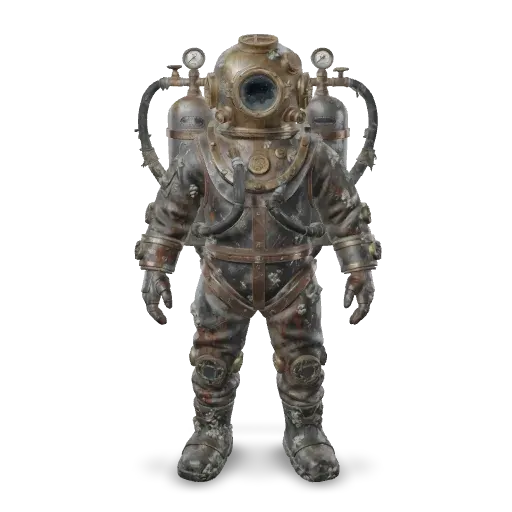
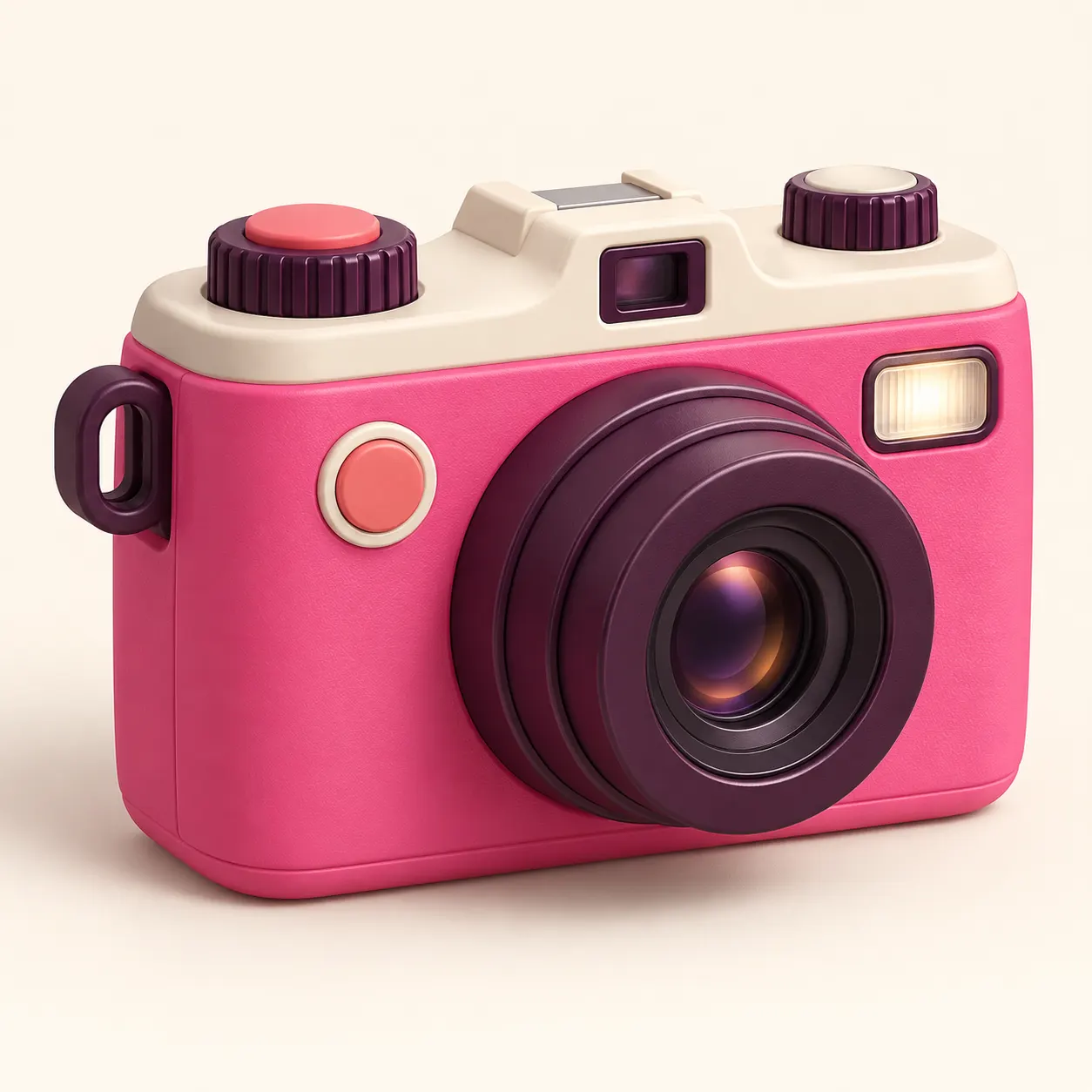
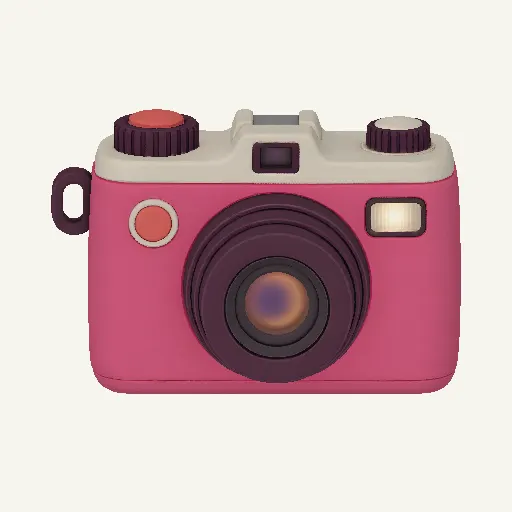
Start with Multi-imageSee the input beside its 3D result. See the full image to 3D walkthrough.


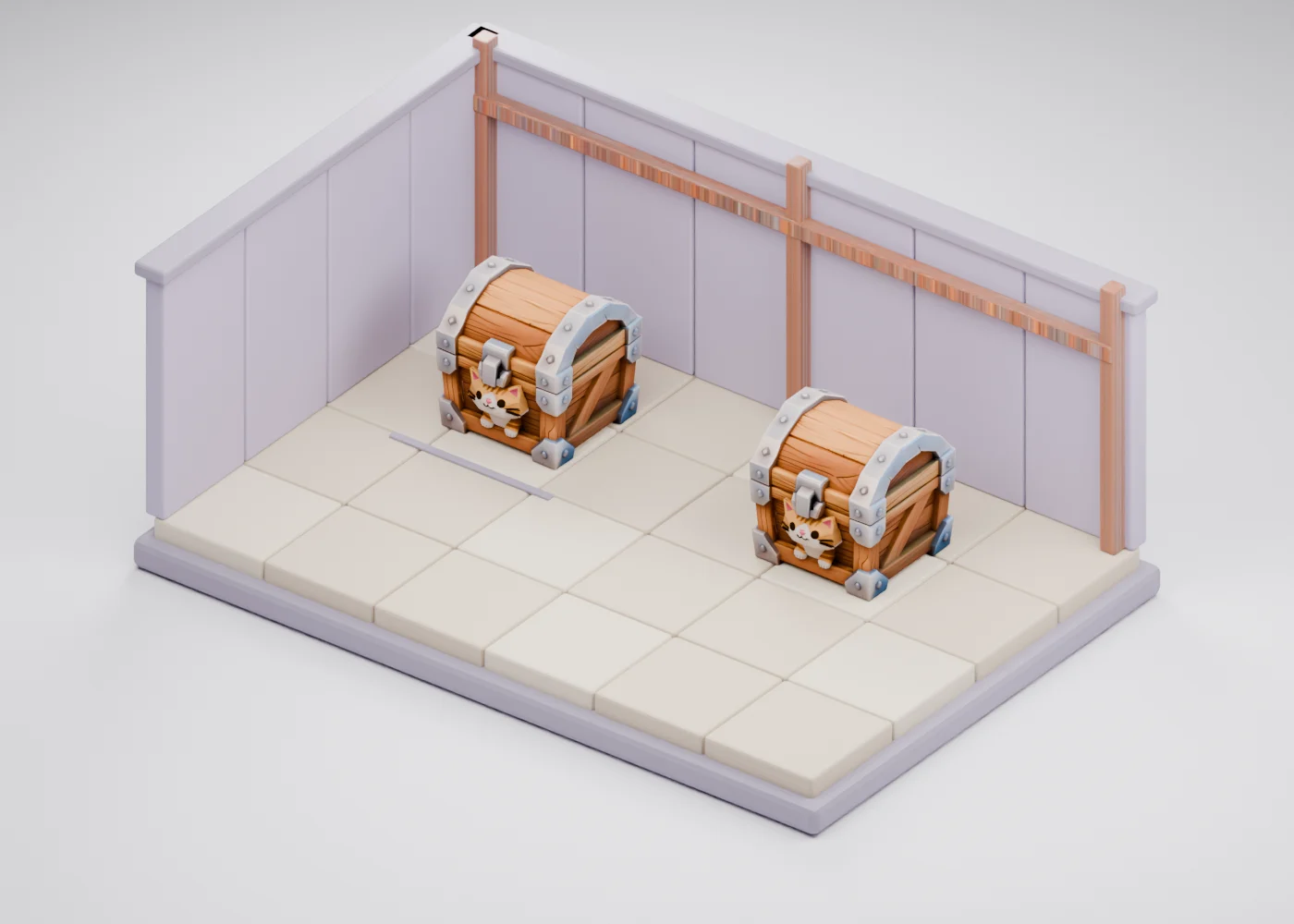
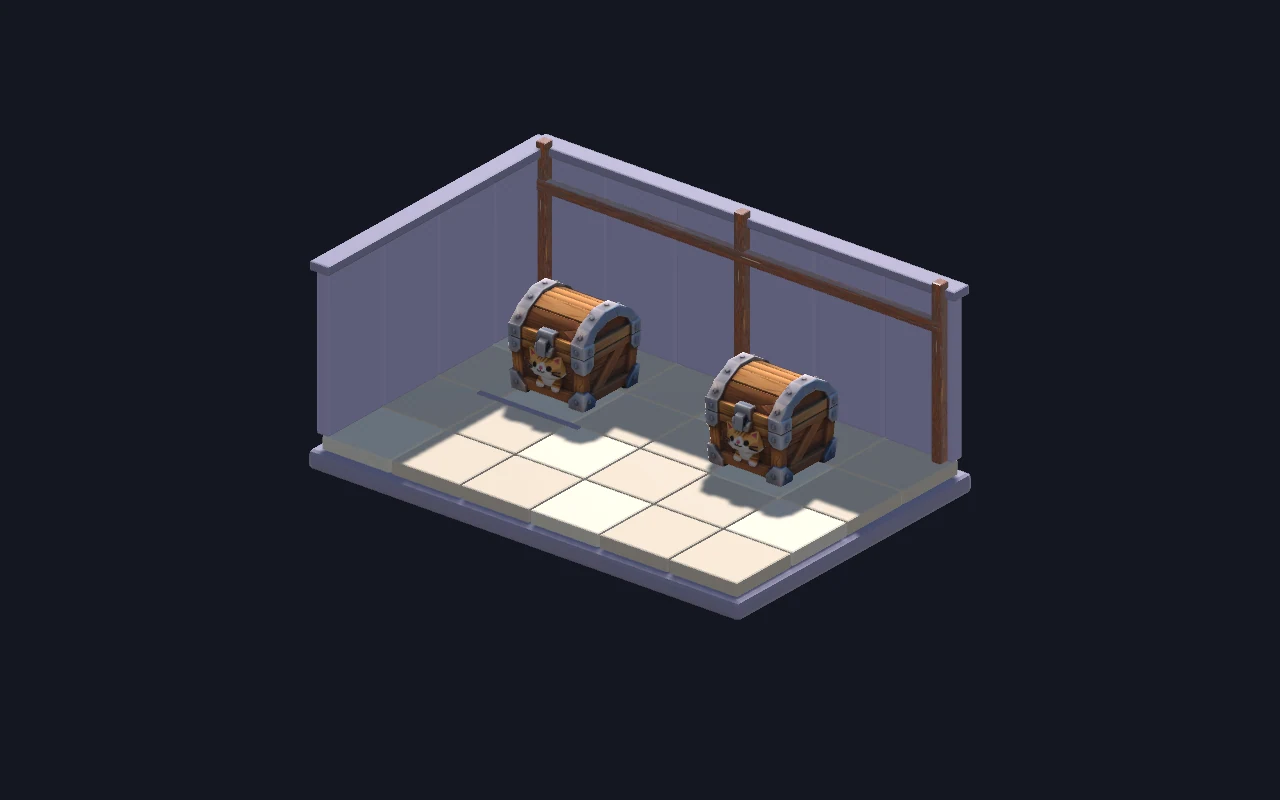
One generated cat chest, reused twice in a manually assembled Blender room. Inspect the editable objects, then see how this prepared scene runs in Unity.

The downloads preserve separate objects and materials. They contain no gameplay colliders or LODs. The Unity run used separately authored box colliders; add and test the setup your game needs.

The room retained its 6 materials and 1 m floor spacing after glTFast import. Five separately added box colliders and a capsule drop were checked.
On an Apple M5 at 1280 × 800, the 15-second static-scene sample recorded 4.49 ms P95 frame time. This applies to the prepared room with a 1K chest texture.
The GLB has no colliders or LODs. Target-device performance, gameplay and long-session stability still need testing.
Start with one object you can rotate and inspect. Build up a game scene by keeping props, their source files and their placement editable.
Turn concept art or a description into one chest, rock or environment piece. Review the returned mesh and texture before making more assets.
Create a game prop →Bring saved static GLBs into the scene editor. Place independent copies, choose pivots and check the layout before exporting it.
Open the 3D scene editor →Follow a recorded Unity import with a downloadable example. Check your project's materials, scale, collision and performance separately.
Import GLB into Unity →Use Meshy, Tripo, Rodin, and more in one workspace.
Build detailed characters and objects from images or text
Create from text or images, with texture and mesh controls
Turn images, prompts, and hand-drawn sketches into models
Start from one image or use several views of the same object
Reconstruct a textured object from a reference image
Build detailed object shapes from a single image
Use high-resolution image and multi-view workflows
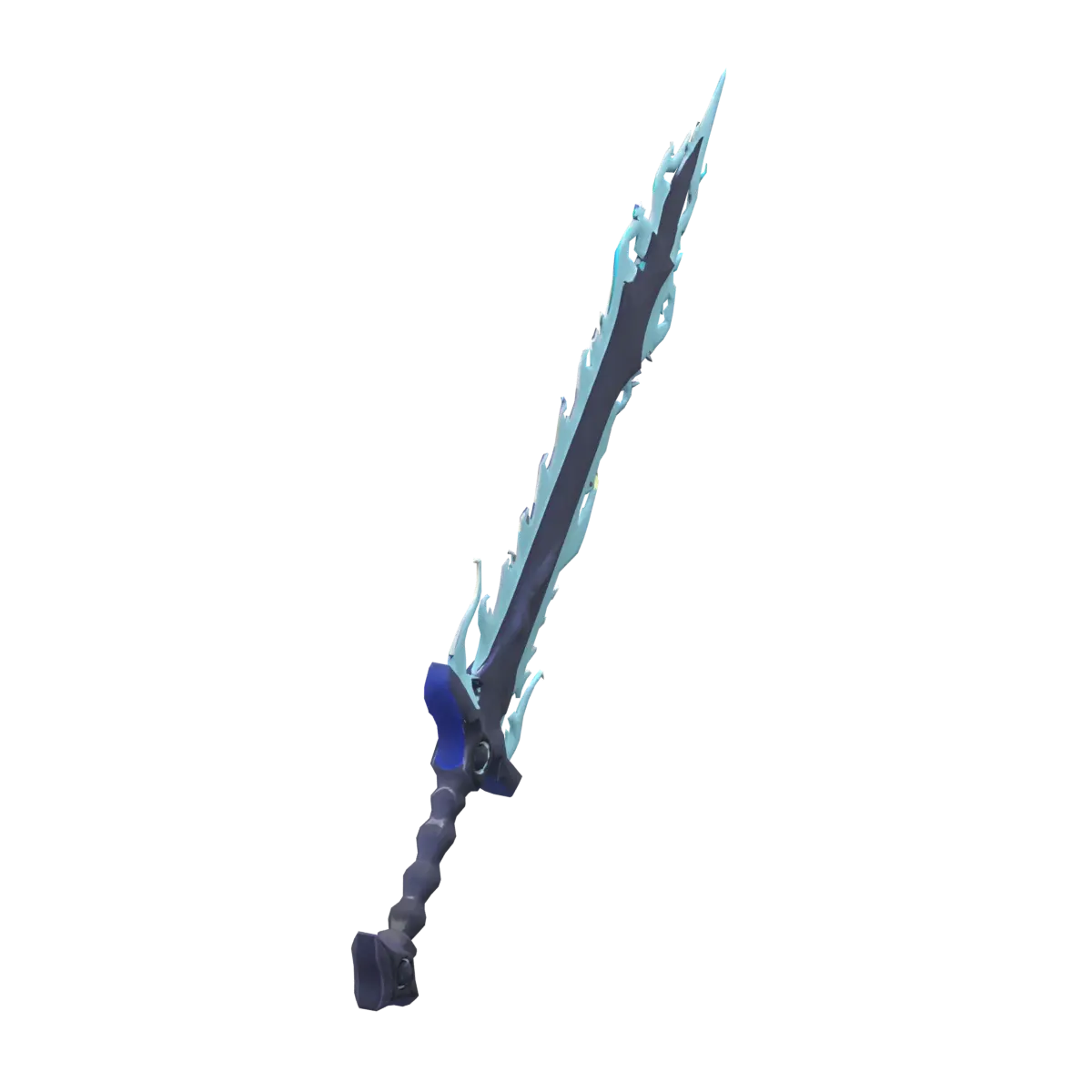
Choose a model by the result your project needs. Here, Meshy 7.1 and Tripo H3.1 received the same reference image and a 30,000-face target.


Create independent props and environment pieces. Arrange them in Blender, then check scale, materials and performance in your game engine.

Explore a product's shape and materials in 3D, then place it in a scene or presentation.

Start with a figurine or object. Check gaps, thin parts, and size before preparing the mesh for your slicer.

Turn a character idea into a model, then refine the silhouette, clothing, and details for your project.

Upload an image or sketch, describe your object, or add views of the same subject.
Set the detail and texture options. Check the credit cost, then generate.
Rotate your result and check its shape and textures before downloading.
For getting started with regular 3D creation.
60 basic generations / monthEstimate at 10 credits each. Model, settings and extra processing change the total.
For regular projects across the Quady3D model library.
200 basic generations / monthEstimate at 10 credits each. Model, settings and extra processing change the total.
3.33× Basic’s monthly creditsFor production projects with our largest monthly credit allowance.
850 basic generations / monthEstimate at 10 credits each. Model, settings and extra processing change the total.
4.25× Creator's monthly creditsStart free · 30 credits once after verification. Choose a monthly or yearly plan, or add a credit pack when you need more.
Quady3D AI, also known as Quady AI, is an AI 3D model generator for images, text, sketches, and multiple views. Choose a model and settings, preview your result, and download its available files.
Yes. Describe an object in the Text to 3D workflow or upload a reference in Image to 3D. You can also start from a sketch or several views of the same object.
Yes. Verify your email to receive 30 welcome credits once. Each generation uses credits based on the model and settings; full AI 3D downloads and professional tools need Unlock through any credit pack or subscription. Welcome credits do not renew monthly.
Use Hunyuan3D for a sketch, or Tripo for several views of the same object. For a text prompt, explore Meshy, Tripo, or Rodin. For one image, compare the sample results and texture controls to find the look you want.
It varies by model, settings, and queue. You can follow the job's progress in the workspace.
A completed job shows the files it produced, such as GLB, OBJ, or STL when available. Formats vary by model and settings.
Yes, when the result includes a file those tools accept. Inspect geometry and scale first; 3D printing also needs a mesh check before slicing.
Commercial use depends on your rights to the source images or prompts and the terms of the model used. Check those terms before publishing, selling, or sharing a result.
Treat the result as a starting point. A single image cannot show every hidden surface, and small details or textures may need editing. Games may need simpler geometry or rigging; printing needs checks for gaps, thin parts, and scale.
No. You can generate and inspect a model in your browser. Use Blender, a game engine, or a slicer later if your project needs more editing or preparation.
Your uploads and saved results stay in your account unless you choose to publish a creation to the community. You can permanently delete your account and files in Account settings.