Quady3D

AI STL Generator

This AI STL file generator turns a prompt or reference image into a complete 3D shape. Review the model, set its print size and prepare STL. Start with text below, or switch to an image.

Example result

AI-generated models exported to STL

One recorded prompt, one source image and their actual results. Load a model to inspect its shape, download STL or reuse the input.

Text to STL: cream cake

Hunyuan3D 3.1 Rapid · 80 mm longest dimension

Original prompt
A three-tier strawberry cream cake on a porcelain stand, piped cream swirls, fresh strawberries and blueberries, pink glaze drips
STL result

Quady3D generated this cake from the original prompt, then exported the mesh to STL at 80 mm. Check the stand, decorations and overhangs in your slicer.
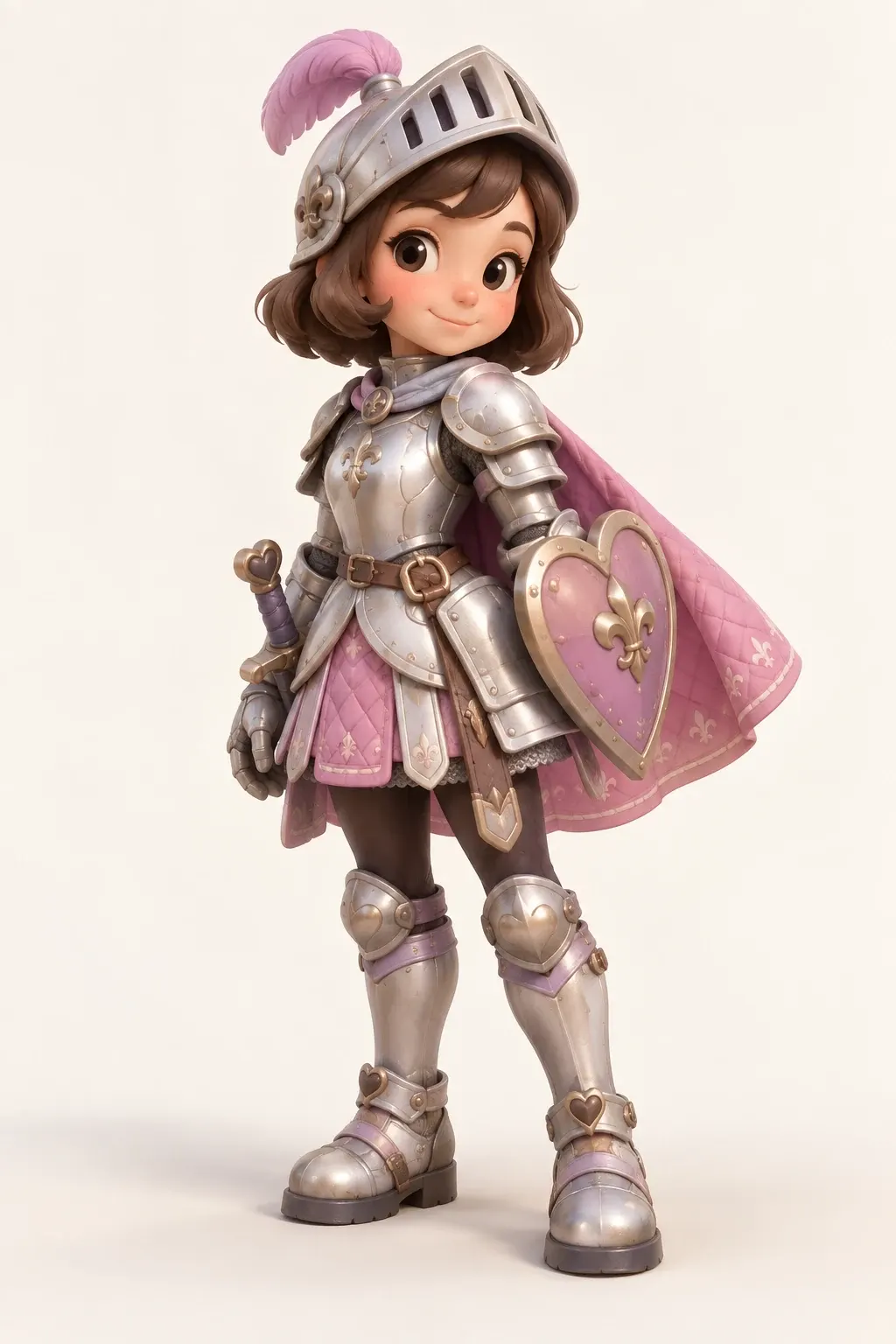
Image to STL: pink knight

Tripo H3.1 · 80 mm longest dimension

Source image
Pink knight artwork used for the Tripo H3.1 generation
STL result

Quady3D generated the full character from this image and prepared its STL. Review thin armor, the shield, cape and hidden surfaces before printing.

STL stores geometry without colors or textures. Check each file in your slicer before printing.

From an idea to an STL file

1. Describe or show one object

Describe one complete object rather than a scene, or upload an image that shows the whole subject against a plain background. Start with text or an image, then choose a model and check its live credit cost.

2. Inspect the generated shape

Rotate the 3D model and examine the underside, back and thin details. Keep the original GLB if you need its textures.

3. Set the size and prepare STL

Print checks sets the model size and reports basic geometry information. It does not verify closed surfaces, wall thickness, or supports. Check those in your slicer.

Check the model before printing

Thin parts and loose pieces

Check fingers, handles, decorations and anything that appears detached. Thicken or join fragile parts in a 3D editor when needed.

Holes and overlapping surfaces

Inspect the shell and repair gaps or intersecting geometry. STL conversion changes the file format; it does not automatically repair the mesh.

Scale, layers and supports

Confirm physical dimensions, orient the model for your printer and inspect layer previews. The right supports depend on the model, material and printer.

Continue with the AI 3D printing guide. For precise mechanical parts, use CAD; prompt-generated meshes do not guarantee exact fit.

AI STL questions

Which slicers can open the downloaded STL?

The downloaded file uses the standard STL format and can be opened in common slicers such as Cura, PrusaSlicer, and Bambu Studio. Check its size, orientation, supports, and layer preview before printing.

Can I generate an STL from text?

Yes. Describe one complete object in Text mode. After generation, inspect its shape and use Print checks to prepare STL. This creates a mesh, not an editable parametric CAD design.

Can I use an image to create a 3D print model?

Yes. Image mode generates a complete object from one reference, including estimated hidden sides. Use a clear subject and check thin parts, loose pieces and missing surfaces before exporting.

Is AI STL generation free?

New accounts receive free starter credits after email verification. AI generation uses credits, and the cost depends on the selected model and settings. Check the live cost in the workspace before generating. Preparing STL from a model already available in the workspace runs locally and does not start another AI generation.

Is the generated STL ready to print?

It needs review. AI can produce holes, fragile details or disconnected pieces. Geometry and size checks help you inspect the result, but do not replace slicer layer previews, supports or a test print.

Can I request an exact mechanical fit?

A prompt is not a dimensional drawing. Set the overall scale after generation, and use CAD software for parts that need exact holes, tolerances, mating surfaces or structural dimensions.

Continue your 3D printing workflow