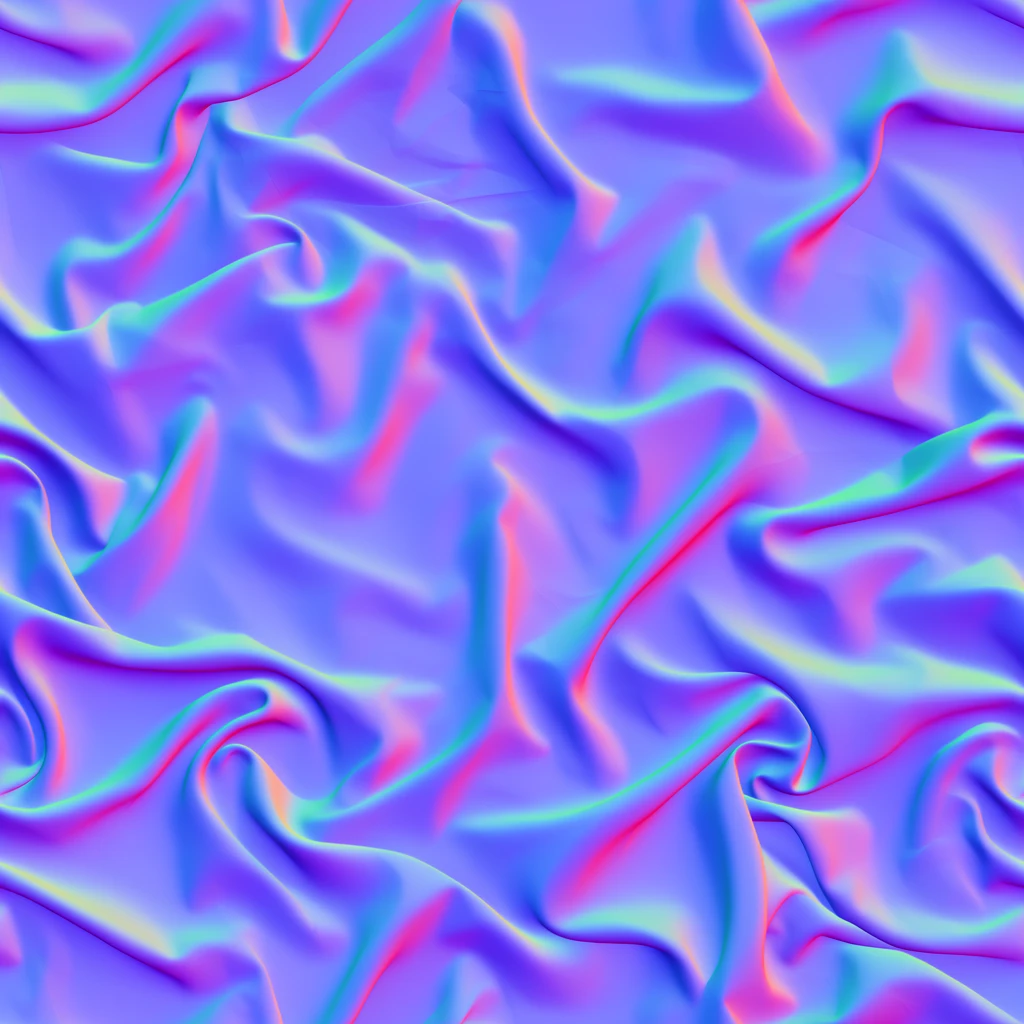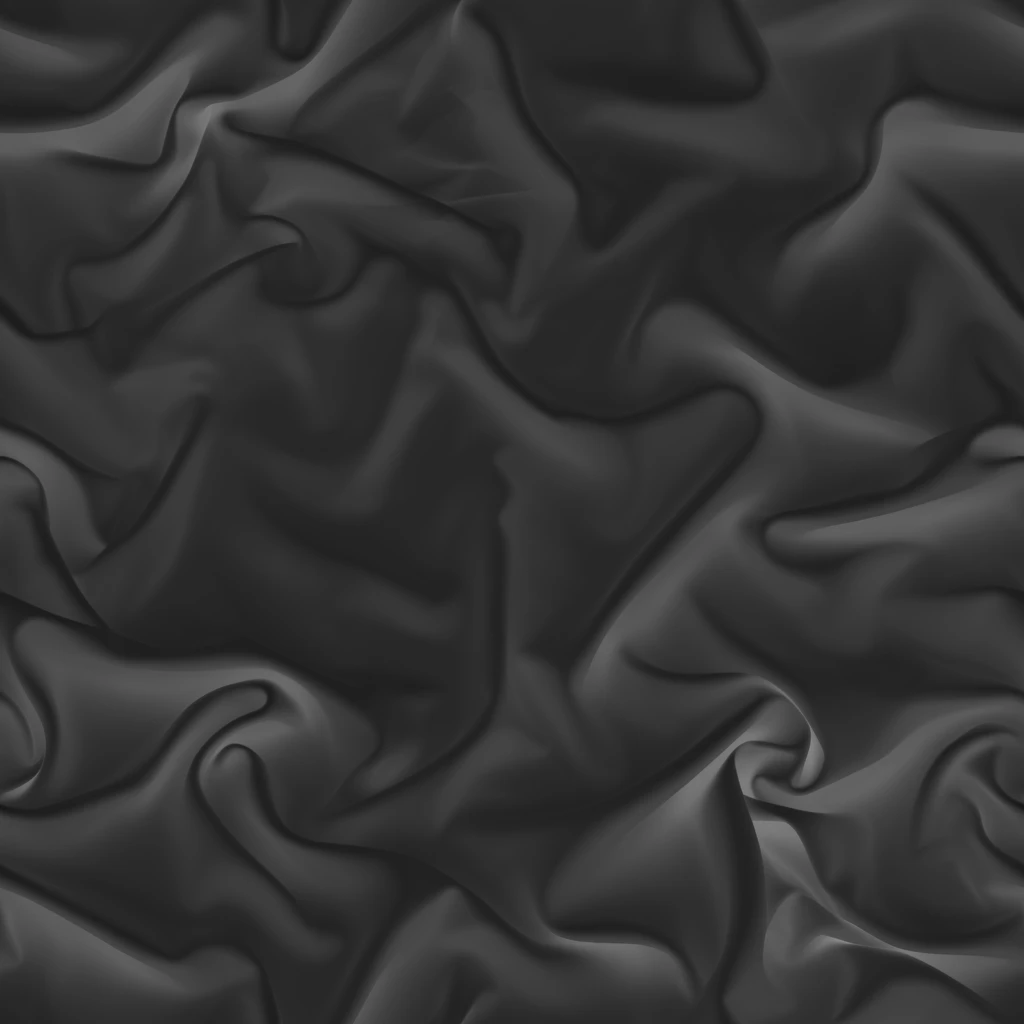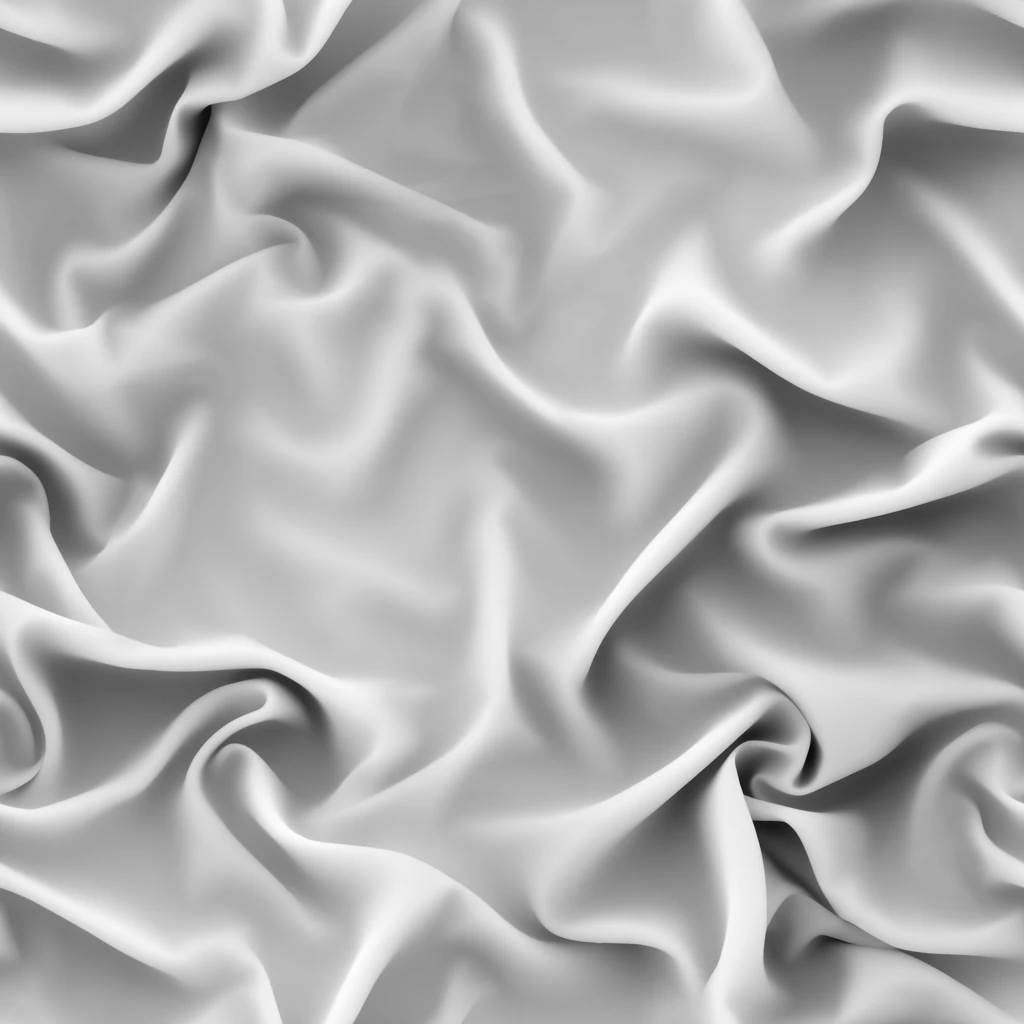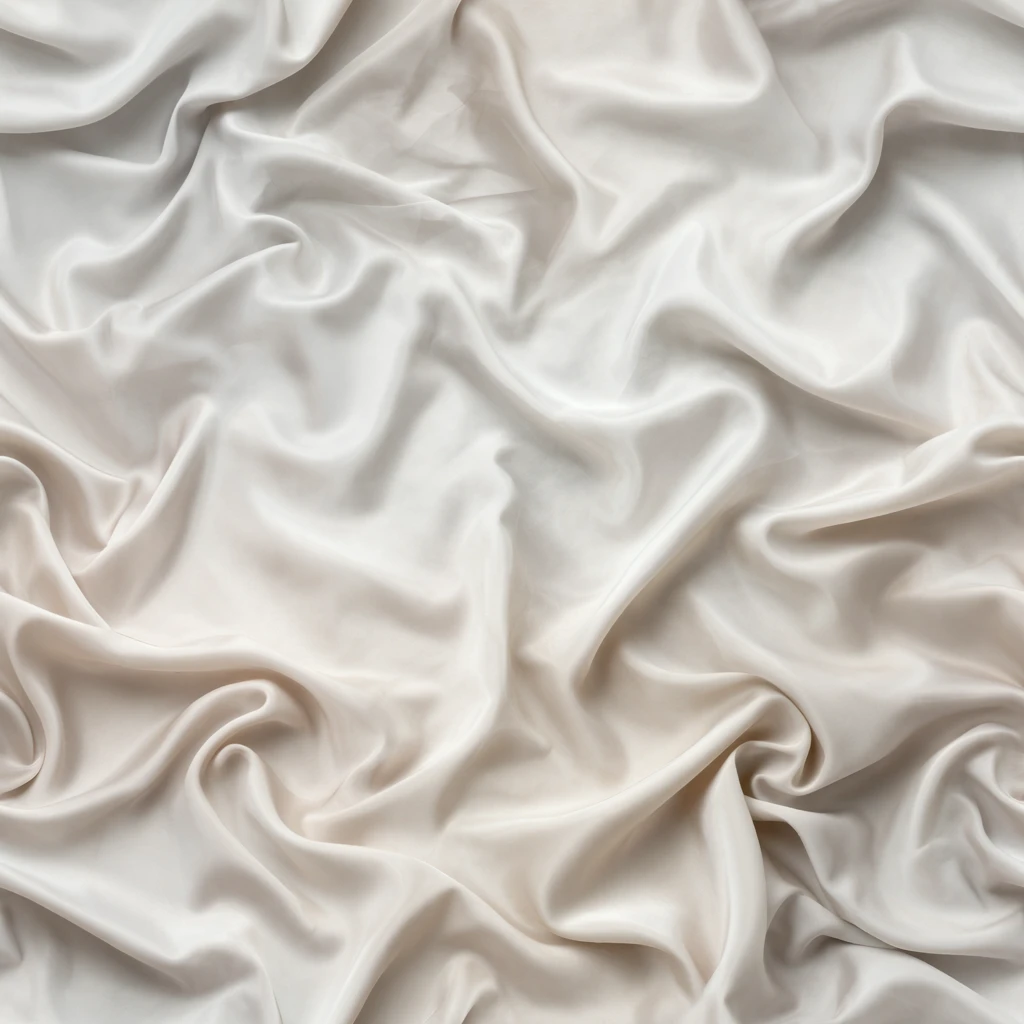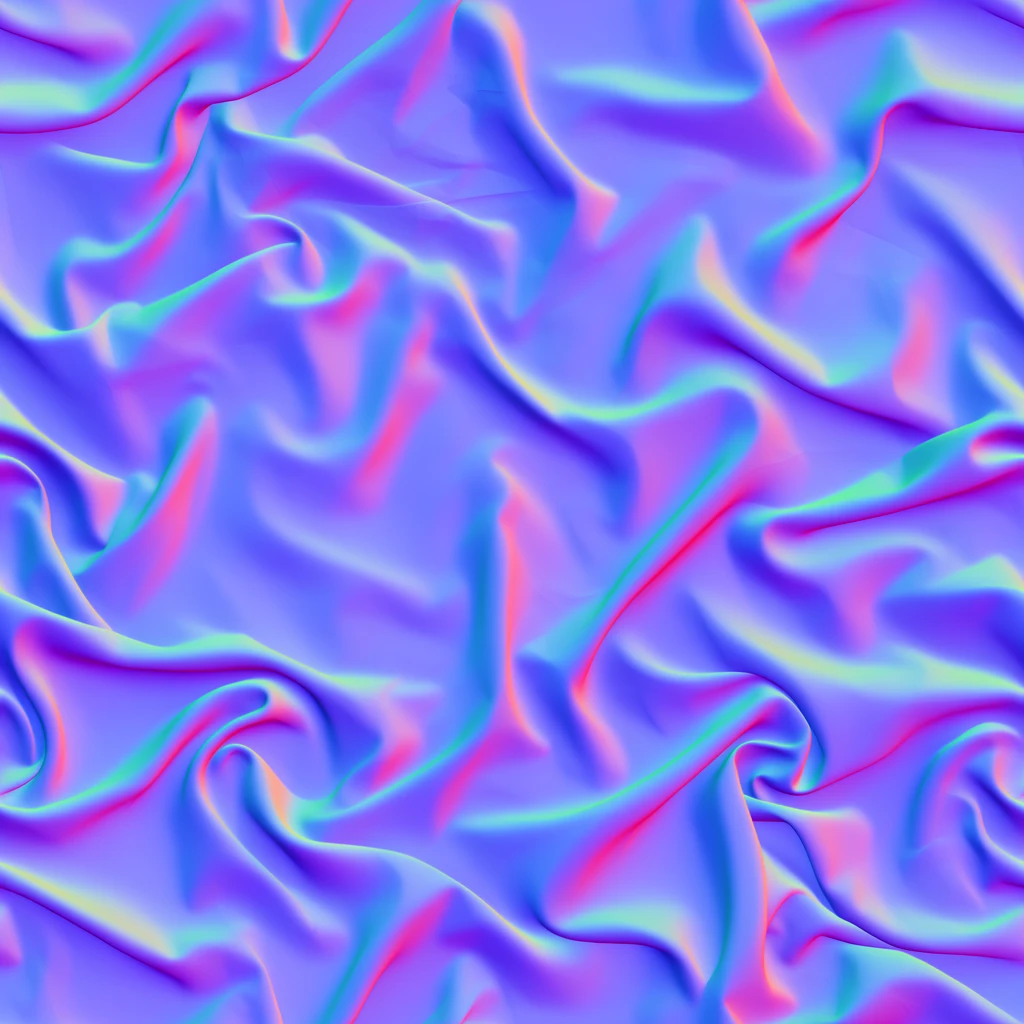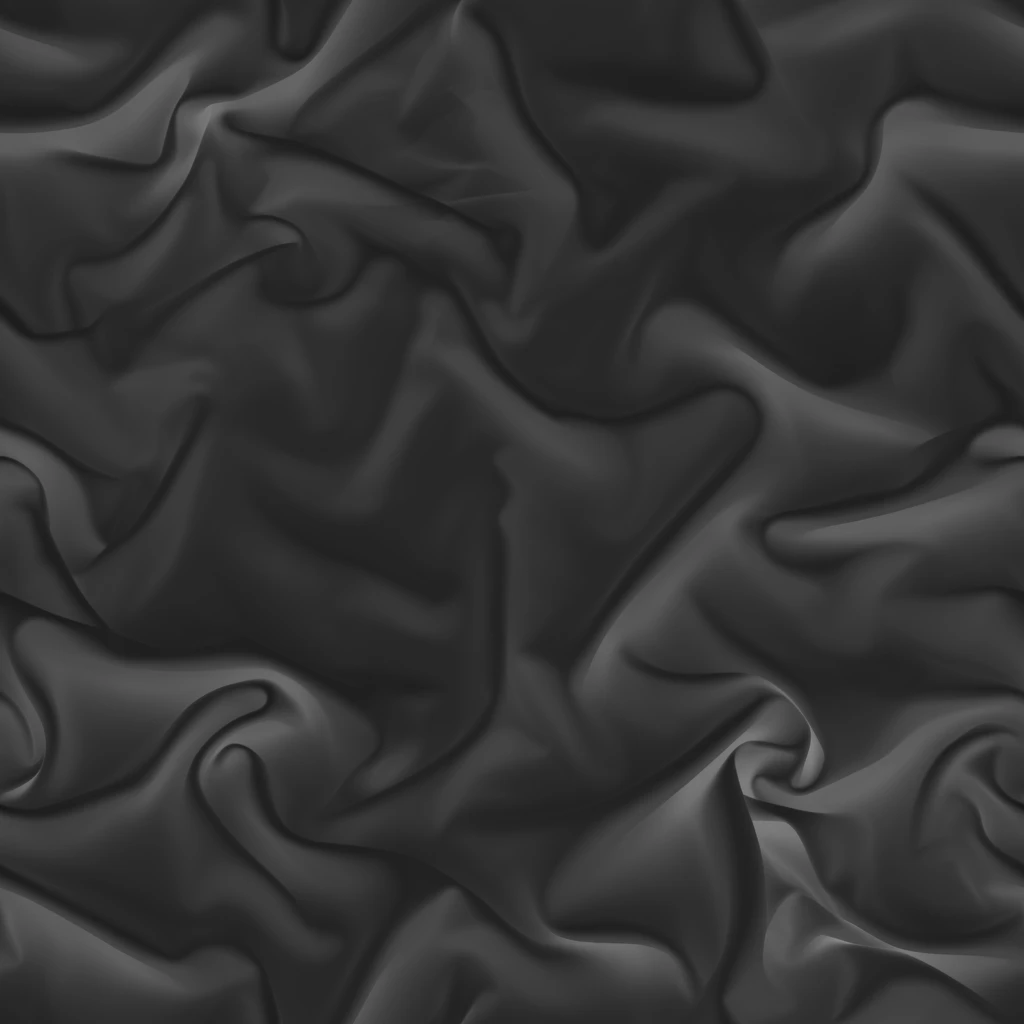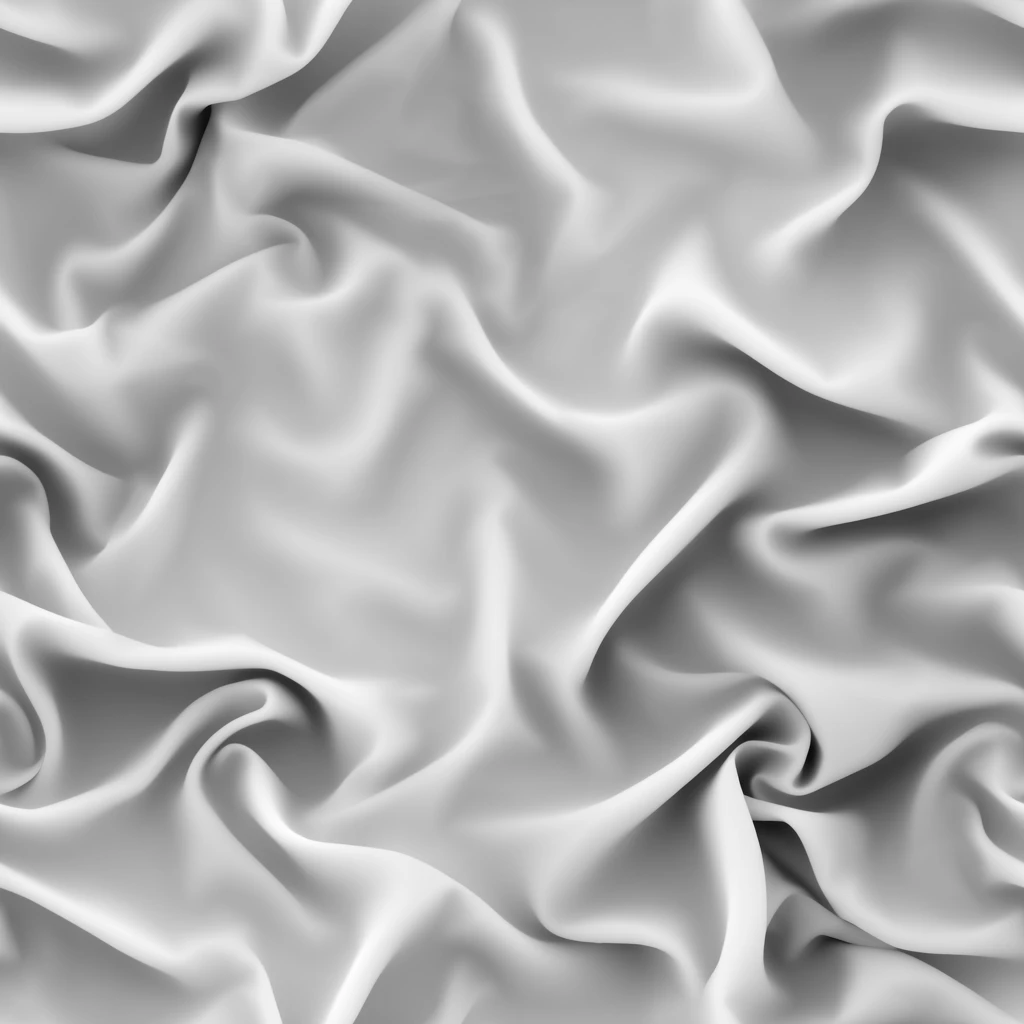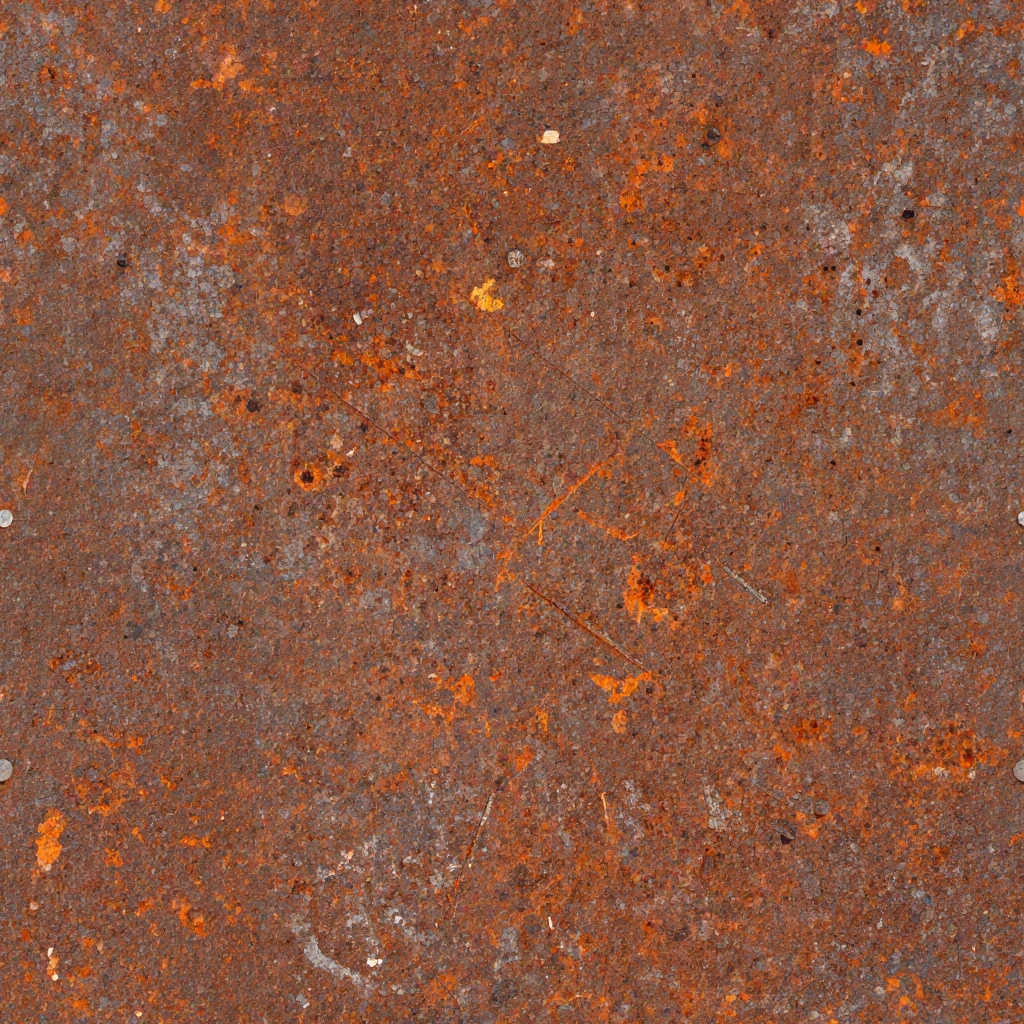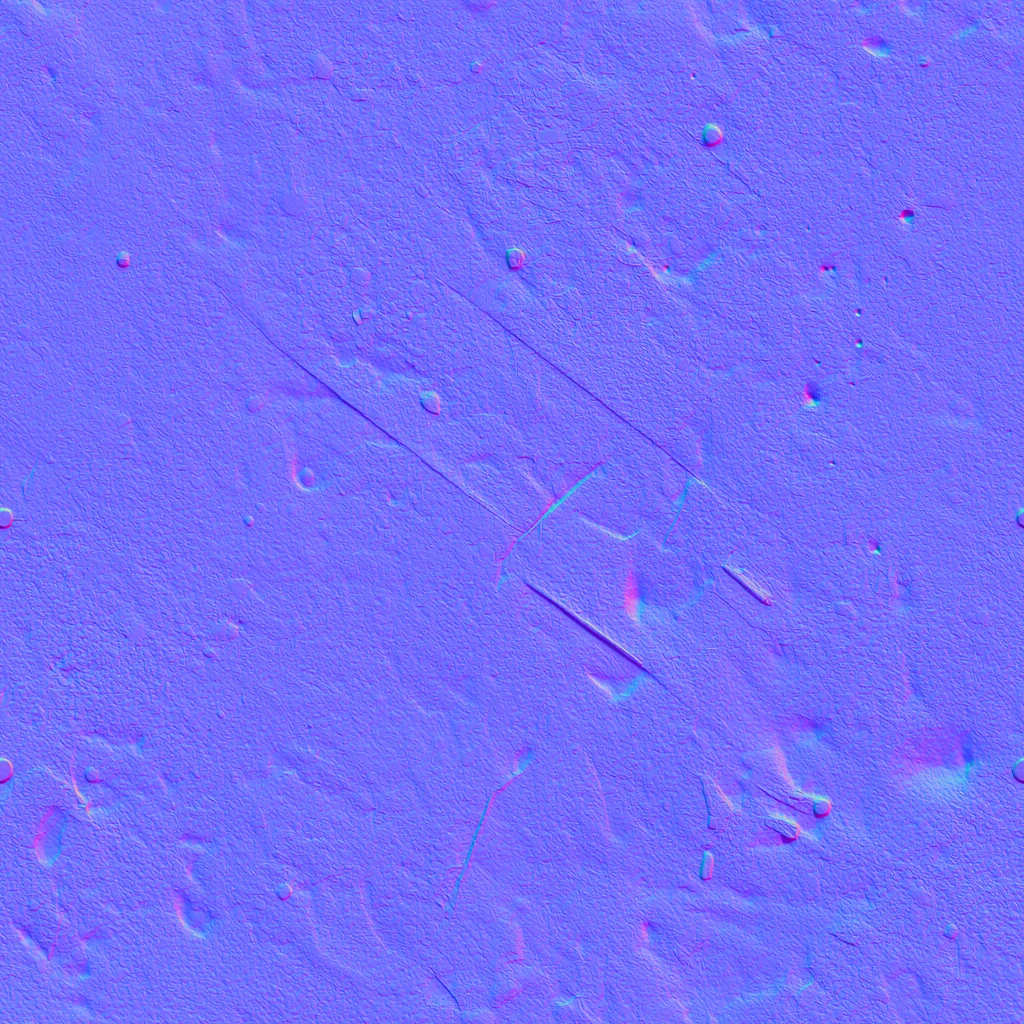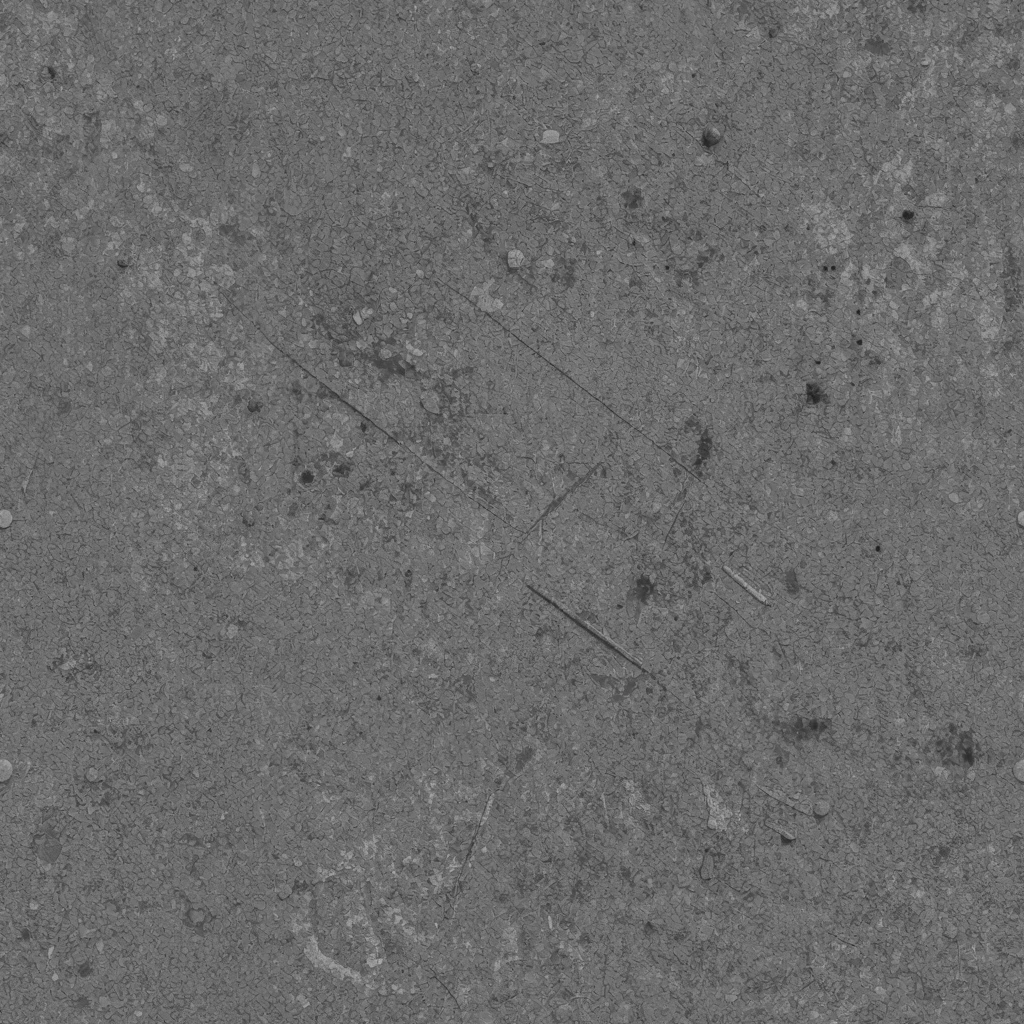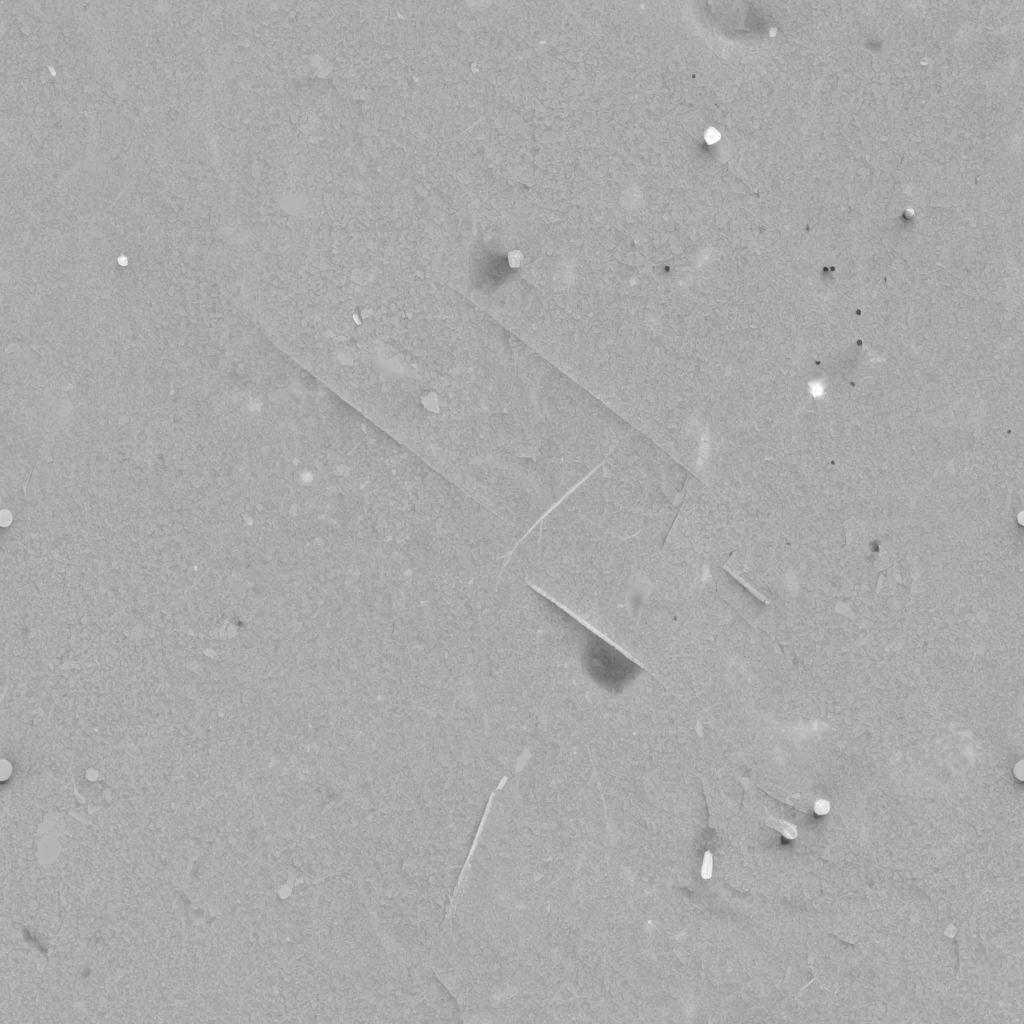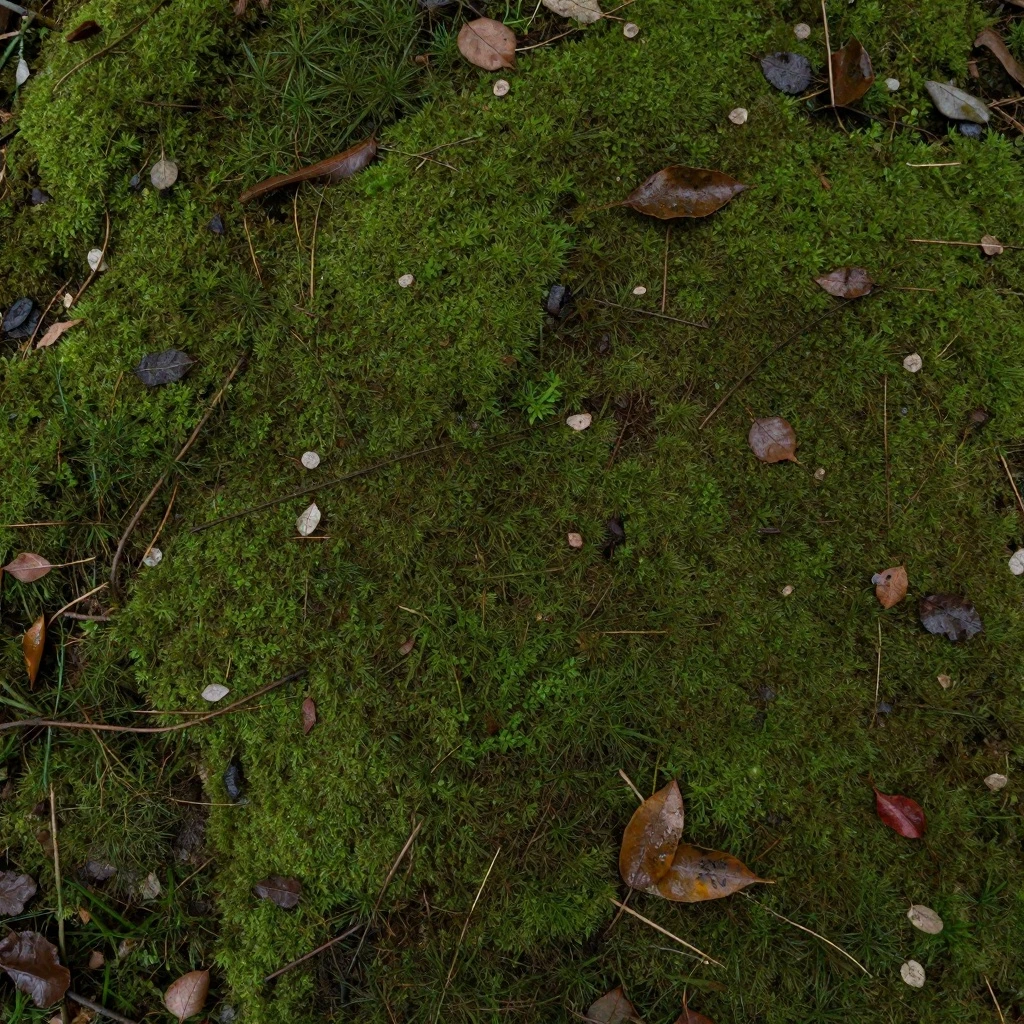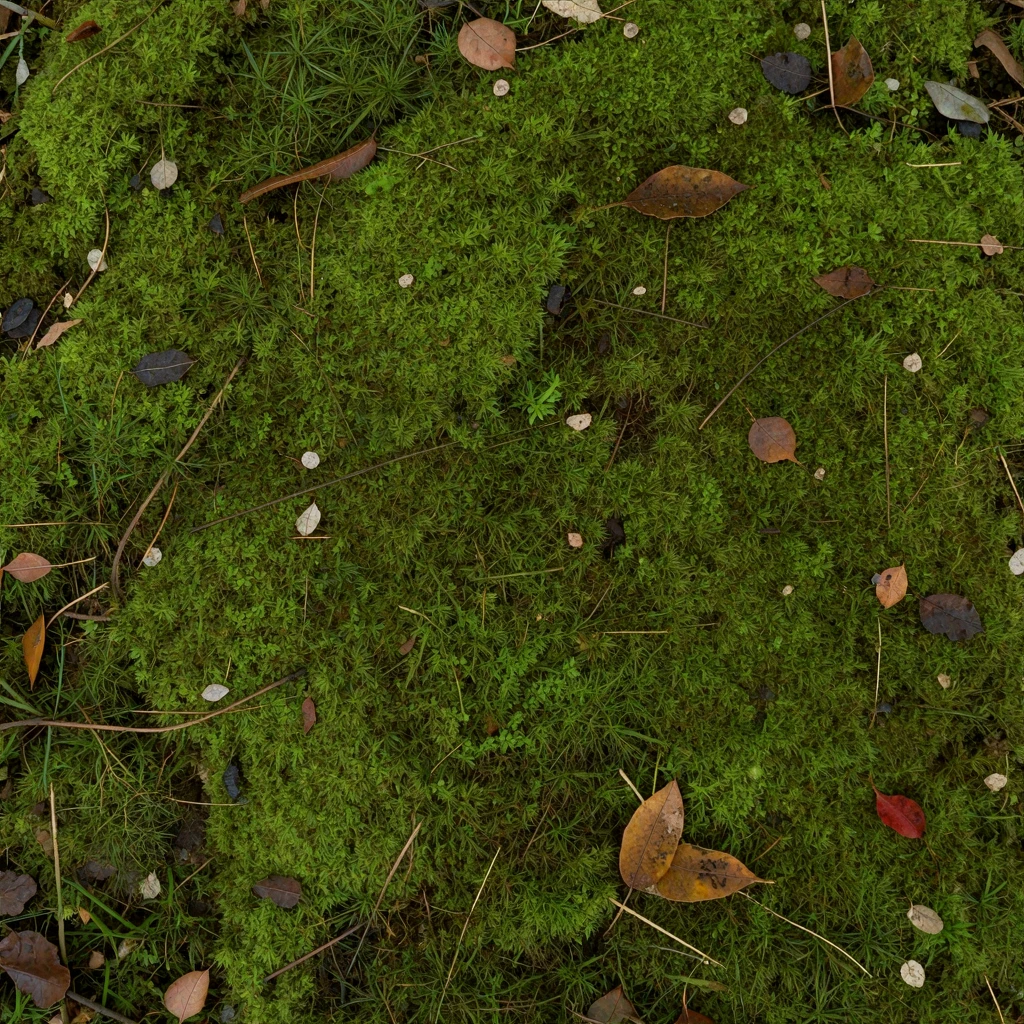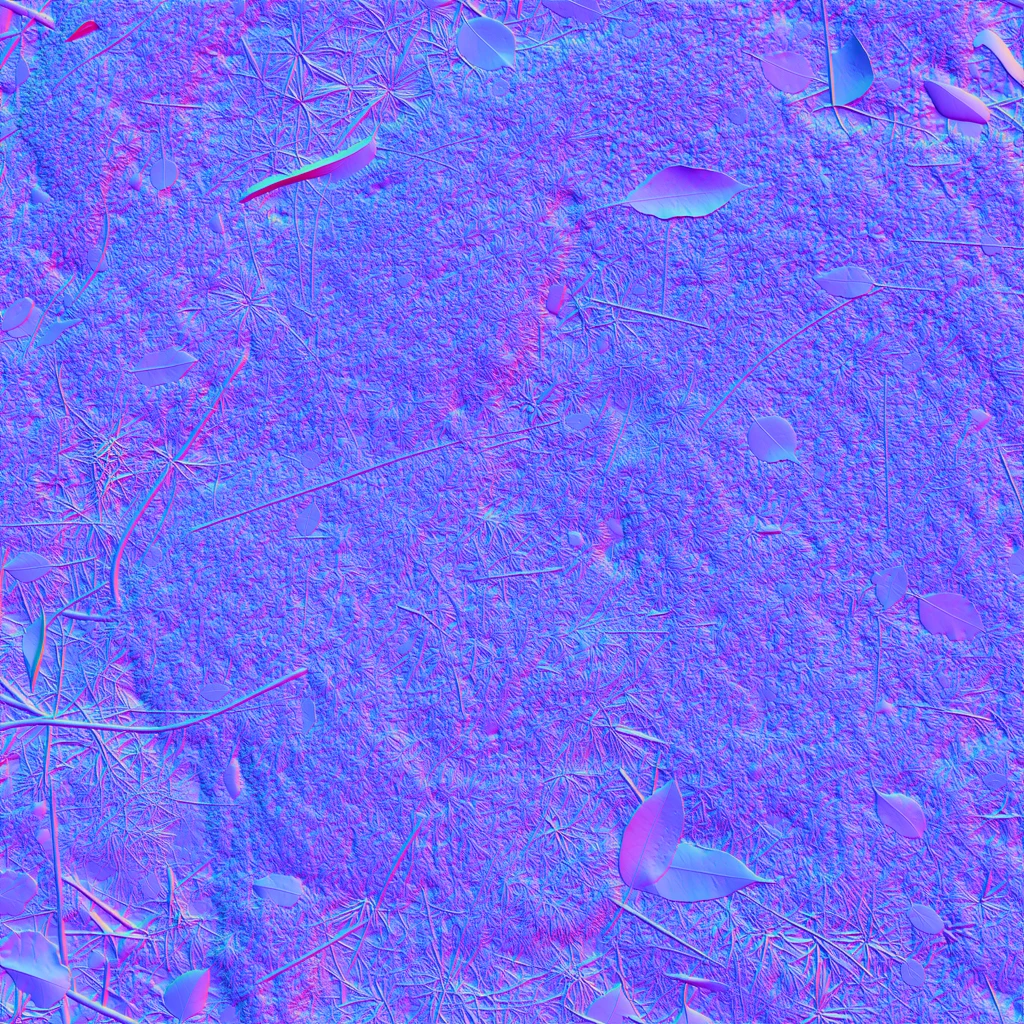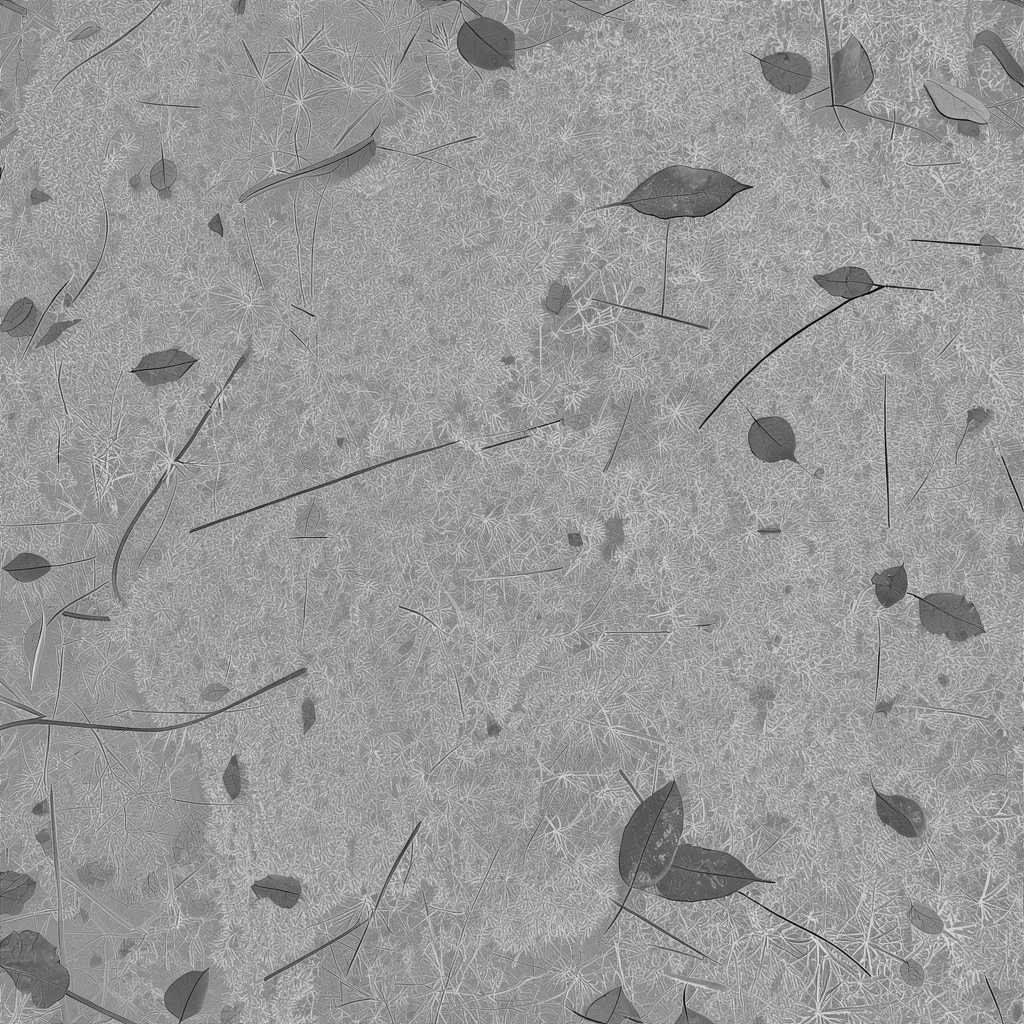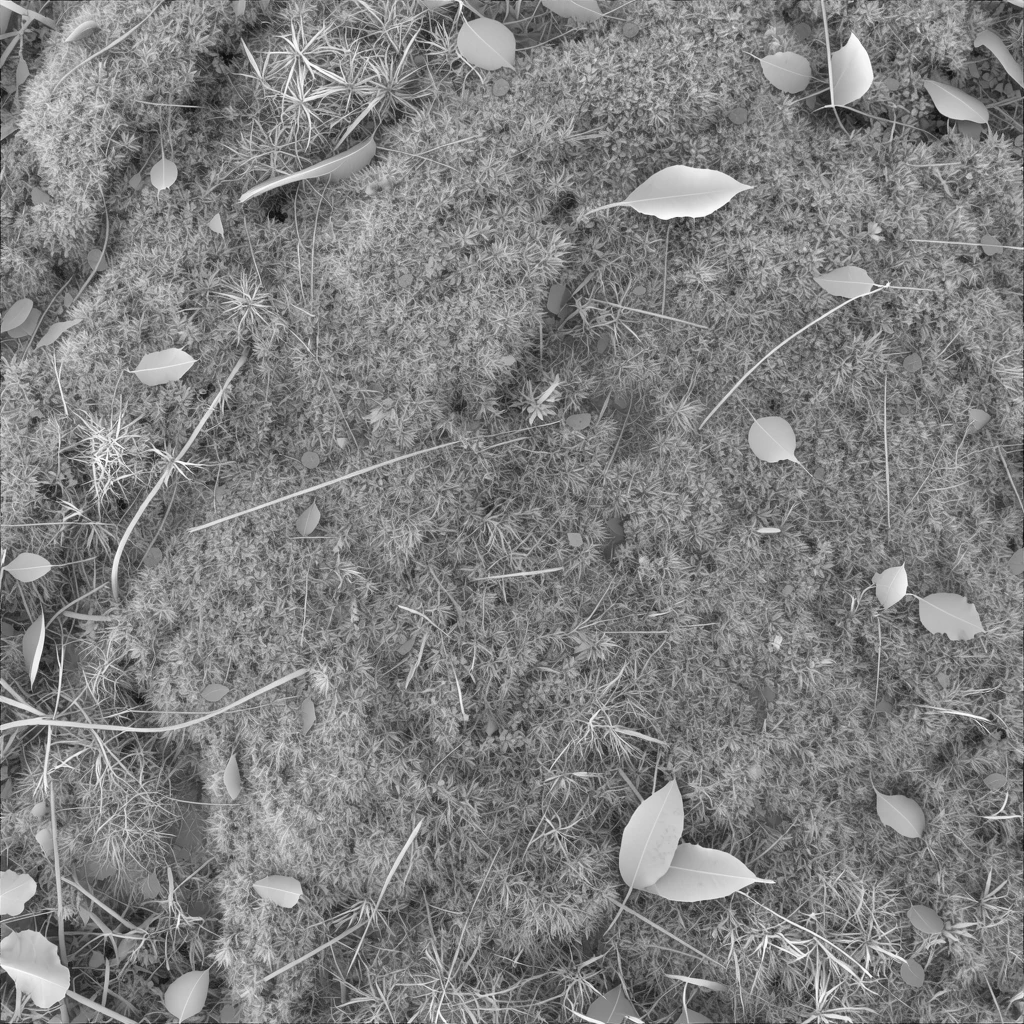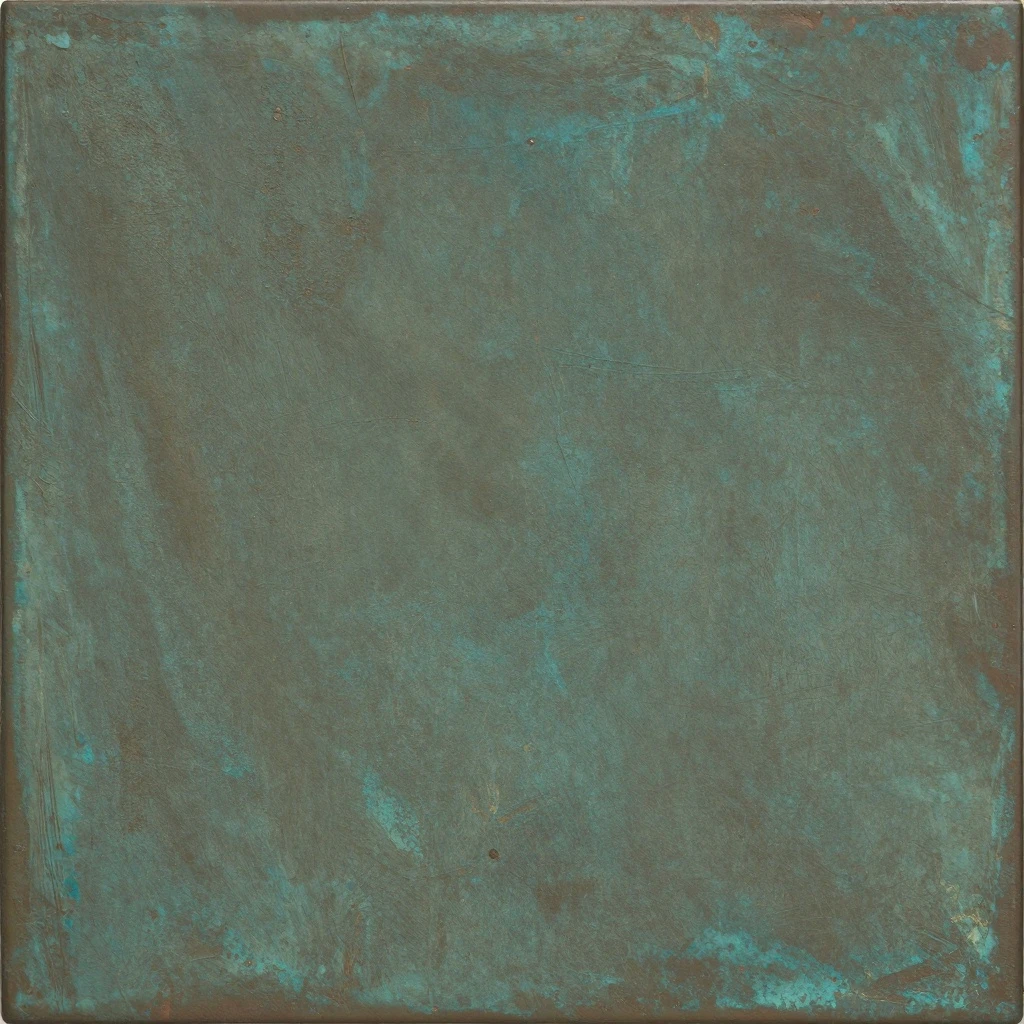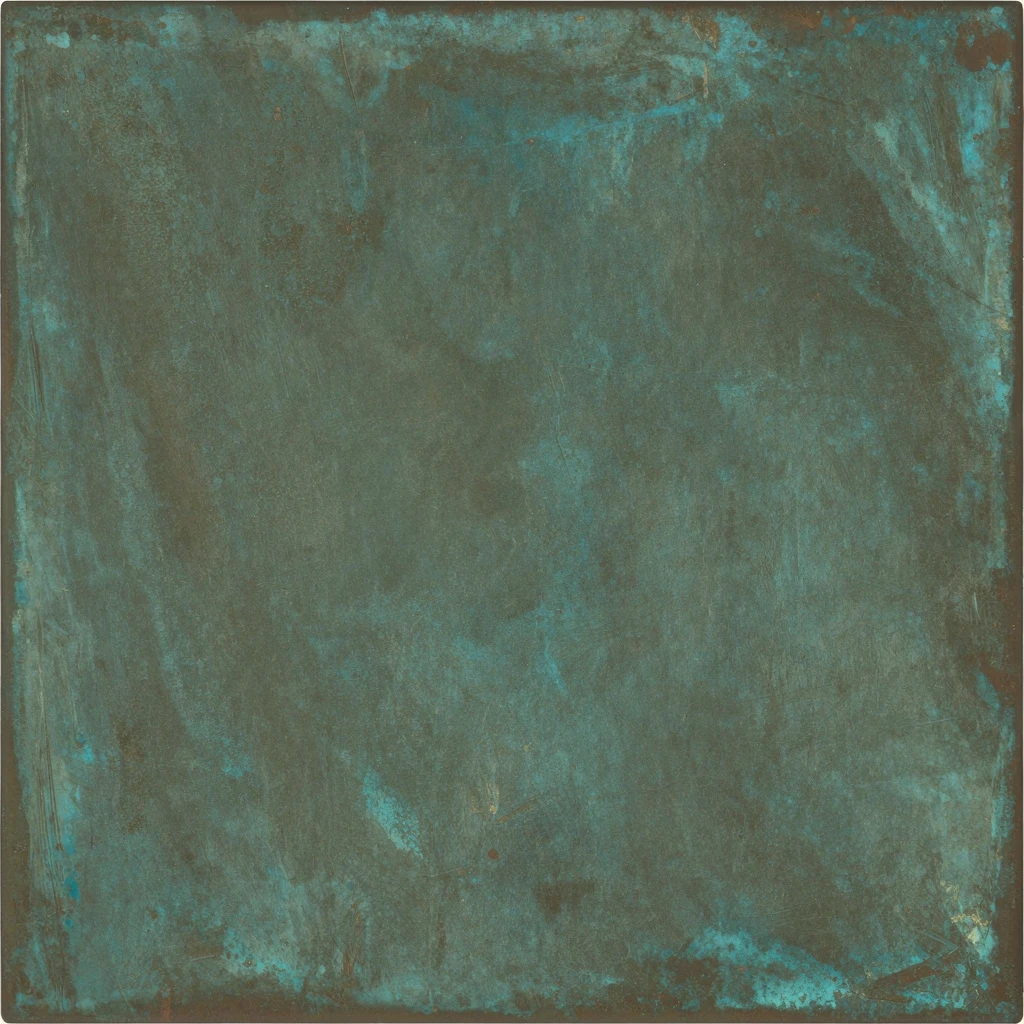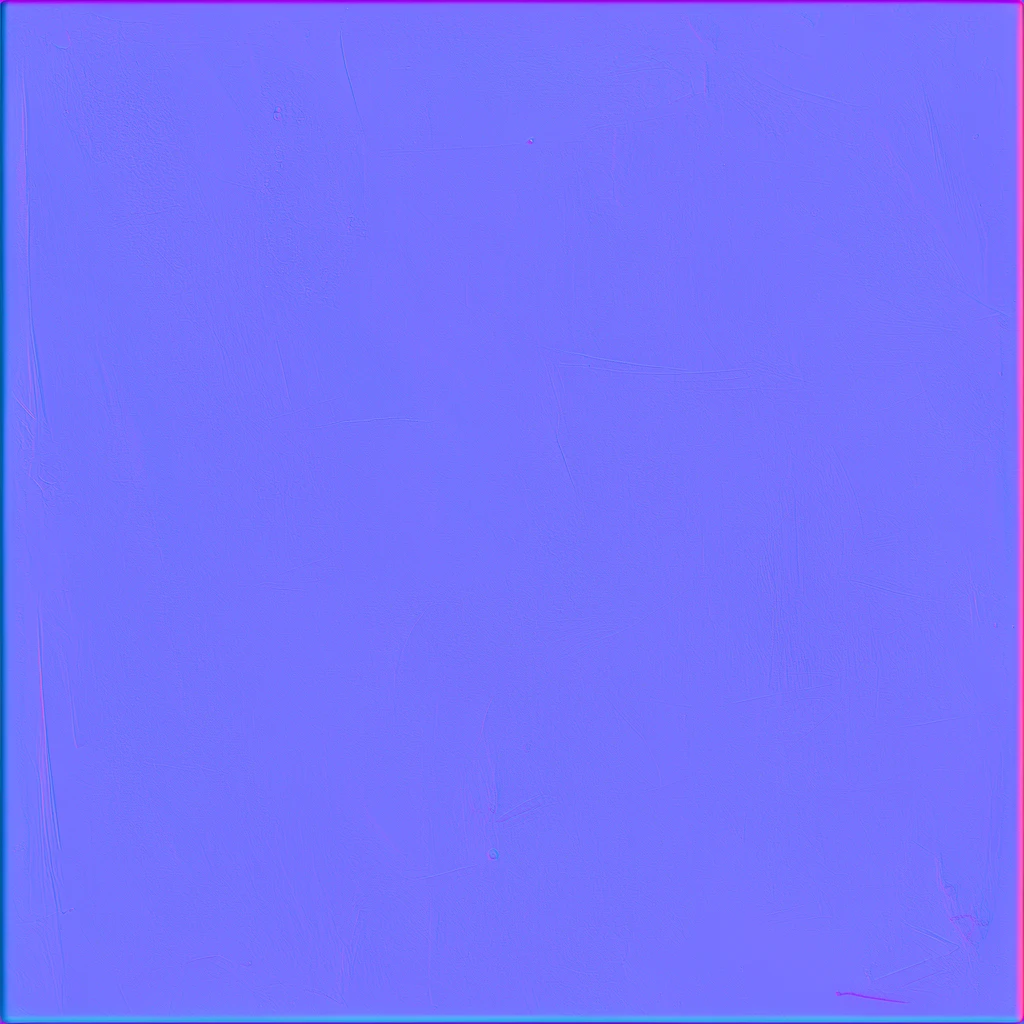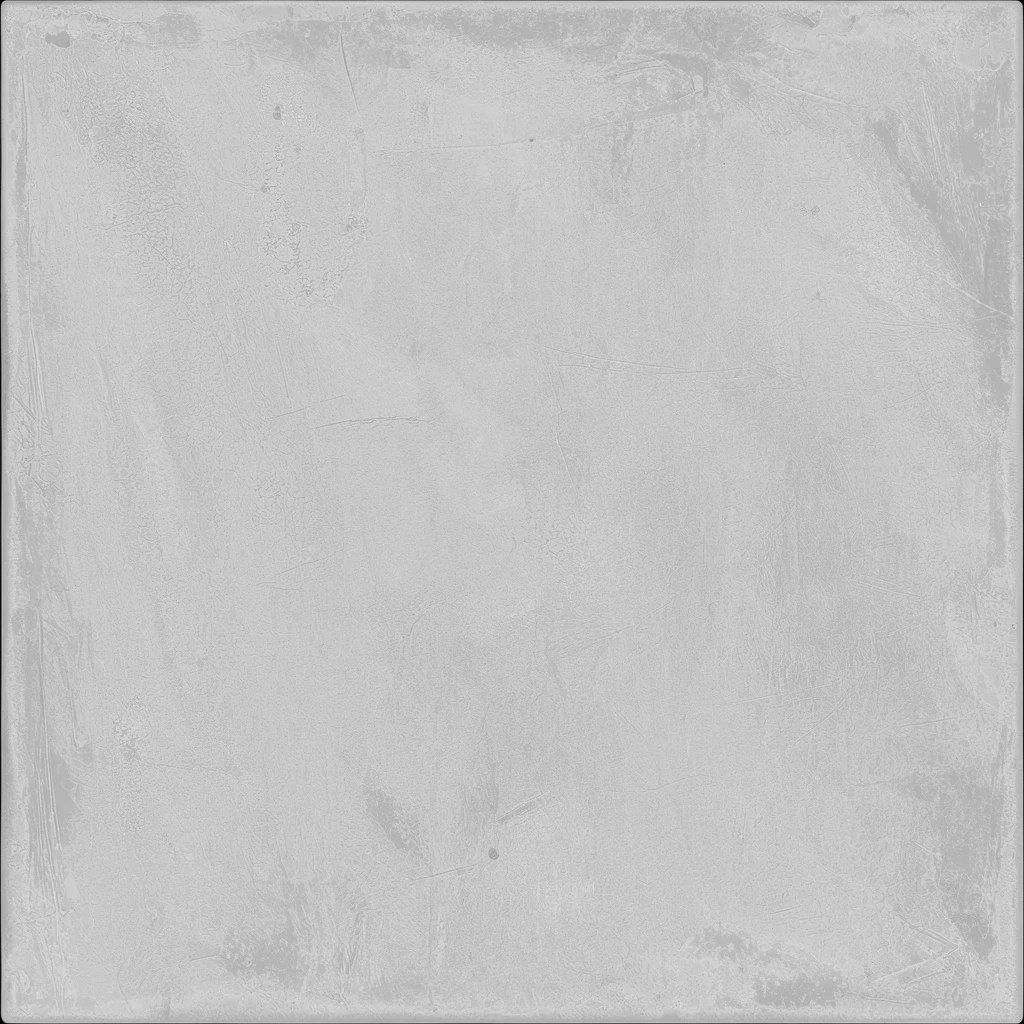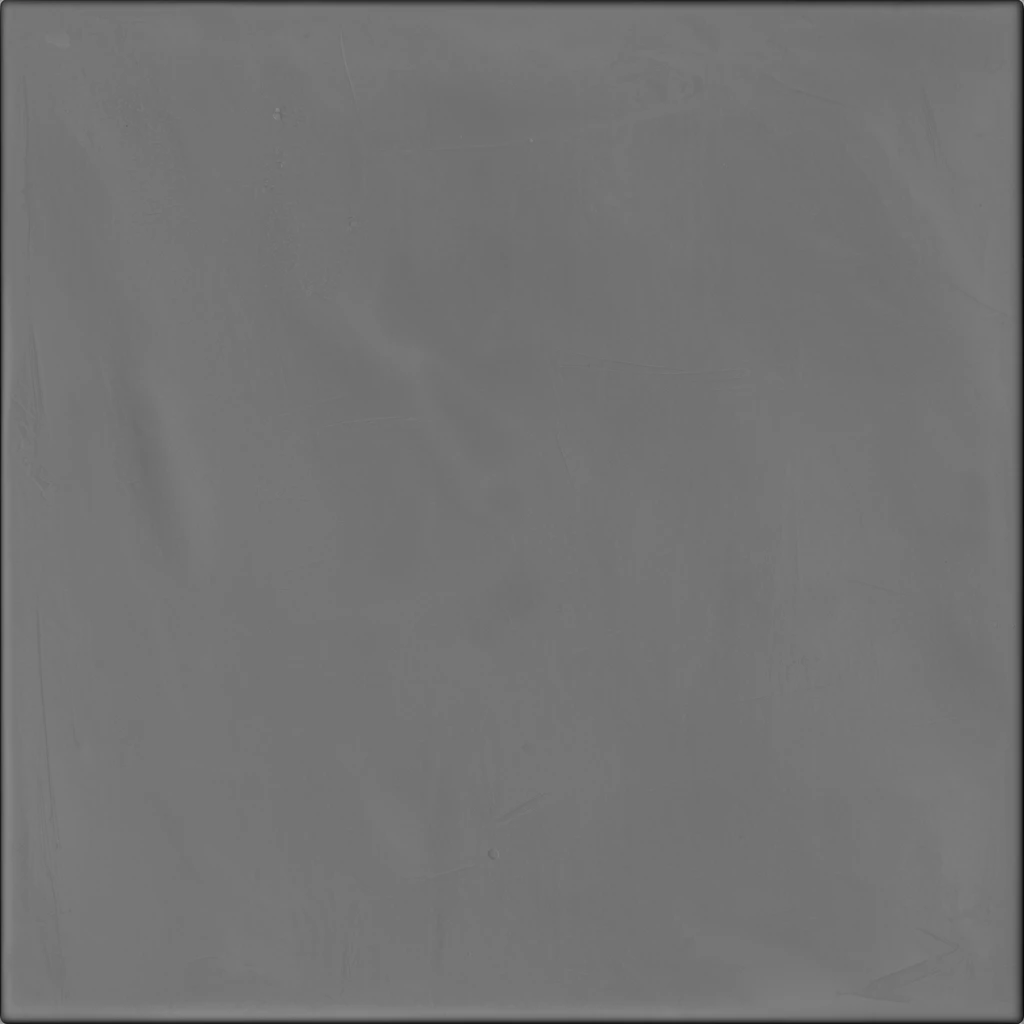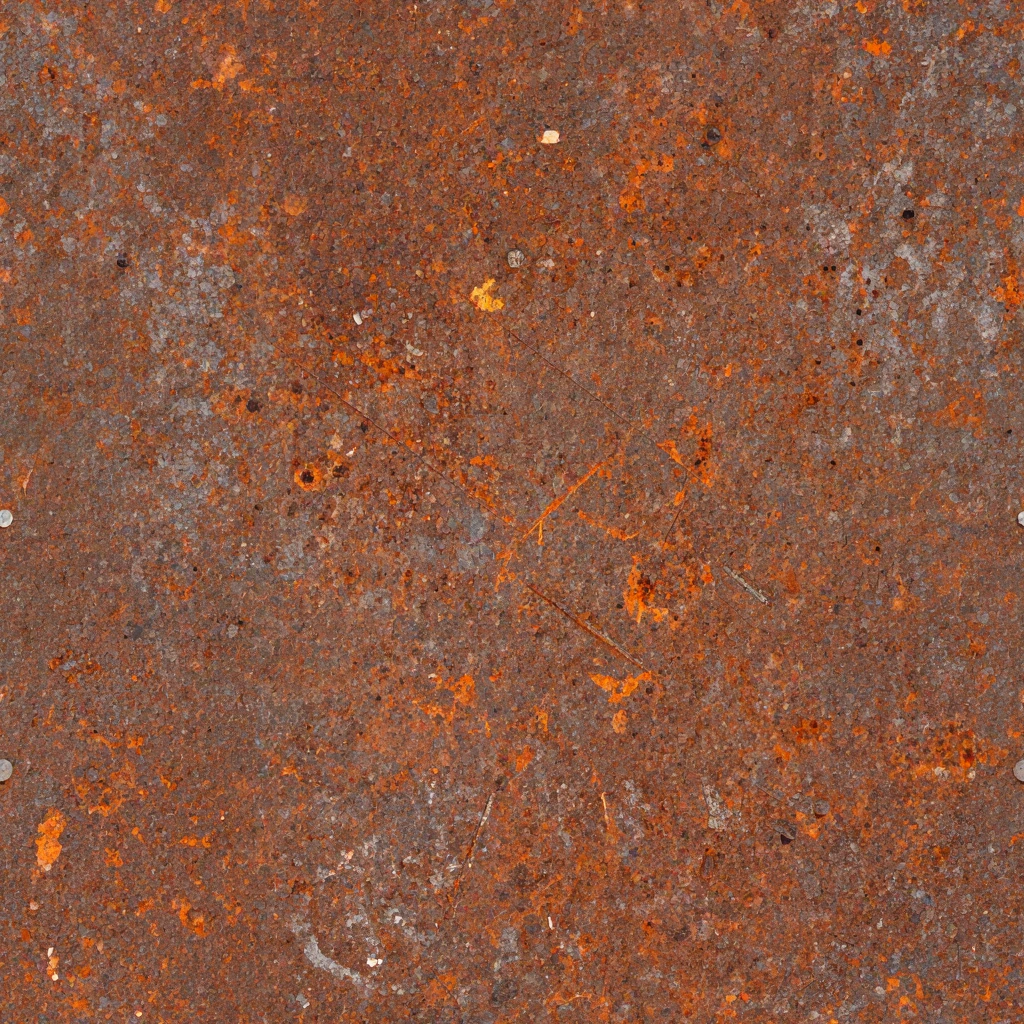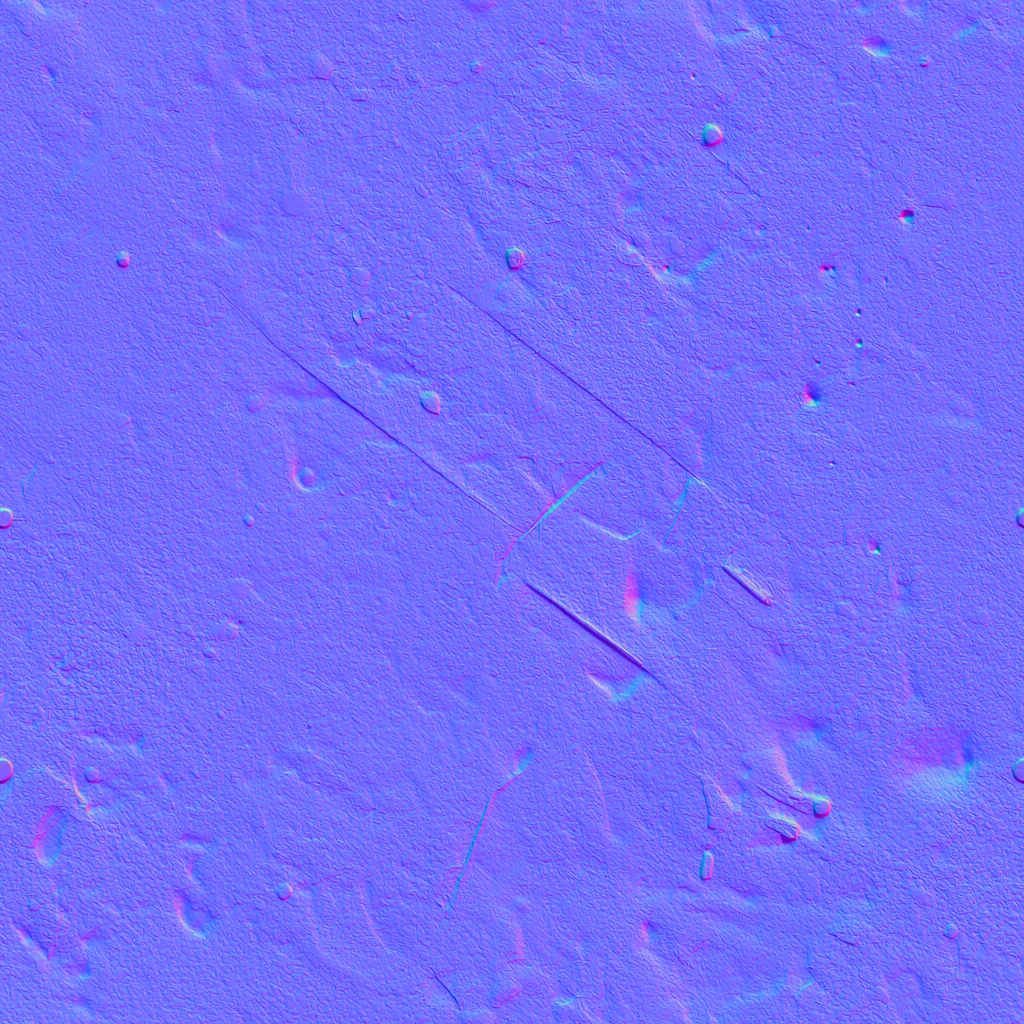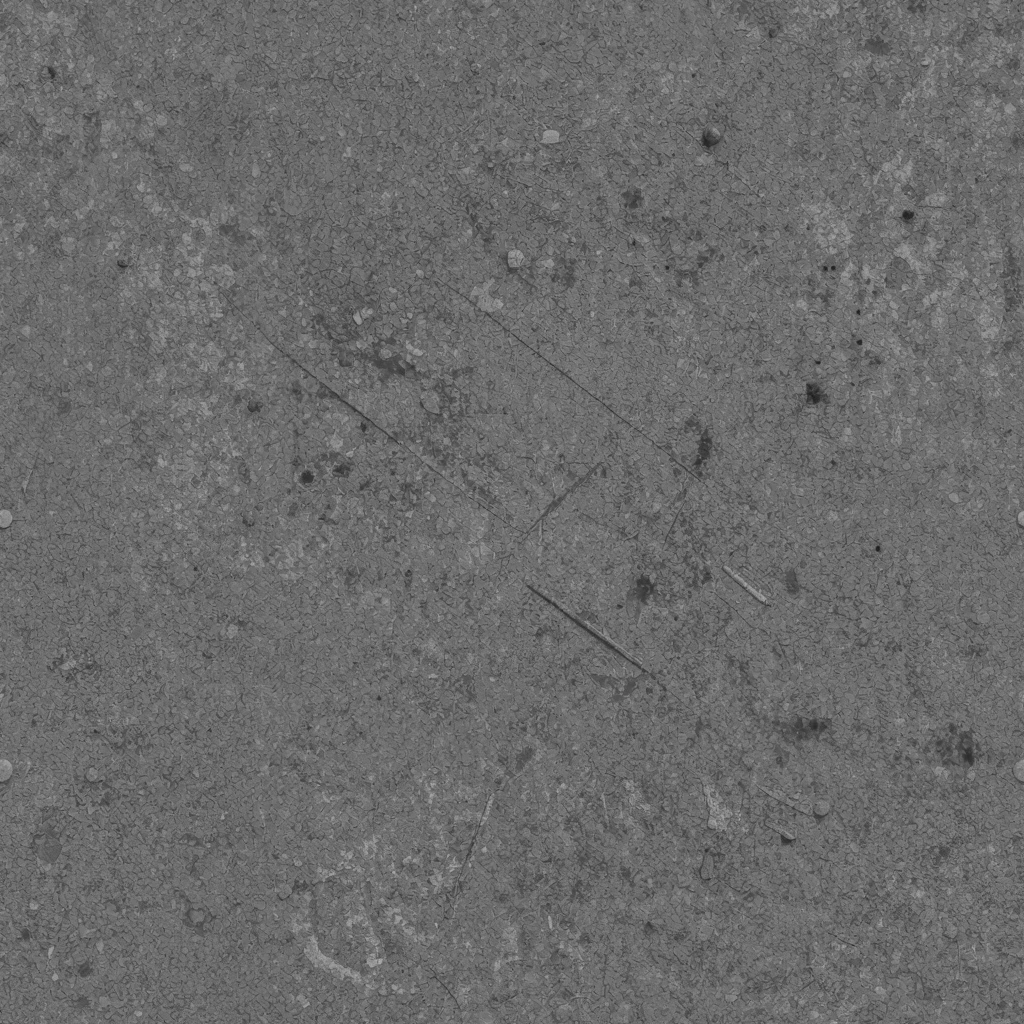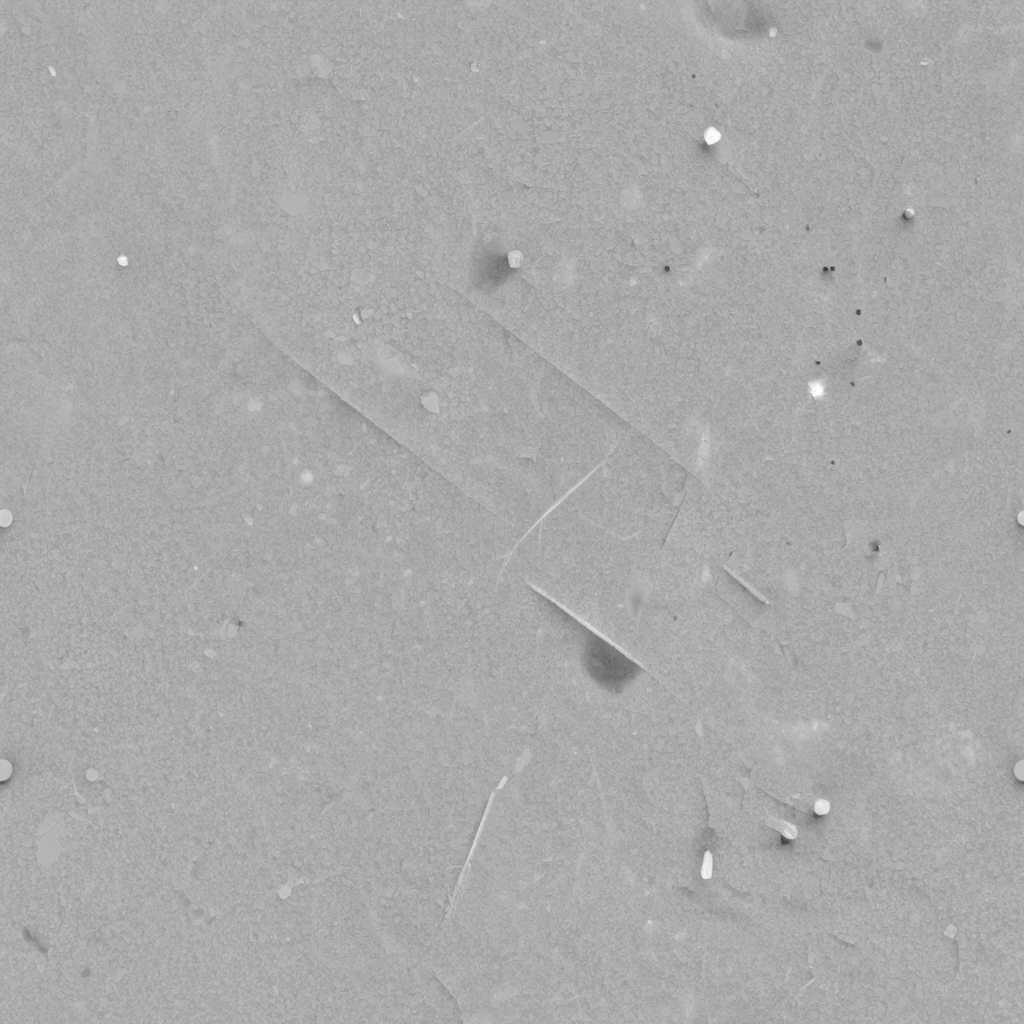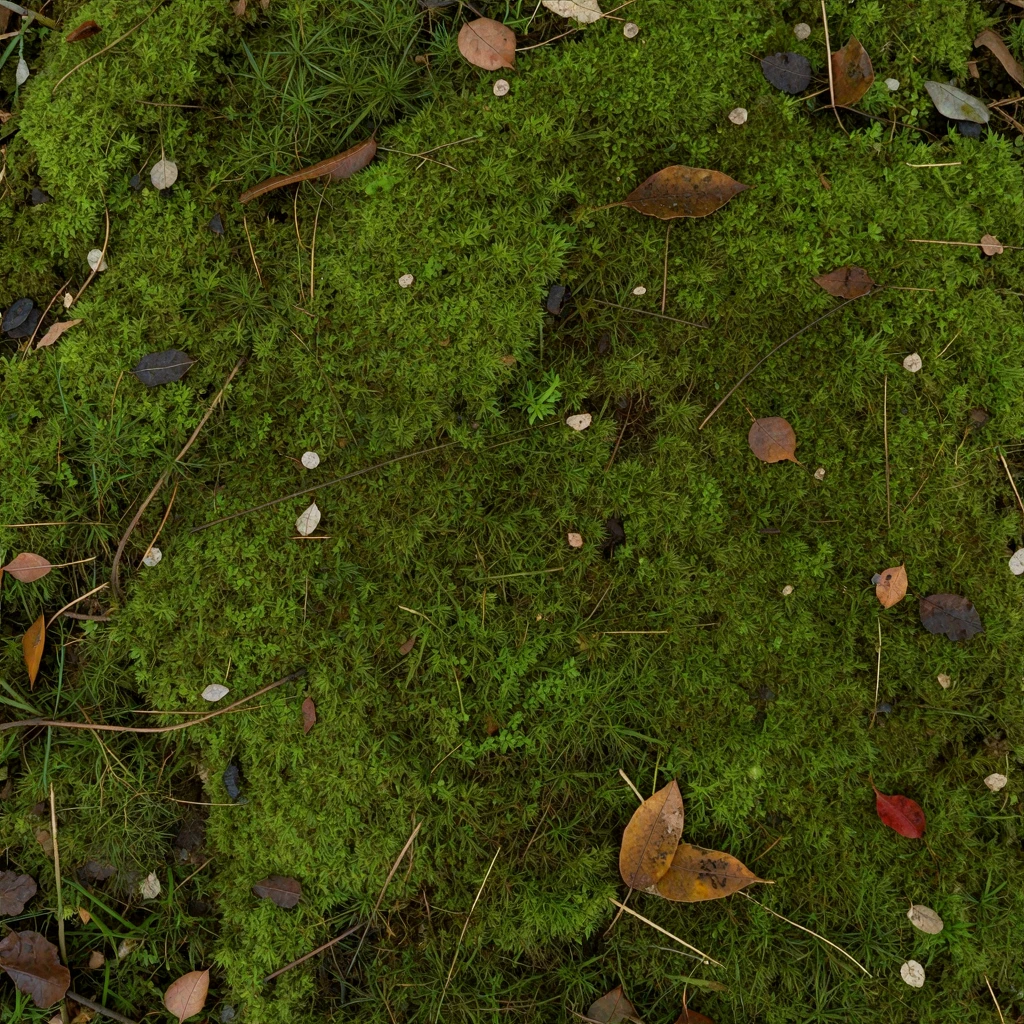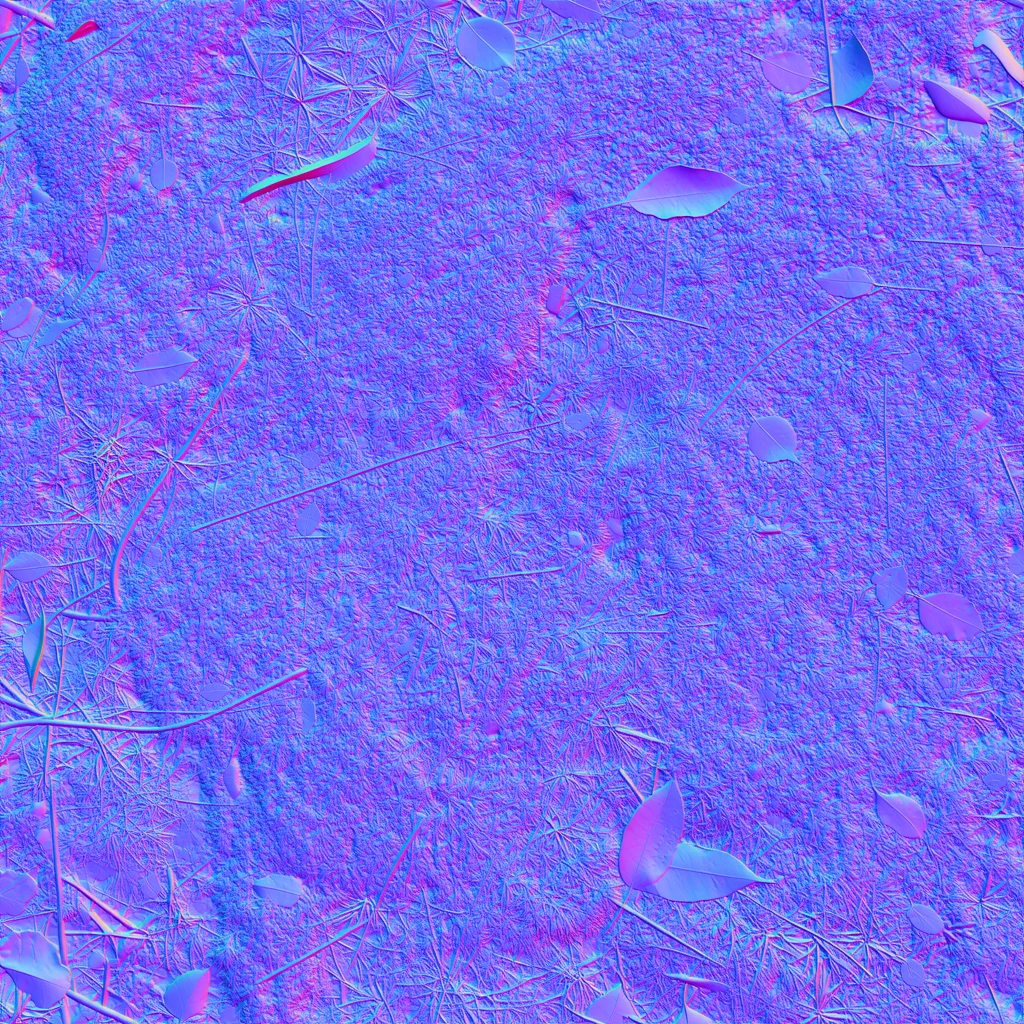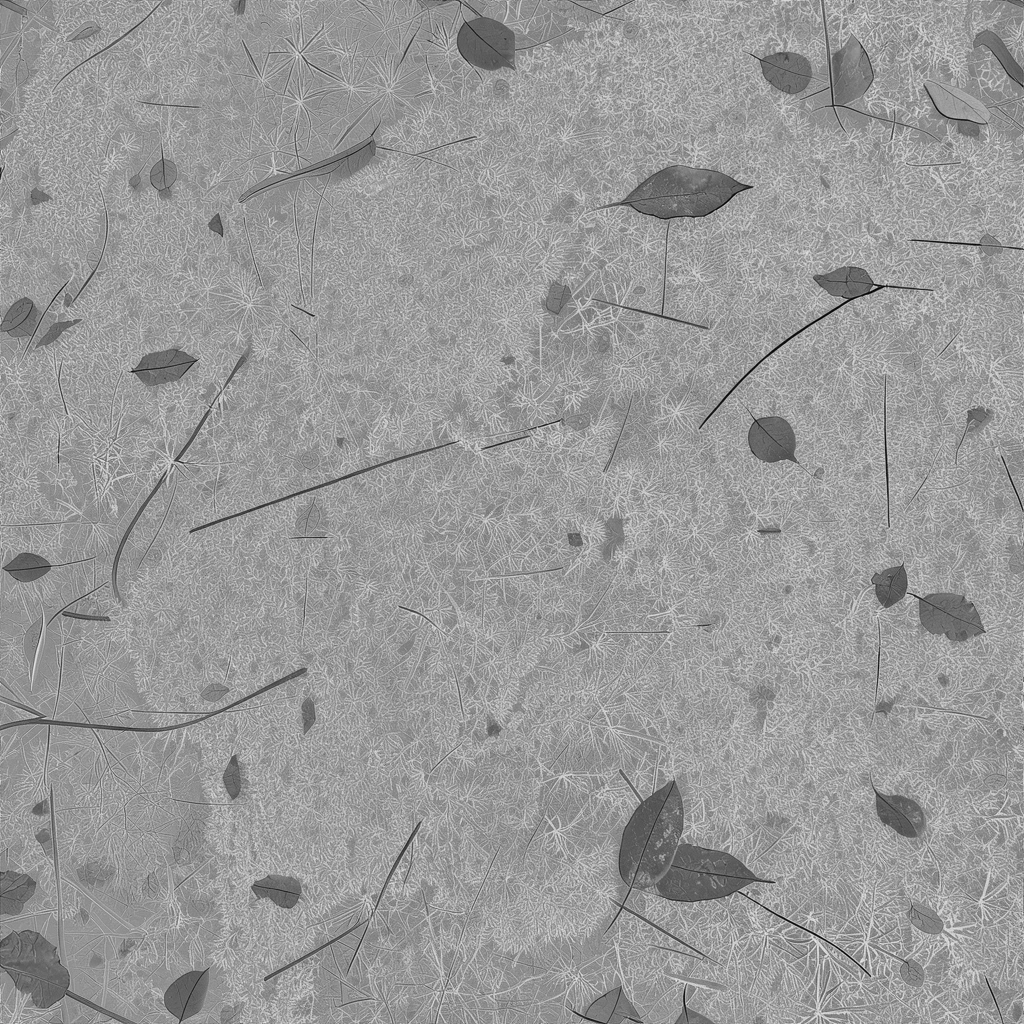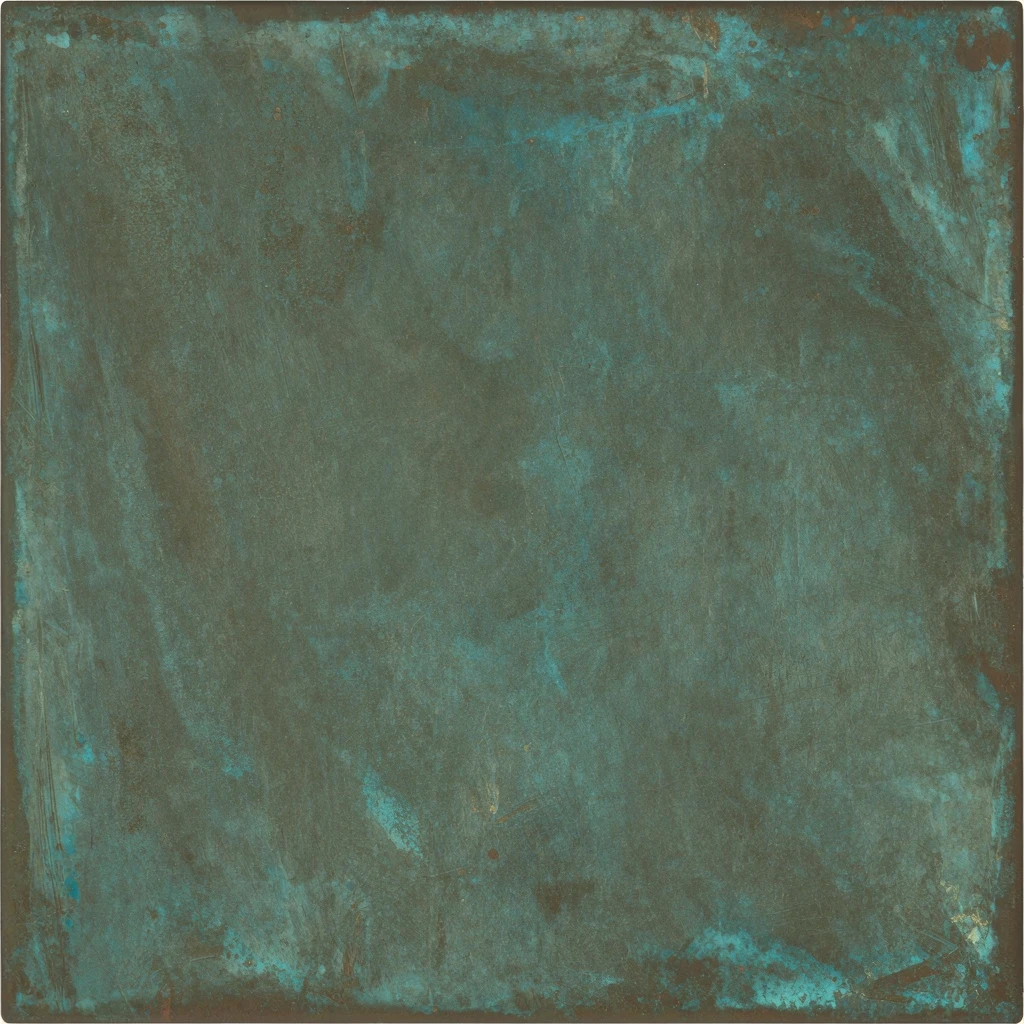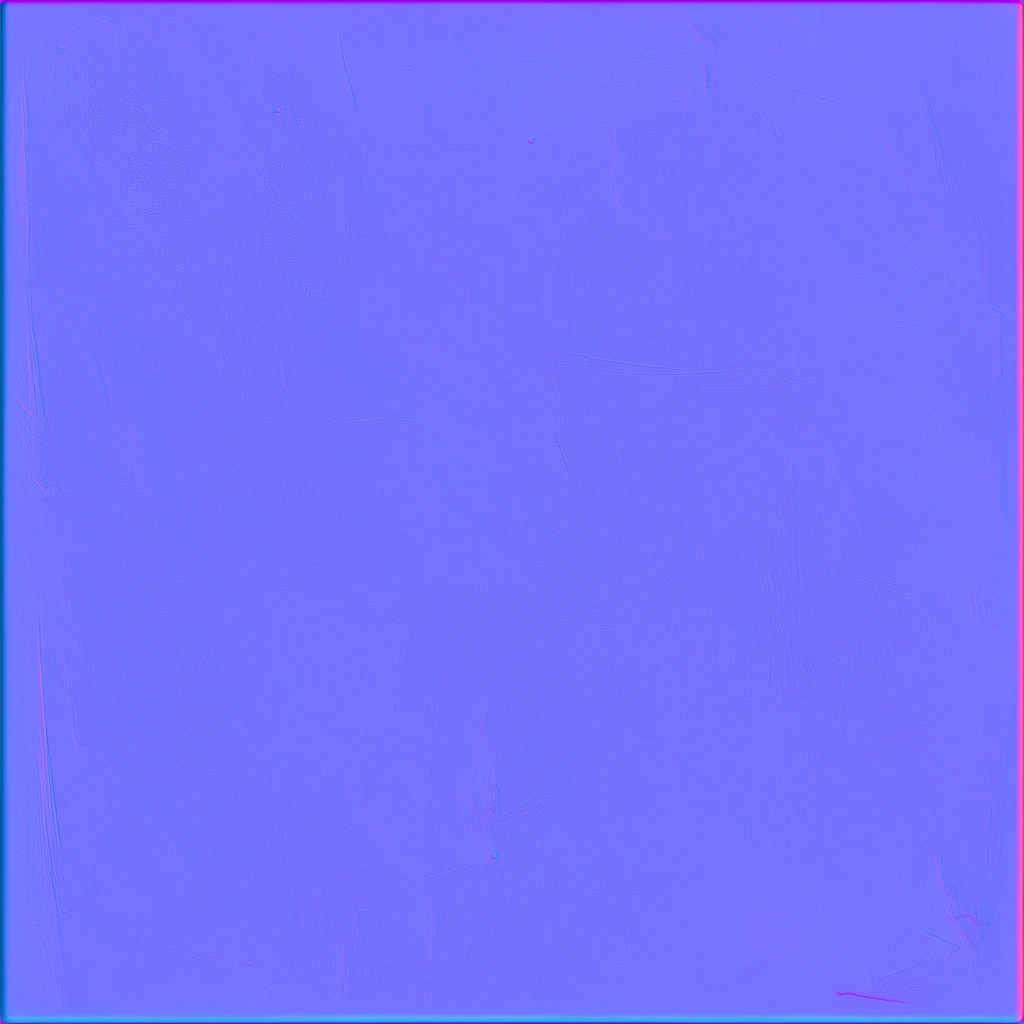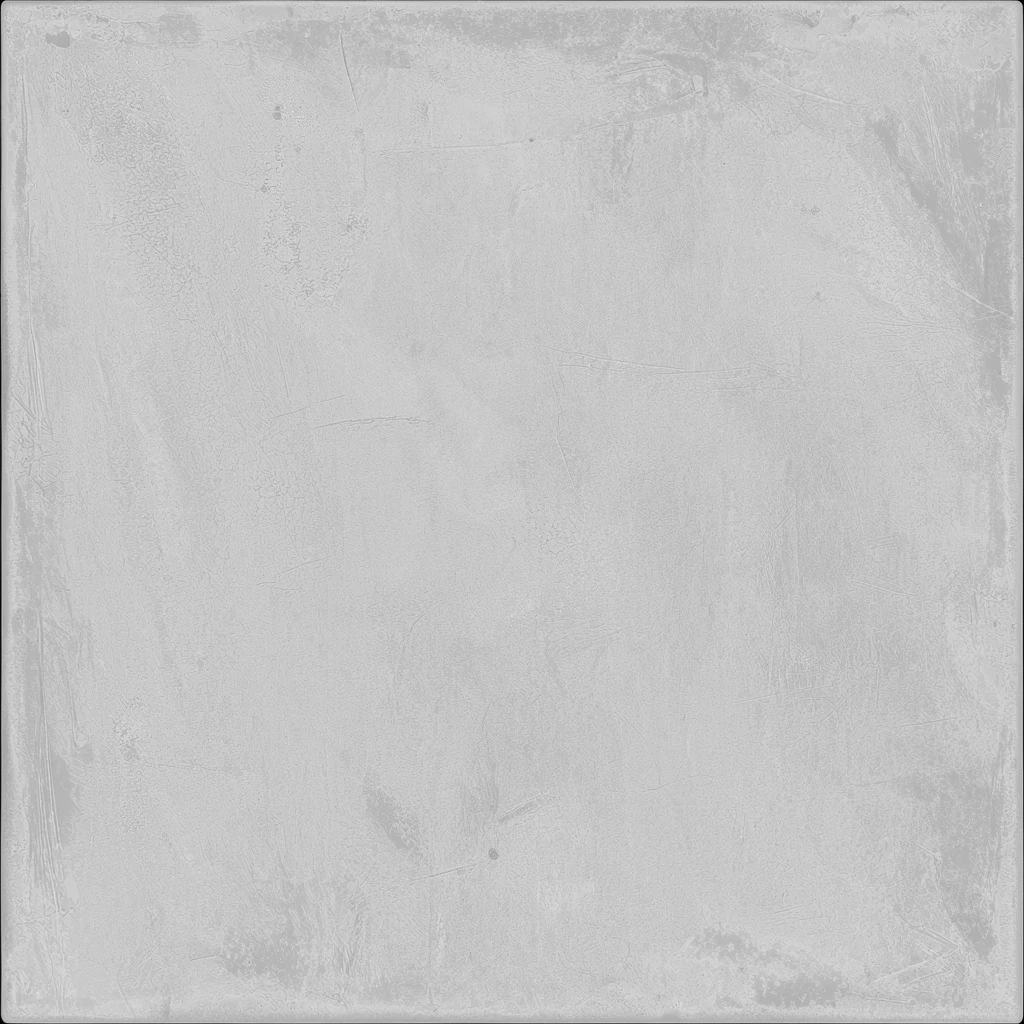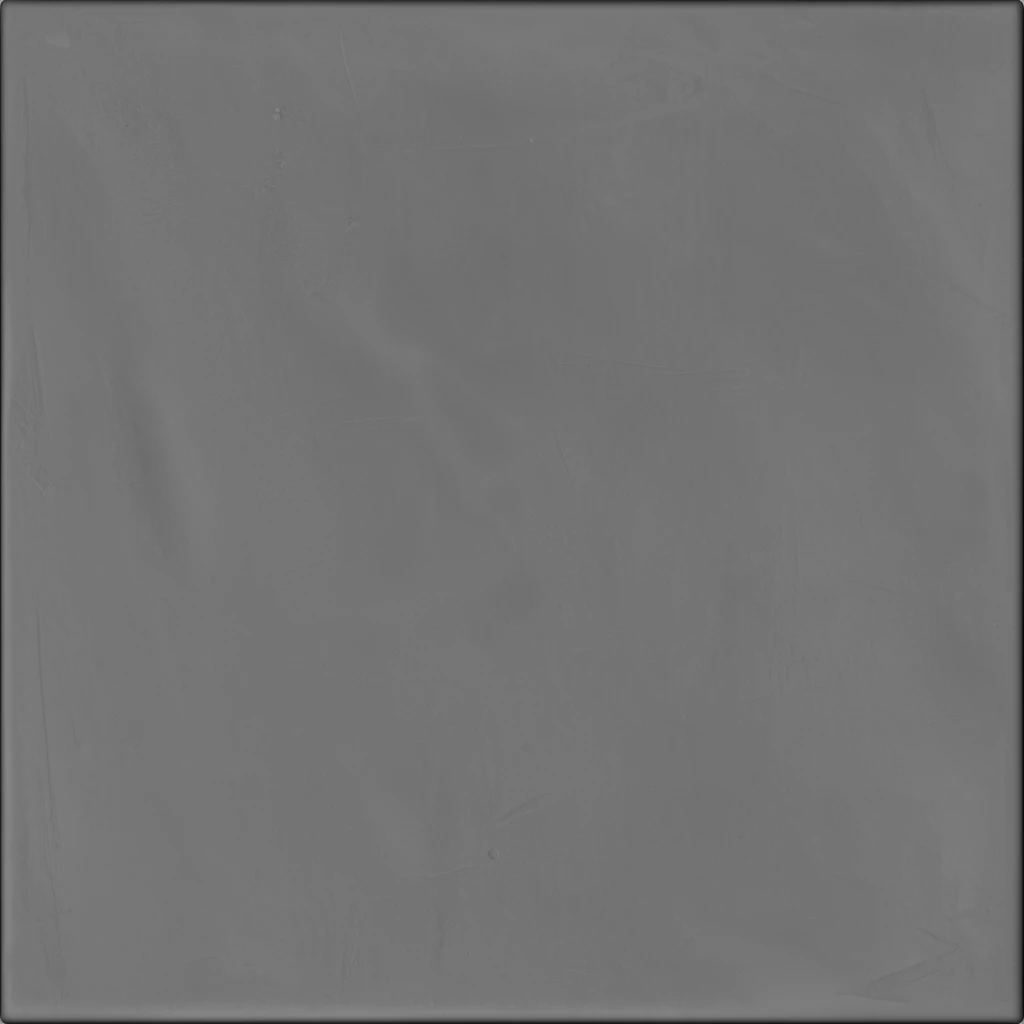
Start from a text prompt or surface image and generate five aligned PBR maps for a reusable material. This workspace creates standalone maps; it does not apply them directly to an uploaded mesh.
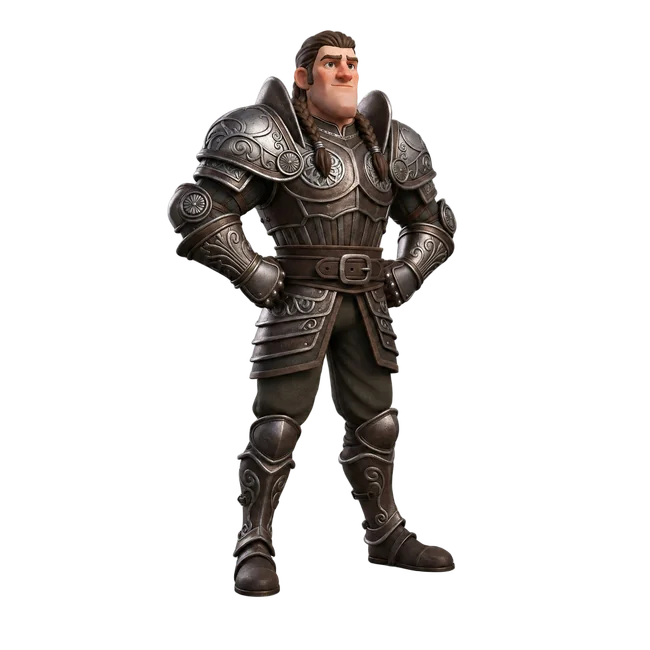
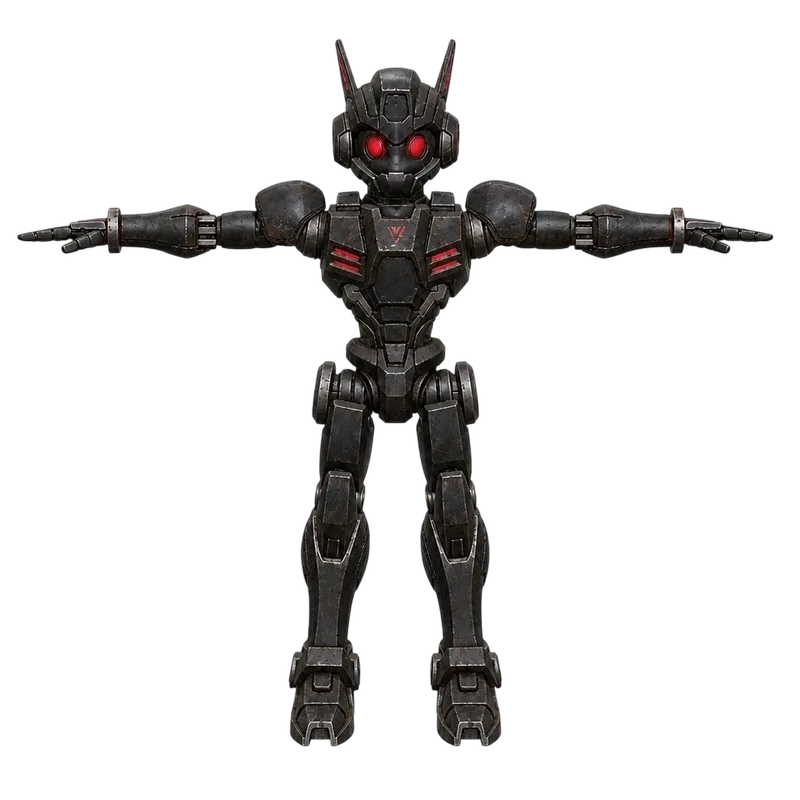
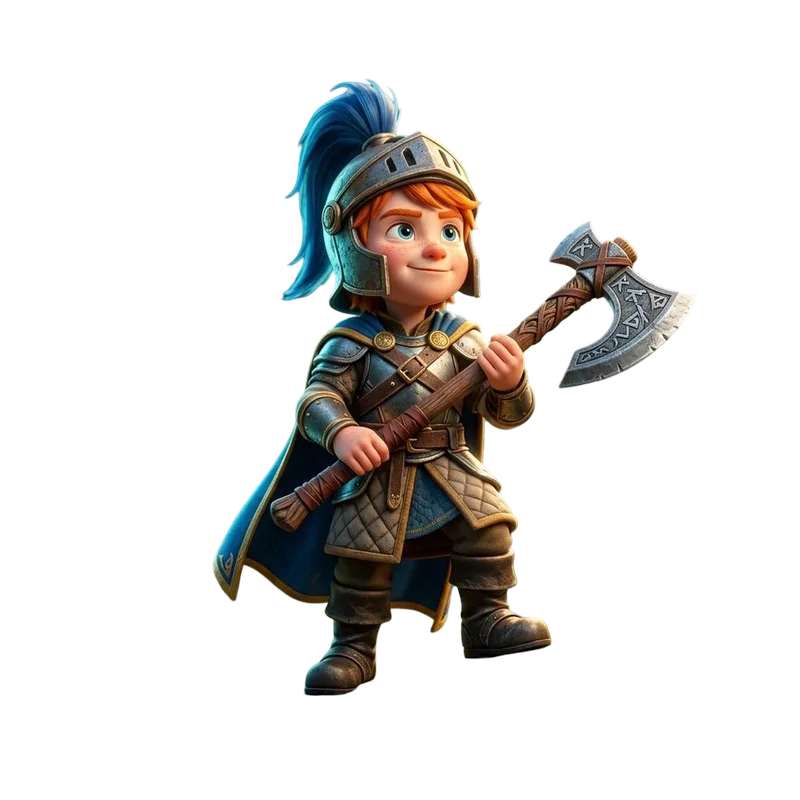
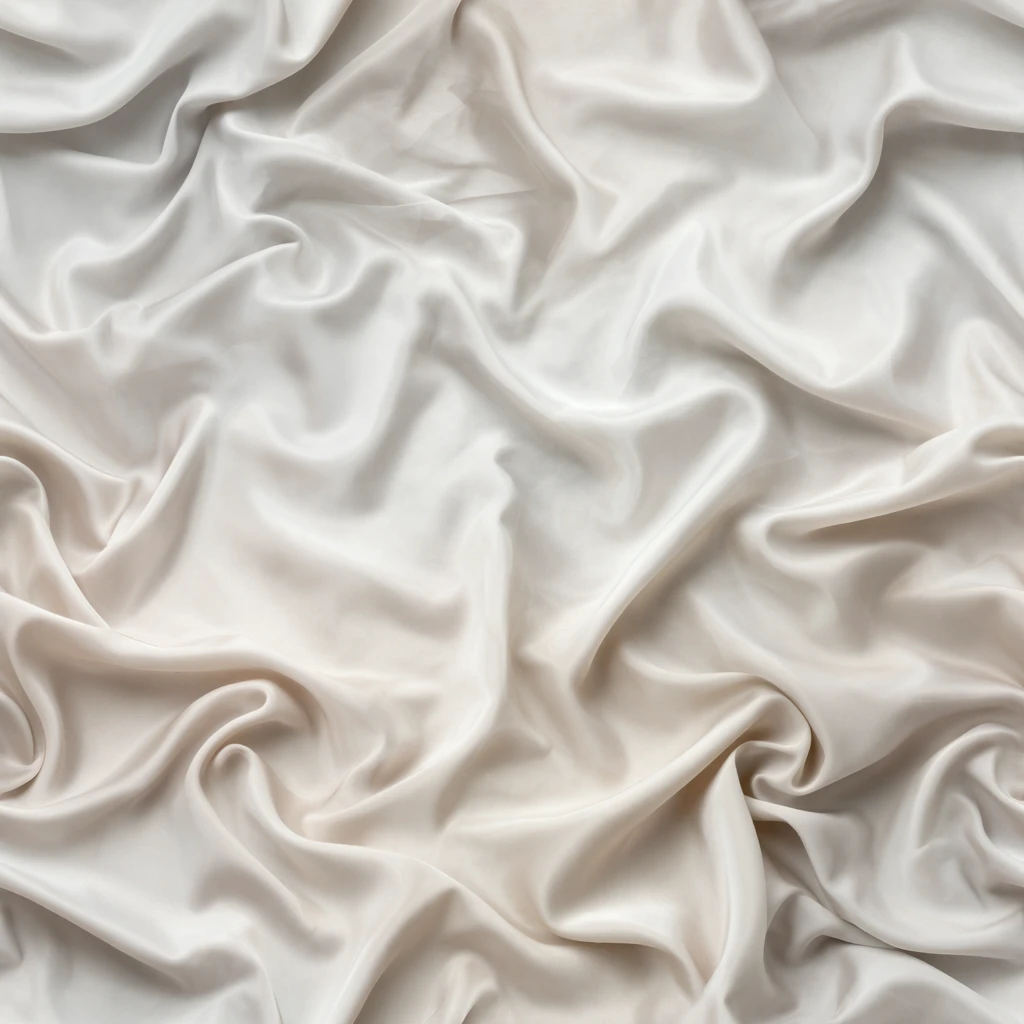
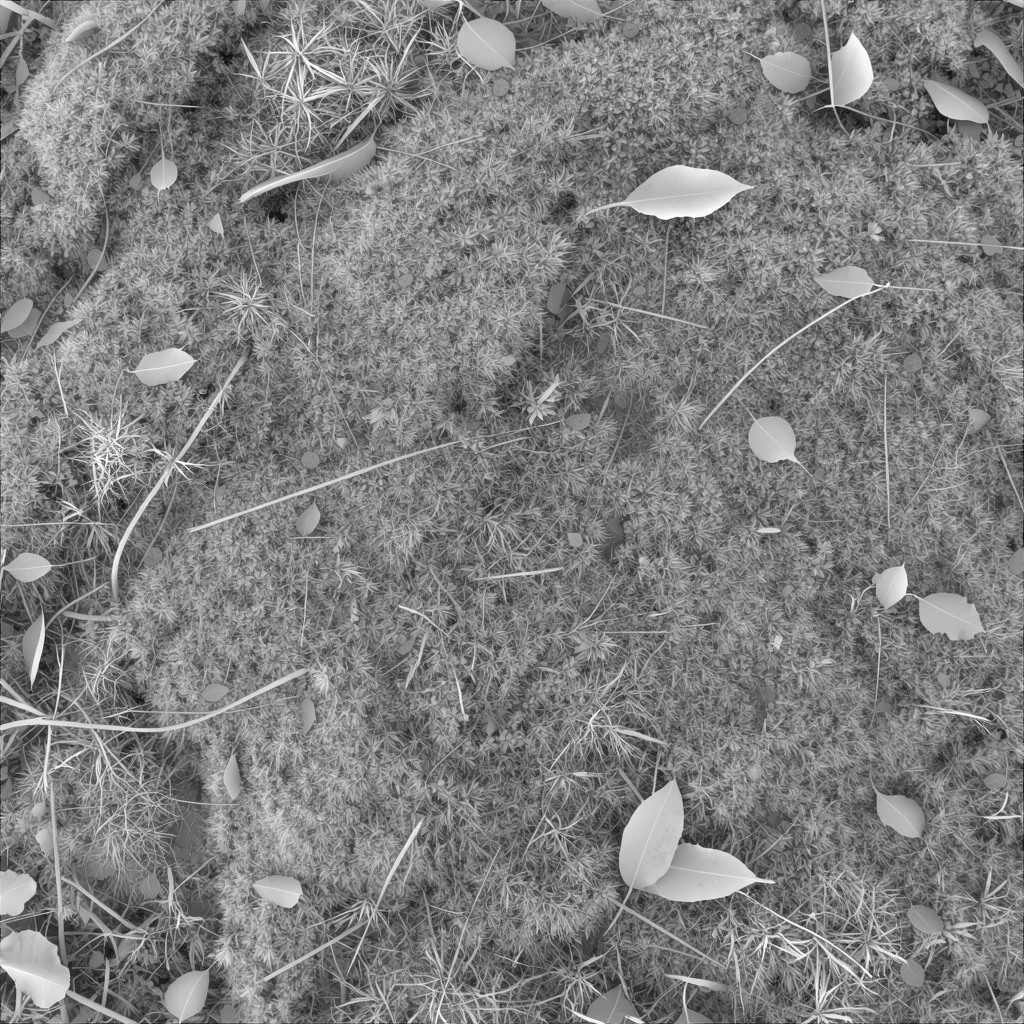
Compare five original maps from our Quady3D generations. Download the maps or load the input with Try an example above.


Each example includes five 1024 × 1024 WebP maps. Check seams and normal-map direction in your 3D app. The preview uses four maps; height is a separate download.
Use Text mode to describe a new surface or Image mode to extract material behavior from a flat reference. Both workflows return an aligned PBR material set with Base Color, Normal, Roughness, Metalness, and Height maps.
This AI texture generator creates standalone PBR maps. It does not apply them directly to an uploaded mesh, unwrap UVs, or export a newly textured 3D model.

Review the material on the live preview and inspect every map separately. Check seamless tiling, pattern scale, normal direction, roughness response, and metallic regions in the destination renderer.
It creates five aligned PBR material maps: Base Color, Normal, Roughness, Metalness, and Height. You can start from a text prompt or a surface image.
No. This workspace generates standalone material maps. Use the separate Texture a 3D Model workflow when you need to upload an existing mesh and receive a retextured model.
Yes. Download individual PNG maps or prepare a ZIP after all five maps are available.
Text mode includes tiling controls, but every result should still be repeated on a plane and checked for visible seams before production use.