Quady3D

JPG to STL Converter

Make a raised STL relief from a JPG or JPEG photo. Adjust contrast and smoothing, choose a physical size and preview the result before downloading. Conversion runs on your device for free.

Free photo relief · Use contrast to separate tones and smoothing to reduce noisy surface detail. Darker areas rise higher with the default inverted depth.

ResultProcedural thickness sample

Choose the right JPG result

A raised picture on a base

This converter maps image brightness to height on a rectangular plate. Photo shadows and light areas become surface height, rather than the hidden sides of a complete object.

Use the controls above to set width, relief depth and base thickness before downloading.
A backlit picture

A photo relief is viewed directly. For a picture that appears when light passes through it, use image to lithophane.

A complete figurine

For a subject with a back and sides, use the AI STL generator. AI estimates hidden shape; it does not get exact geometry from a flat image.

Compare the workflows on image to STL.

JPG image to STL: an actual example

Compare the source with its relief. Load the 3D result to rotate it, or download the same STL.

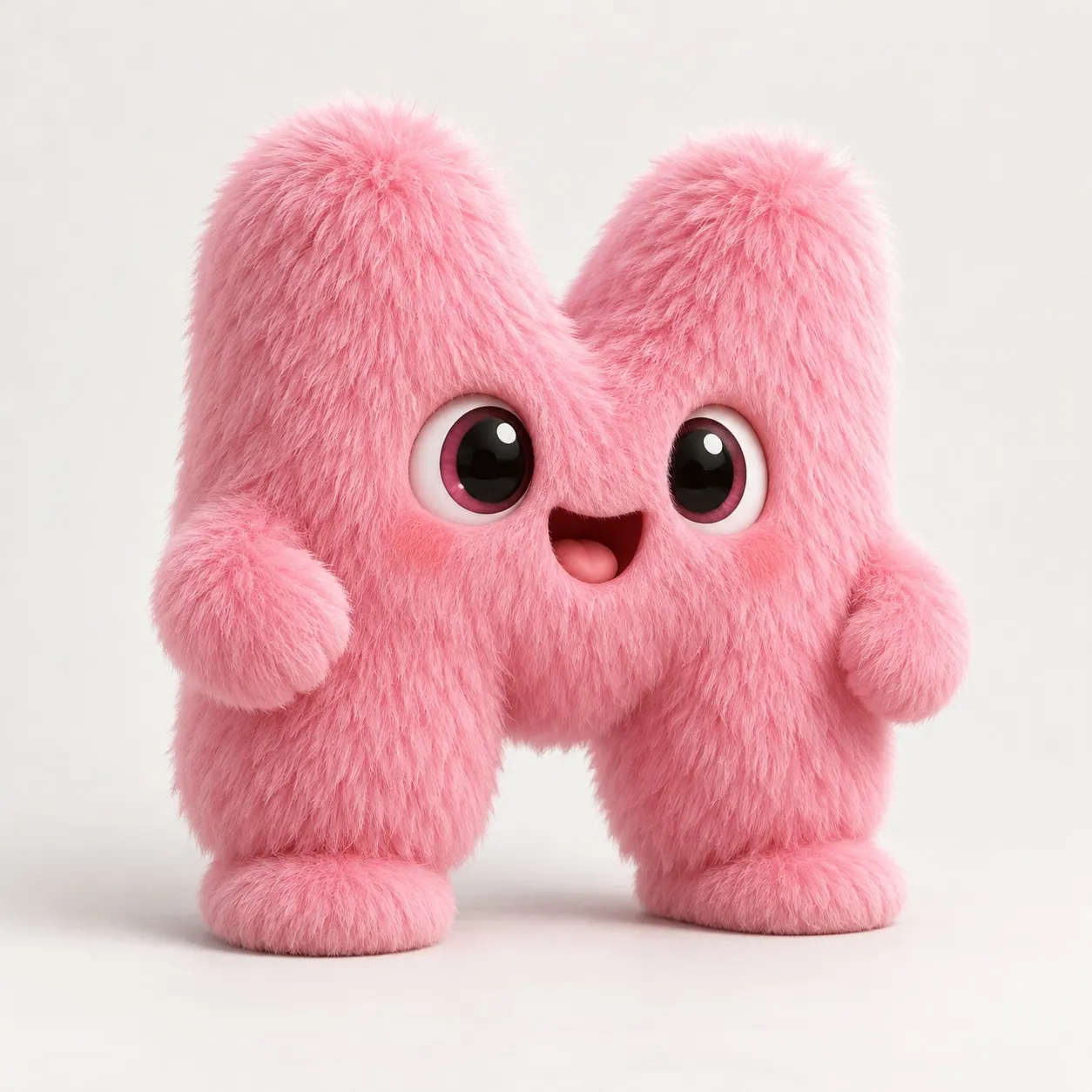
Quady character JPG relief

80 × 80 mm · 2.5 mm relief · 2 mm base · inverted depth

Source image
JPG of the pink furry Quady character used to make the photo relief
STL result

The JPG becomes a shallow picture on a square base. Darker areas rise higher in this example. It does not reconstruct the character's back or turn fur into a full figurine.

How to convert JPG to STL

1. Add your JPG

Upload a JPG or JPEG up to 8 MB. Start with a clear photo or illustration and crop out unwanted background before uploading.

2. Shape the relief

Adjust contrast and smoothing, then set millimeter width, relief depth and base thickness. Reverse the height direction with Invert depth.

3. Preview and download

Rotate the result and inspect the edges and small features. Download STL, then check its size and layer preview in your slicer.

Keep photo detail without the noise

Use the original photo

Repeated JPEG saves can add blocks and fuzzy edges. A larger clean original is more useful than an enlarged, compressed thumbnail.

Smooth gently

Smoothing softens grain and compression bumps. Too much also softens eyes, lettering and other small details, so compare the result as you adjust.

Watch shadows and contrast

A dark shadow can become a tall ridge. Use even lighting, avoid dramatic contrast across faces and keep relief depth modest.

Before you print the relief

Confirm the dimensions

STL has no unit label. Interpret these coordinates as millimeters and confirm the width and thickness in your slicer.

Check fine detail

Inspect thin strokes and steep height changes. Details visible on screen may be too small for your nozzle or material.

Review the layers

Place the flat base on the print bed and check the layer preview. STL carries shape, without the source image's colors.

Follow the 3D printing workflow for the next steps.

JPG to STL questions

How do I convert JPG or JPEG to STL?

Upload either format, adjust contrast and smoothing if needed, then set width, relief depth and base thickness. Check the 3D preview and download STL. JPG and JPEG use the same converter.

Is JPG to STL conversion free?

Yes. This relief tool runs in your browser without an account or generation credits. Your source image stays on this device.

Why does my photo become a bumpy surface?

Image brightness becomes height, so grain, JPEG compression blocks and background texture also become surface detail. Try smoothing, reduce relief depth or use a cleaner source image.

Should I save my JPG as PNG first?

You do not need to. Renaming or converting a compressed JPG to PNG cannot restore missing detail or add transparency. Upload the highest-quality original you have.

Is a photo relief the same as a lithophane?

No. This tool creates a raised surface to view directly. A lithophane uses thickness to reveal a photo when lit from behind; use the separate image-to-lithophane workflow for that purpose.

Can a JPG become a full 3D object?

Use AI image-to-3D generation for a model with a back and sides. The AI estimates hidden surfaces; this local relief tool only maps visible brightness onto a backing plate. Review the AI model before preparing STL.

More image and STL tools