Are Tripo P2 and P2.0 the same model?
This page uses Tripo P2 for the P2.0 Smart Mesh model. It is a different generation option from H3.1. Quady3D currently offers P2 image and text creation.
Can I use multiple images with P2 here?
No. Quady3D's current P2 creators offer one image or a text prompt. Tripo documents multi-view P2 in its own Studio, but that is not an input offered here. Choose H3.1 or Meshy 7.1 from the multi-view guide for that workflow.
Does P2 output guarantee clean quad topology?
Quad is a topology setting, not a guarantee for every asset or export. GLB stores triangular rendering geometry. Review the exported mesh in editing software if editable quads are essential, especially around joints, thin parts and intersecting surfaces.
Should I choose P2 or H3.1?
Choose P2 when topology and a limited face budget are central to your next editing step. H3.1 provides geometry quality choices and accepts multiple views here. Use source-matched tests when judging output quality; the cases on these pages use different inputs.
What does Tripo P2 cost?
Texture quality and topology affect the credit cost. The workspace shows the total for your selected settings before you generate.
Can I reuse a saved case?
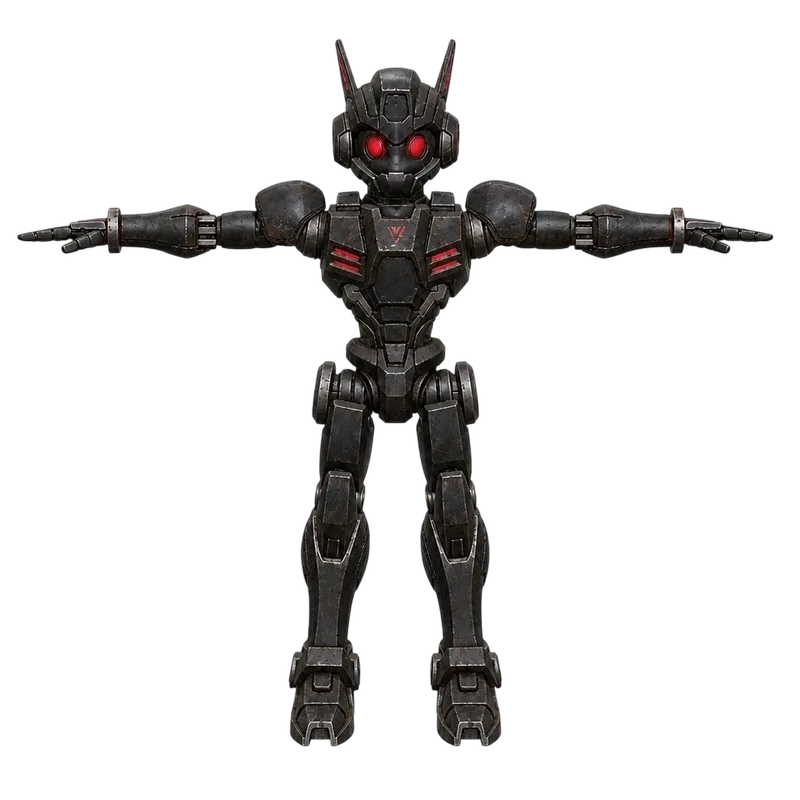
Open a case to view its recorded image or prompt, rotate the GLB and download it. Save the image or copy the prompt to use in the matching workspace.