What changed in Seed3D 2.0?
ByteDance's 2.0 release separates broad geometric structure from fine detail in its generation process and updates material generation. This guide covers version 2.0 and the narrower controls available in Quady3D, rather than promising every feature in the research suite.
Does Seed3D 2.0 support text or multiple images here?
No. The current Quady3D Seed3D 2.0 creator takes one image. Use the text or multi-image guides to select a model for those inputs. Research on other input types and complete scenes does not establish support in this creator.
What do Draft, Standard and Detailed change?
They select the creator's subdivision level. They do not request an exact face count, set a texture resolution or guarantee accuracy. Start with the detail your intended view needs, then inspect the actual mesh and materials.
Will the result have separate parts and working joints?
Not as a guaranteed output of this creator. ByteDance describes part generation and articulated modeling in its wider research. The hosted single-image result must be inspected for the structure it actually returns; it is not a verified physics simulation or functional mechanism.
What does Seed3D 2.0 cost?
The image workspace shows the credit cost for your selected detail level before you generate.
Can I reuse the saved cases?
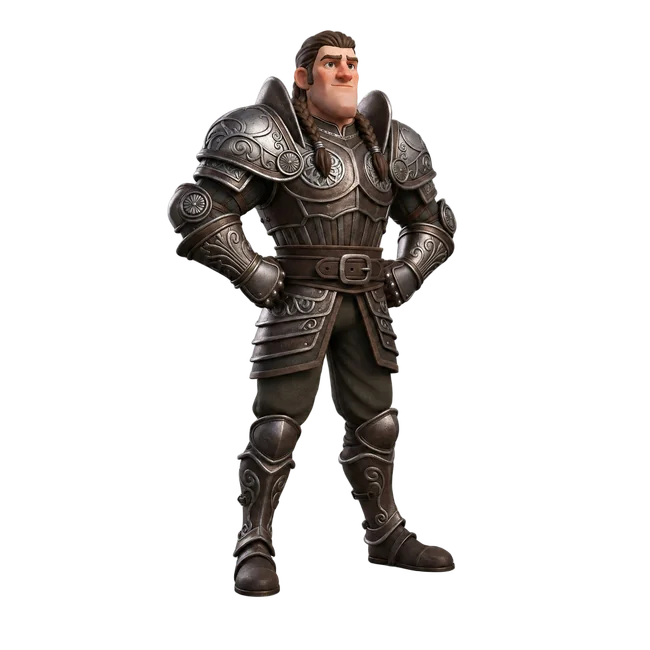
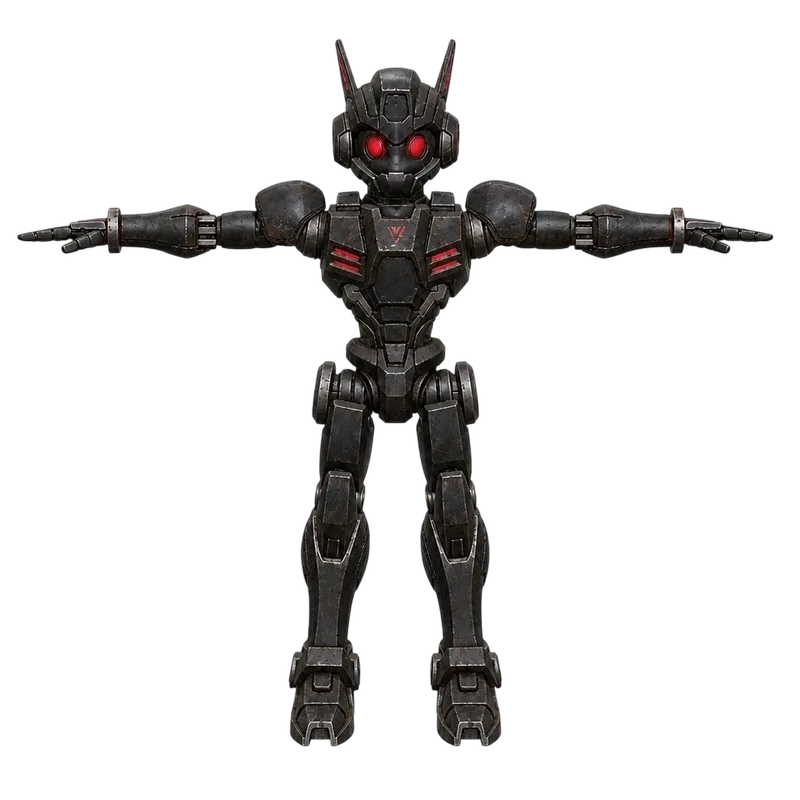
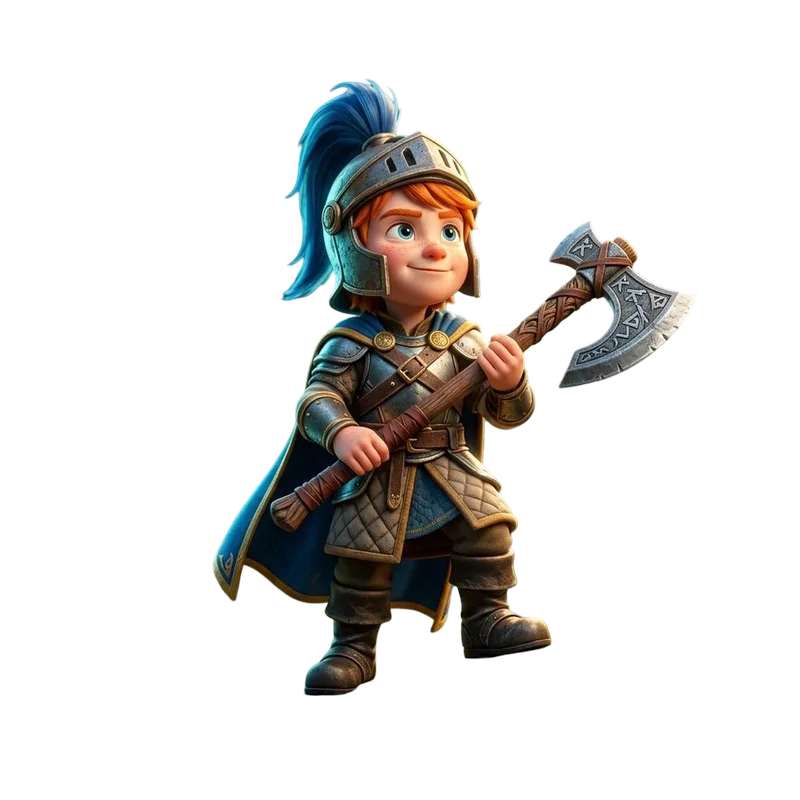
Open a case to inspect its recorded image and rotate or download the saved GLB. Use the same source in the Seed3D creator to make a new result. Different inputs and settings do not constitute a controlled comparison with another model.