









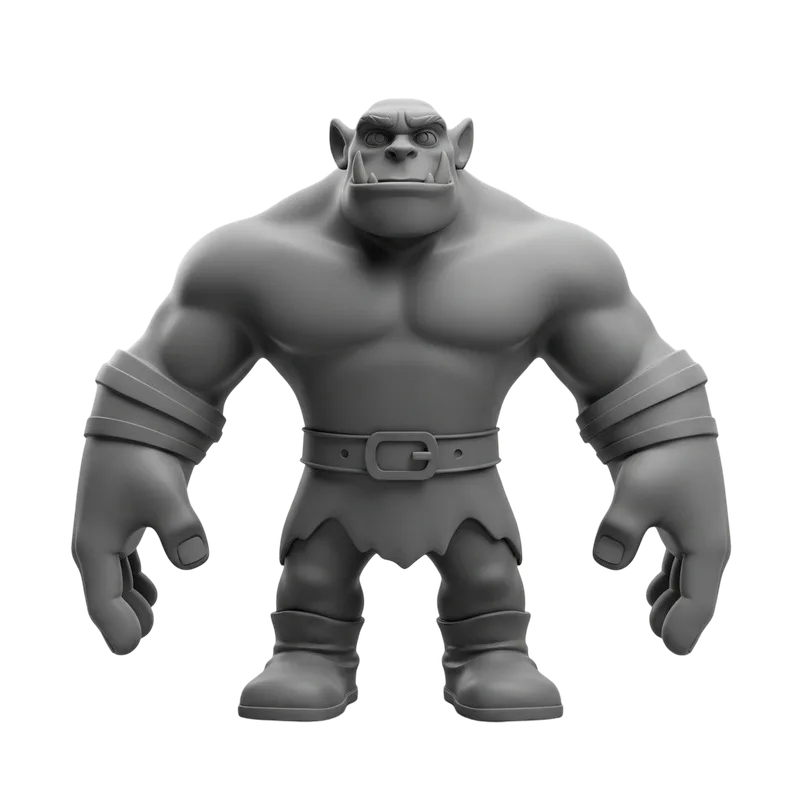
Source model
Use a clean GLB up to 50 MB. Other source formats are not available in the current Quady3D workspace.
Upload an existing 3D model and generate new textures from a prompt or reference image with an AI texture generator for 3D models. Need standalone PBR maps?
Upload a GLB, choose an example, or select a model from History.
Inspect texture coverage, UV seams and stretching, reference-image alignment, material response, and model integrity.
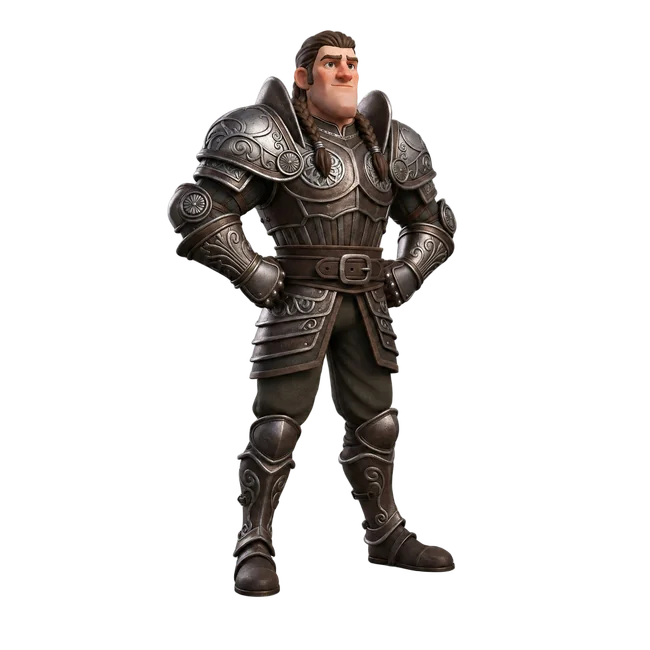
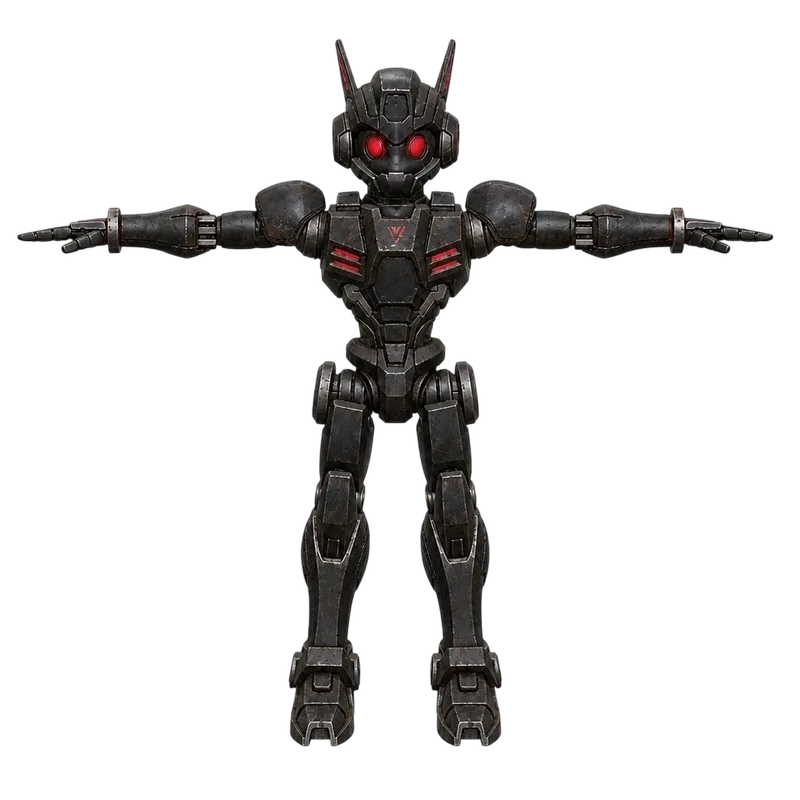
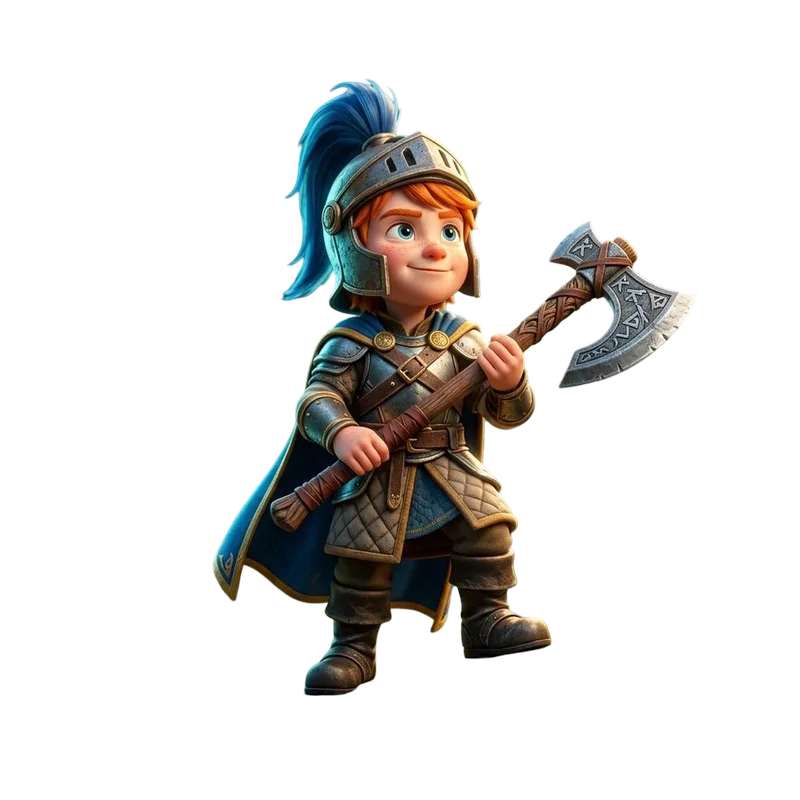
Original illustrations help explain the workflow. Inspect the labeled 3D cases separately when evaluating a model’s output.
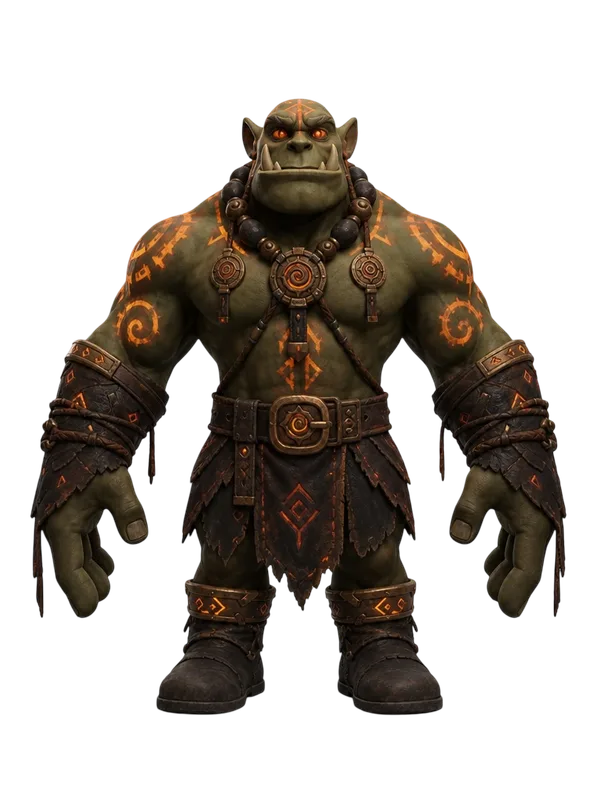
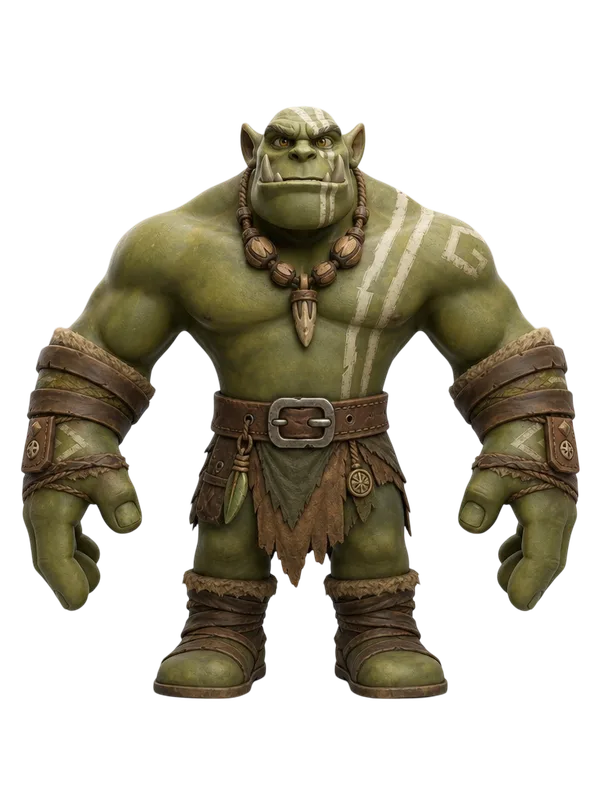
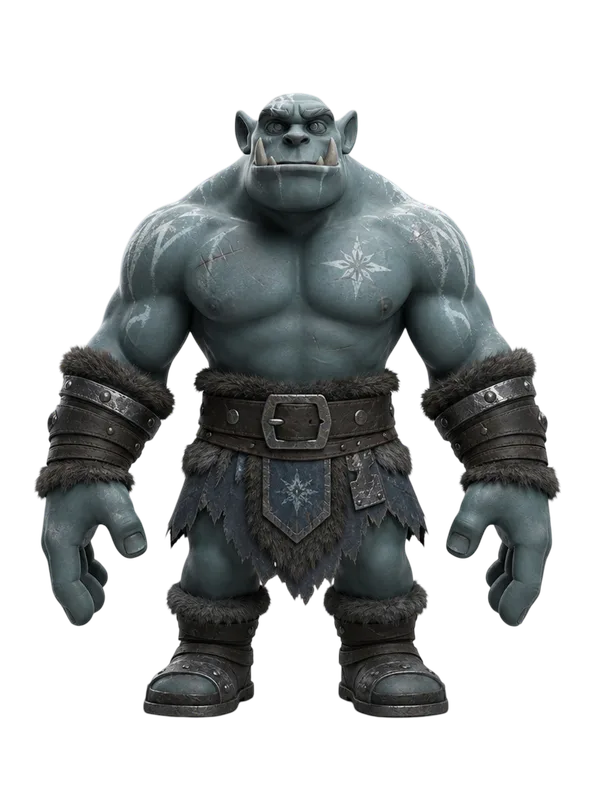

A 3D model texture generator works on one existing mesh. The prompt or reference image changes the visible surface while the geometry is reviewed separately.
Use a clean GLB up to 50 MB. Other source formats are not available in the current Quady3D workspace.
Describe material, color, finish, wear, and pattern with text or a reference image.
Inspect the generated model for seams, stretching, UV behavior, and PBR response.
PBR data may be embedded in the returned model. Separate downloadable maps depend on the files included with the completed result.
The completed GLB or compatible model file.
Review the visible surface color in the returned model.
Inspect small-scale surface response when the returned model includes normal data.
Verify reflection behavior when those channels are present in the returned material.
Upload an existing 3D model, guide its new surface with a text prompt or reference image, and inspect the retextured 3D model before downloading it. This workflow changes texture and material appearance; it does not generate a standalone material library or repair topology.
Use this 3D Model Texture Generator to upload an existing model, choose an AI texturing model, then guide the new surface with a text prompt or reference image. Inspect the model from every side before downloading the files returned by the completed job.
Retexture changes the visible surface and material appearance while the source geometry is intended to remain consistent. It is not a topology cleanup tool. Use Remesh first when the mesh needs a lower polygon count or cleaner topology.
A text prompt is useful for material language such as weathered wood, polished brass, painted plastic, or stylized fabric. A reference image guides color, finish, pattern, and wear, but it does not guarantee exact photographic projection.
Preserve original UV keeps the source UV layout when the selected model supports it. PBR output may include base color, normal, roughness, and metallic information. Only rely on the maps and files included with the completed result.
Quady3D currently accepts GLB files up to 50 MB in this workspace. Additional source formats are not available here until Quady3D supports the complete upload, preview, and generation path.
Retexture applies a new texture to one uploaded 3D model and returns a textured model when supported. The AI Texture Generator creates standalone tileable materials or PBR maps that you apply later in Blender, Unity, Unreal Engine, or another tool.
Clean geometry and readable UVs improve texture coverage for product variations, game assets, character surfaces, and stylized asset variants. Overlapping shells, thin surfaces, dense intersections, transparent layers, and complex material stacks can create seams, stretching, or uneven detail.
It is a tool that creates and applies new texture appearance to an existing 3D model from a text prompt or reference image.
Upload or choose a model, select a Retexture model, enter a texture prompt or reference image, review the available UV and PBR controls, then generate and inspect the completed result.
Yes. The workspace runs in the browser, previews compatible GLB sources, and submits the model only after you click Generate and pass authentication and credit checks.
Quady3D currently accepts GLB files up to 50 MB in the Retexture workspace. Other formats are not available through this interface yet.
Yes when the selected Retexture model supports image guidance. The image guides color, material character, pattern, and finish rather than changing the model geometry.
Retexture is intended to change surface appearance rather than topology. Always inspect the returned model and use Remesh separately when geometry cleanup is required.
Preserve it when downstream UV coordinates must remain stable and the source UVs are usable. Disable it only when you want the selected model to create a different mapping.
Some Retexture models can generate PBR material data in the returned model. Separate downloadable maps depend on the files included with the completed job.
Retexture uploads one model and returns a newly textured model. The AI Texture Generator creates standalone material maps without applying them to an uploaded model.
Use the completed GLB or other supported files, then verify materials, UVs, scale, and shader conventions after import.
No. Retexturing does not verify topology, polygon budget, pivots, collision, material count, or engine performance.
UV quality, overlapping surfaces, dense intersections, source geometry, and reference-image ambiguity can all cause uneven coverage or seams.