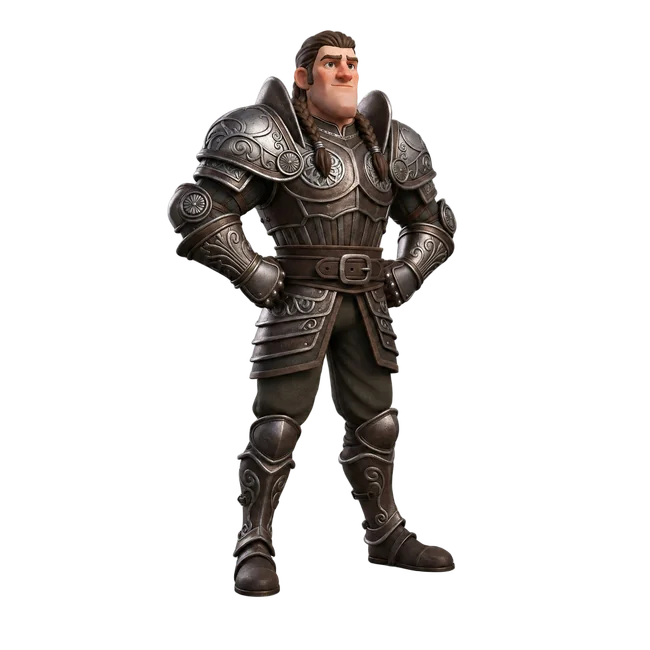
Quady3D offers Standard and Extreme high quality. Start with the level your asset needs at its final viewing size. Increasing quality changes the charge; it does not replace checking the silhouette, thin parts and hidden surfaces.
Review the materials under your lighting
Choose PBR or Shaded materials. Regular and Delight texture modes are separate controls, and HighPack is an optional upgrade. Rotate the result under scene lighting to check seams and baked-in shadows before selecting a more expensive setting.
Prepare a character for the next step
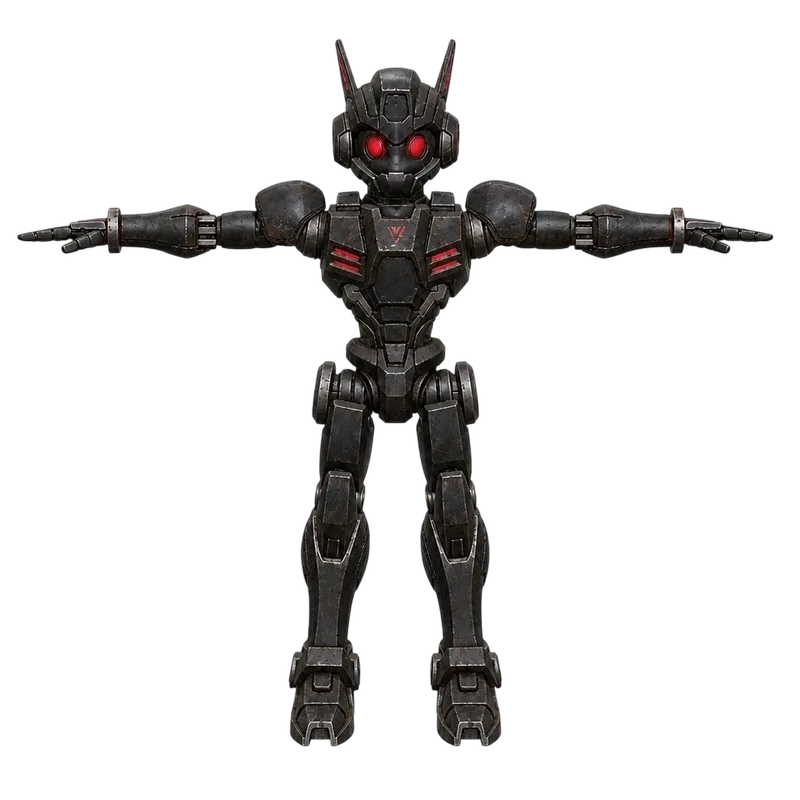
Rig-ready adjusts the generation pose. It does not mean the returned model already has a skeleton or animation. Check limb separation and joint areas, then use the character animation workflow if the mesh suits humanoid rigging.
Rodin 2.5 or a Fast preview?
The creator above uses Rodin 2.5 with Standard or Extreme high quality. Fast is a separate option with Auto, 4K Quad and 20K Triangle mesh choices. Use it to explore an idea, then inspect whether the result fits your final mesh budget.
Questions about Rodin Gen-2.5
What is Rodin Gen-2.5?
Rodin Gen-2.5 is a Hyper3D model that generates 3D assets from reference images or text. This page covers the current Rodin 2.5 image and text creators in Quady3D, their available controls, and our saved results.
Can I use multiple reference images with Rodin here?
The current Quady3D Rodin 2.5 image creator accepts one image. Hyper3D documents up to five in its own workflow, but that is not offered by this creator. Use the multi-image guide to find models that accept multiple views here.
How is Rodin 2.5 Fast different?
Fast is a separate creator option with Auto, 4K Quad and 20K Triangle mesh choices. The Rodin 2.5 creator above instead offers Standard and Extreme high quality, plus HighPack. Compare the actual controls and charge for your next asset.
Does Rig-ready include an animated character?
No. It is a pose option for generation. A usable animation needs a suitable mesh, skeleton, skinning and a motion clip. Inspect the result before moving to rigging, and check deformation again after applying motion.
What does Rodin 2.5 cost on Quady3D?
Quality and HighPack affect the credit cost. The workspace shows the total for your selected settings before you generate.
Can I inspect and reuse the examples?
Yes. Open a case to rotate and download its saved GLB. Image cases include the recorded source, and text cases include the prompt. Use that input in the matching creator to make a new result; the gallery is not a controlled speed or quality comparison.