Quady3D

Review your product in 3D

Turn a Product Image Into a 3D Model

Upload a clear product photo and create a model you can rotate. Compare its shape, hidden sides and materials with the real product before using it in a scene or listing.

Model
Reference image
Try an example
Resolution
Texture size
Loading 3D preview…

Inspect a real product photo case

Compare the input and actual output before starting your own.

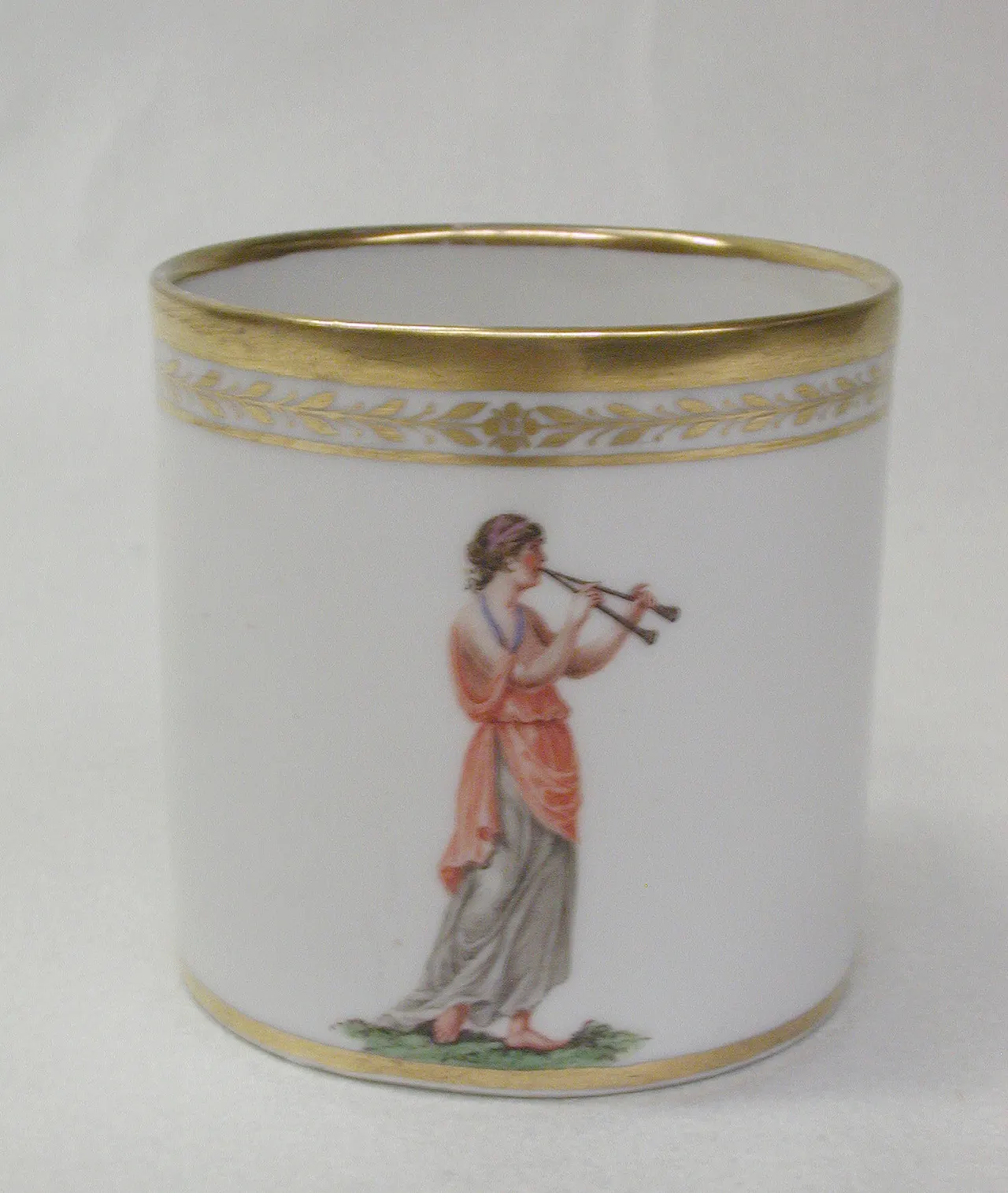
Porcelain cup: photograph to 3D

Tripo H3.1

Original product photograph
Original museum photograph of the porcelain cup with gold rim and painted decoration
Generated textured GLB

Source photo: The Metropolitan Museum of Art · CC0 1.0. Model generated in Quady3D.

Compare the rim and decoration with the photo. The interior contains repeated decoration; the far side and exact dimensions need separate review.

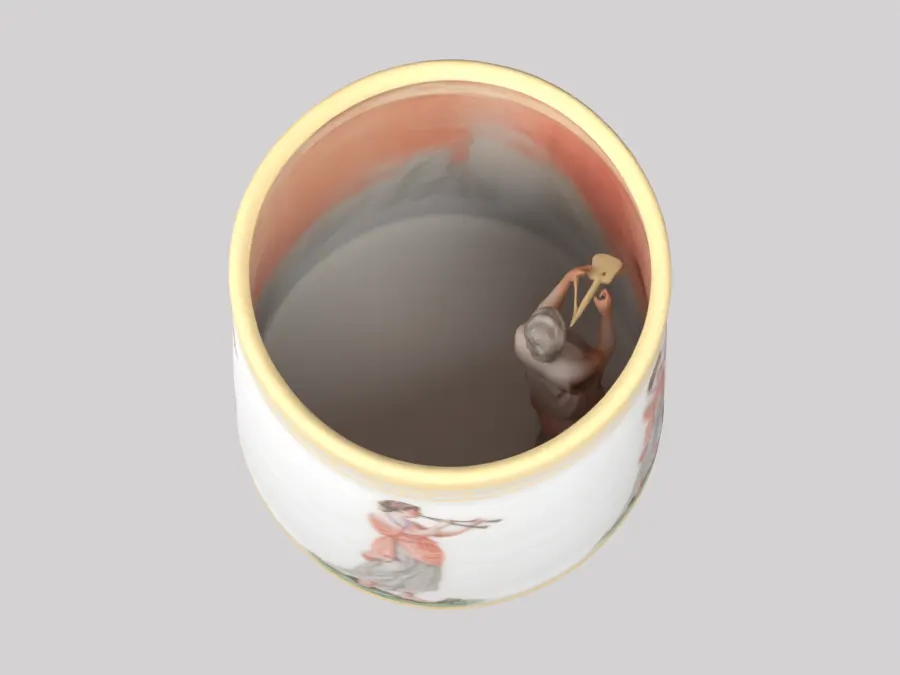
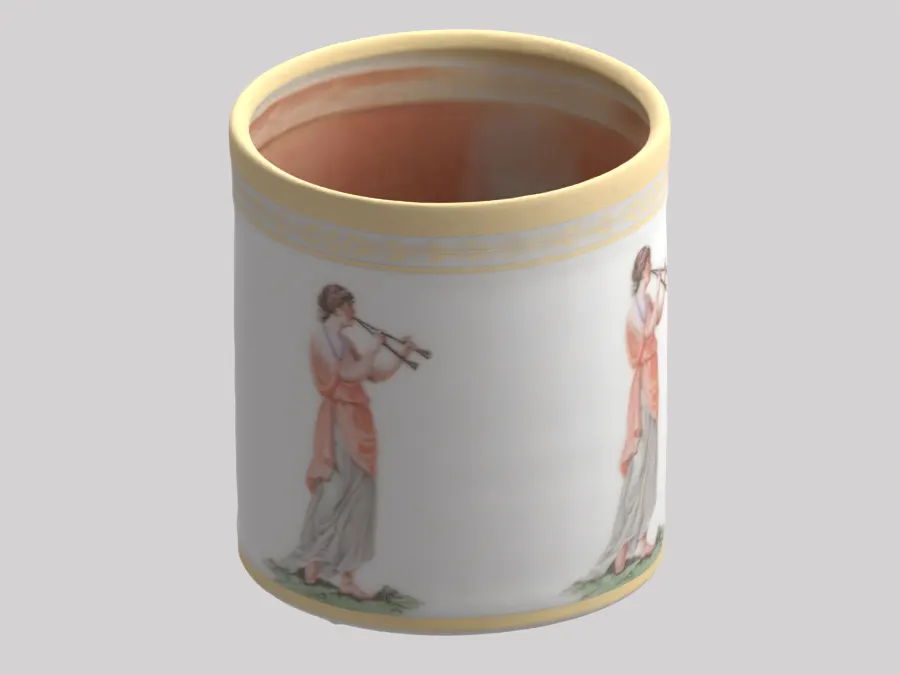
Inspect the inferred interior and back
Actual generated porcelain cup top inspection view
Interior: decoration repeats on the inner wall
Actual generated porcelain cup rear inspection view
Back: shape and decoration inferred from one photo

Check these before using the model

Proportions

Compare the silhouette and openings, then set dimensions from the actual product.

Hidden surfaces

Inspect the back, underside and interior. One photo cannot verify them.

Materials and markings

Check decoration, logos, reflections and seams in the exported model.

From product photo to usable draft

2. Compare the photo and generated model

Start with the visible proportions and decoration. Rotate the cup below to inspect its far side and interior, where the source photograph provides less evidence.

4. Reopen the exported file

GLB can package geometry and textures in one file. Inspect the downloaded model in its destination viewer before publishing; a good initial preview does not verify a storefront integration.

Questions before you start

Can I convert a product photo to 3D?

Yes, it can create a model draft. One photo does not establish exact dimensions or hidden surfaces. Compare the result with the product and use more views where details matter.

Which image formats can I use?

The image workflow accepts PNG, JPG and WebP. Use a clear image with the full product visible and check the current upload requirements in the workspace.

Can I use the result in an ecommerce viewer?

A suitable GLB can be used by a compatible viewer after you check geometry, file size, textures and dimensions. Test it in your storefront’s viewer; this example does not verify a particular integration.

Does this create a measured CAD model?

No. The output is a generated mesh. Product measurements, fitted parts and manufacturing tolerances require separate modeling and validation.

Can I print a model generated from a product photo?

Prepare its geometry as STL, set a physical size and inspect the result in a slicer. Fine walls, cavities and hidden parts may need editing before a test print.