










How to compare image-to-3D tools
Compare the delivered model, not just the preview. Use the same input, record settings, and check geometry, textures, export files, and total effort against the job you need to finish.
One camera image, two generated models
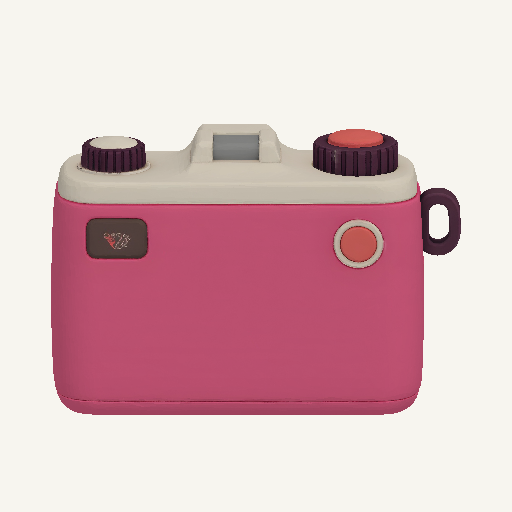
Quady3D generated this camera with Meshy 7.1 and Tripo H3.1 from the same unchanged reference. Open both original models, rotate them, and compare the hidden rear as well as the front.
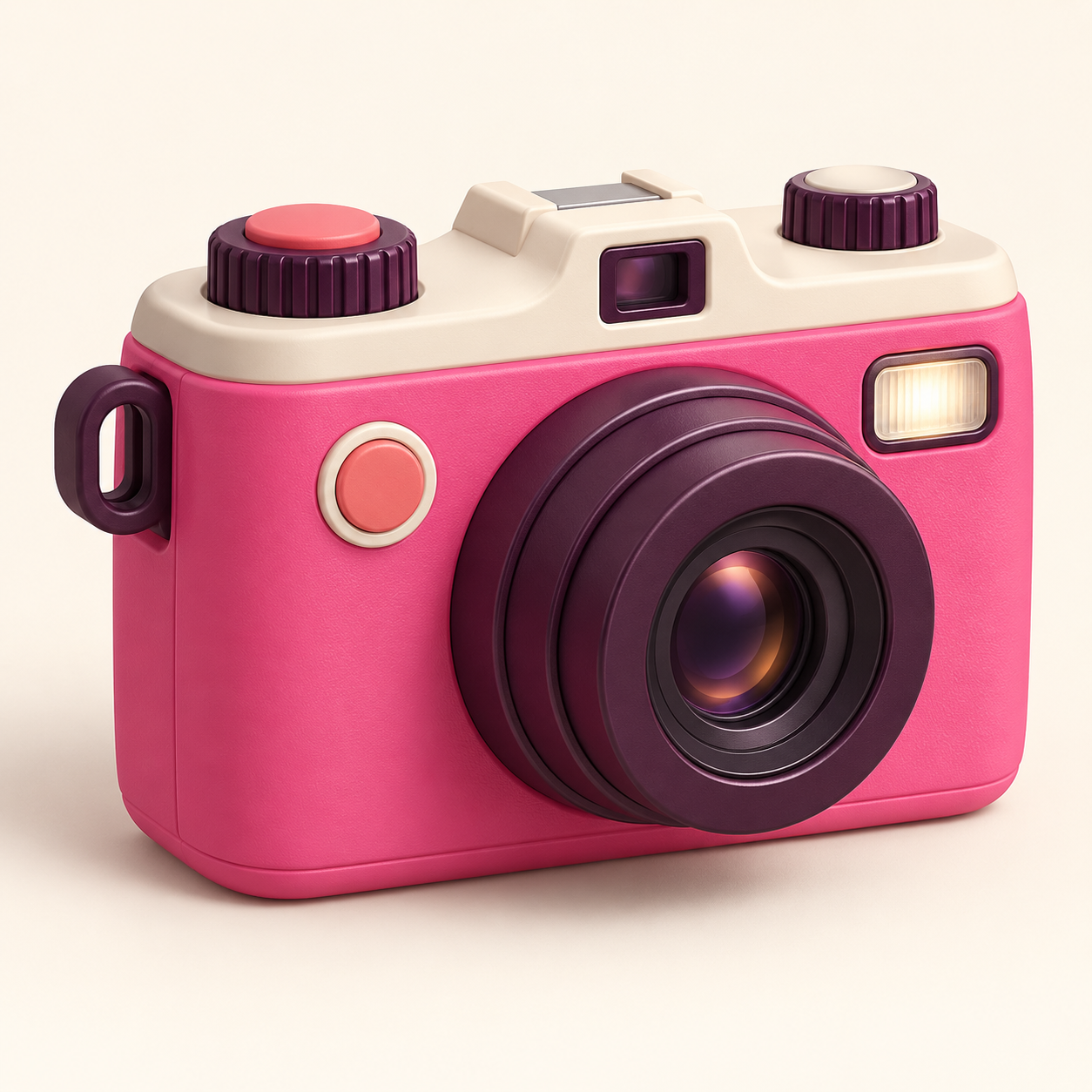
One newly generated Quady3D camera reference, viewed from a front three-quarter angle. Both models received the same unchanged PNG; no rear reference was supplied.
Download the reference image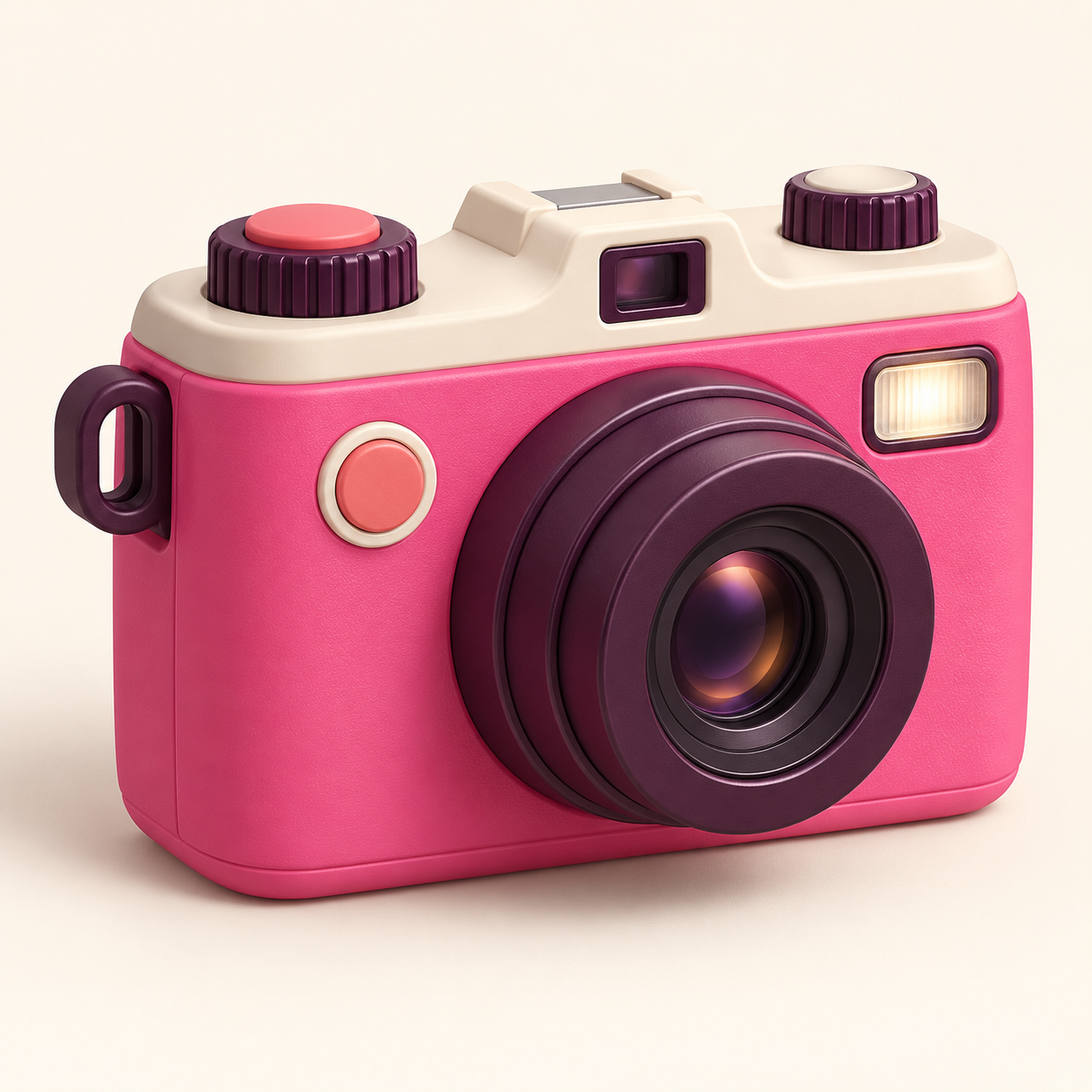
Previews use the same renderer, lighting, and framing. Rotate the models independently to inspect geometry, texture, and guessed hidden surfaces.
Meshy 7.1
Generated September 30, 2026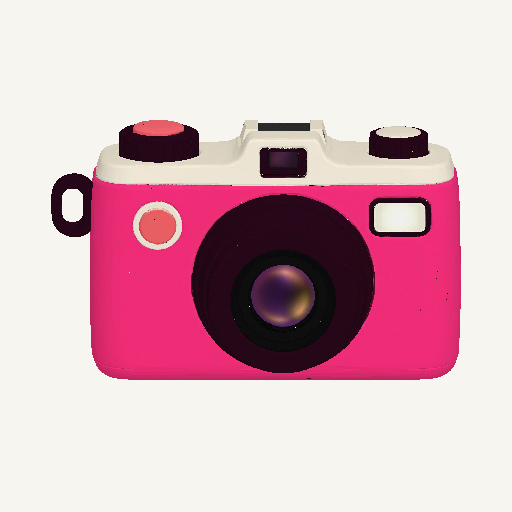
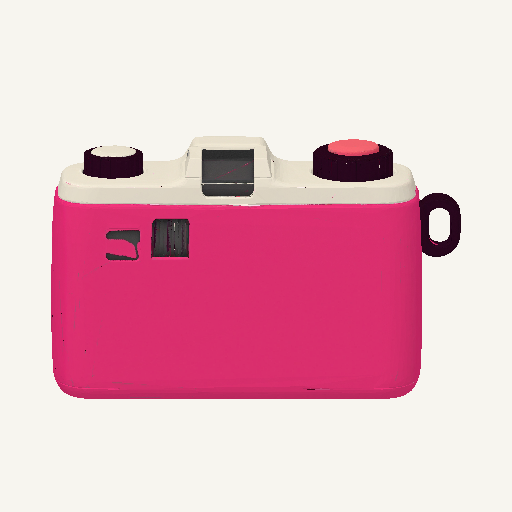
- Triangles
- 28,160
- GLB size
- 3.80 MiB
- Base-color texture
- 2048 × 2048
Generation settings
- Standard model and geometry resolution
- Textures enabled; PBR disabled
- Triangle topology; remeshing enabled
- Target polygon count: 30,000
- Symmetry: auto
- Rigging and animation disabled
Tripo H3.1
Generated October 4, 2026
- Triangles
- 27,305
- GLB size
- 1.43 MiB
- Base-color texture
- 2048 × 2048
Generation settings
- Geometry quality: standard
- Textures enabled; texture quality: standard
- PBR disabled; quad output disabled
- Target face count: 30,000
- Auto-size disabled; orientation: default
- Texture alignment: original image
Both runs used the same PNG, standard geometry, textures enabled, PBR disabled, triangle output and a 30,000-face target. Meshy uses its remeshing control; Tripo uses its face limit. These are two individual runs, not a repeatability benchmark. Preview orientation is aligned; downloaded GLBs are unchanged. This pair illustrates what to inspect; it does not establish a universal winner.
Visible structure
Both results include the lens rings, top dials, flash and strap loop. Rotate their geometry at this similar face budget to compare edges and small details; neither sample establishes a general quality winner.
Texture interpretation
Meshy retains the multi-color lens reflection; this Tripo run interprets it as a softer purple and amber circle. Both contain a 2048 × 2048 base-color texture. Equal texture size does not establish equal fidelity.
Unseen rear
Meshy adds small rear controls; Tripo adds a small dark patch and a circular control to a largely plain back. The input does not show that side, so these are inferred designs with no supplied rear-view ground truth.
Delivery budget
Meshy returns 28,160 triangles in a 3.80 MiB GLB; Tripo returns 27,305 triangles in a 1.43 MiB GLB. Both requested 30,000 faces, but the outputs are not exact counts. File size alone does not measure quality or runtime memory.
What to check in every image-to-3D tool
Choose a target first: a render, an editable asset, a game prop, or a print. Then apply the same checks to each result.
| Criterion | How to check it | Why it matters |
|---|---|---|
| Source and settings | Use the same image and record the exact model version, texture options, and target triangle count. | Different inputs or polygon budgets can make a comparison unfair. |
| Geometry | Rotate front, side, back, and underside views. Use clay or wireframe to separate mesh detail from painted detail. | A polished image can hide flat, missing, or over-dense geometry. |
| Materials and textures | Check seams and detail, then reopen the exported file in your destination software. | A large texture does not guarantee accurate color, useful UVs, or complete PBR maps. |
| Export and scale | Confirm the file, included textures, coordinate scale, and any skeleton or animation clips. | STL drops materials. A static character is not an animated character. |
| Cost and effort | Track total credits, retries, waiting, and cleanup time per usable asset. | One successful result cannot establish average speed or reliability. |
| Rights and privacy | Check source permissions, output-use terms, storage, and deletion before uploading sensitive work. | Terms depend on the service, model, and current plan. |
Run a test for your own project
- Select representative images.
Include the objects you actually make. A simple product, a character with thin accessories, and a stylized prop can reveal different weaknesses.
- Record each run.
Save the unchanged input, version, settings, displayed credit cost, elapsed time, and original output. Match controls where possible and note differences.
- Inspect and import the files.
Reopen them in the 3D model viewer, then test your Blender, game asset, or printing workflow.
- Compare usable outputs.
Count retries and cleanup work. Pick the model that meets your requirements at an acceptable total cost.
Image-to-3D comparison questions
What makes a fair image-to-3D comparison?
Use the same source and target requirements, record model versions and settings, and inspect the original downloaded files. Where controls differ, state that difference instead of treating the result as a controlled benchmark.
Is a higher triangle count always better?
No. More triangles can preserve shape detail but increase file size and editing or runtime cost. Compare geometry at a budget appropriate to the intended use.
Can one example identify the best AI 3D model?
No. A single pair shows how two models handled one input with particular settings. Test representative subjects and repeat runs before making broader quality, speed, or reliability claims.
What should I download to compare results?
Keep each original 3D file with its source and settings. Reopen the GLB or other delivered format in a viewer and in the software where you intend to use it.