Write a clear text-to-3D prompt
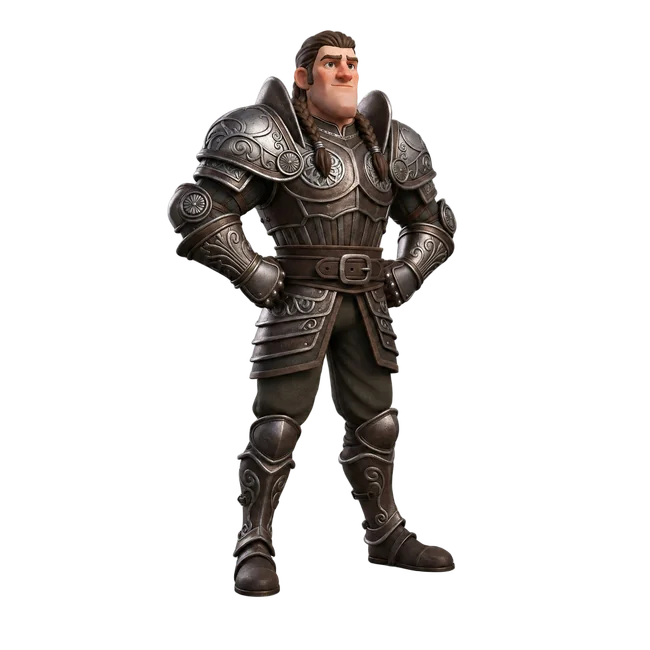
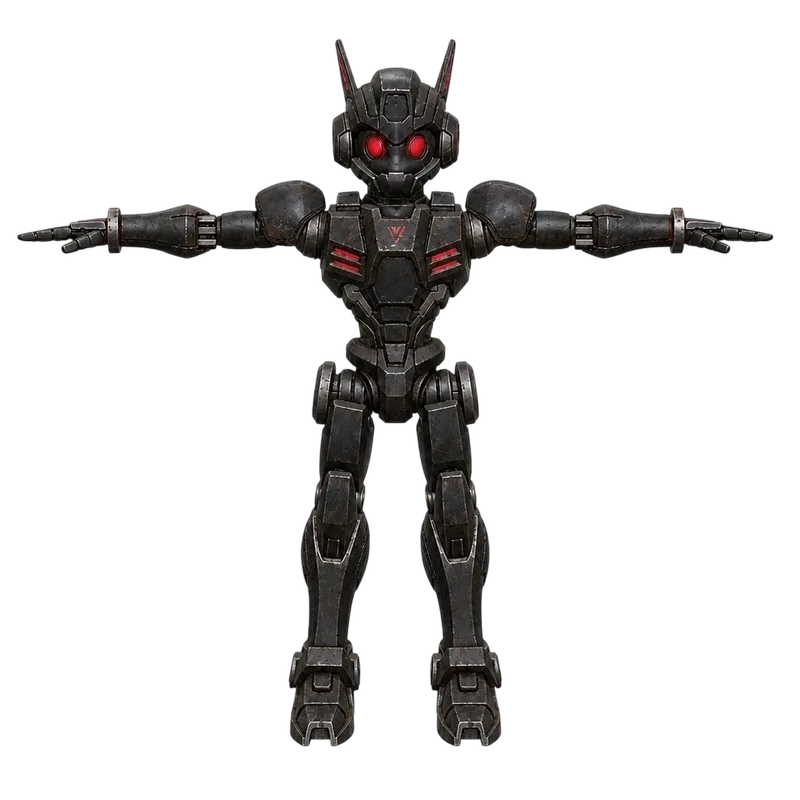
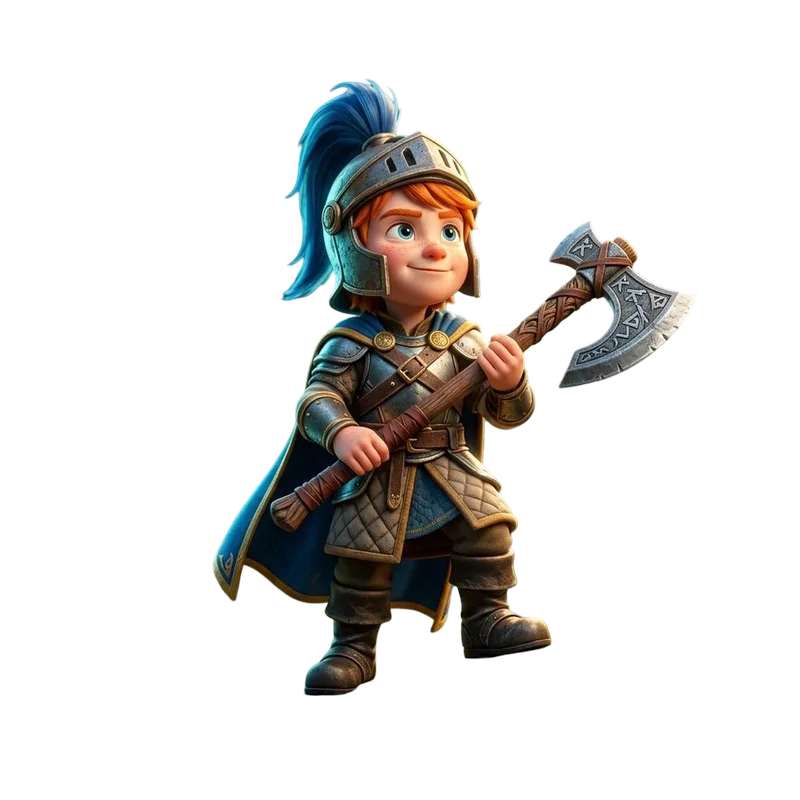
Start with one object, then add its proportions, material, style, and two or three defining details. Keep the description consistent instead of mixing conflicting styles or several unrelated subjects.
- Shape: a rounded body, short legs, and a large head.
- Material: painted wood, brushed metal, or soft plush.
- Style: realistic, cartoon, or low-poly.
Need a starting point? Explore 3D prompts.
Choose a model for your project
Check shape and detail
Rotate the model to check its back, underside, thin parts, and surface details. Compare the main shape with your prompt. If the proportions are wrong, revise the description before refining smaller details.
Open a downloaded file in the 3D model viewer.
Need a specific silhouette or visible detail? Use a reference image with the image to 3D generator.
Download and use your 3D model
Download options depend on the model and completed result. Choose a format for your next step:
- GLB keeps geometry and materials in one file when provided.
- Other options can include OBJ with MTL in a ZIP, STL, 3MF, or PLY. USDZ and texture packages are available for supported results.
- For 3D printing, check scale, closed geometry, and wall thickness before slicing an STL.
Continue by editing the model in Blender or preparing an STL for printing.
See plans and credit details. If you want raised lettering rather than an object model, use the 3D text generator.