










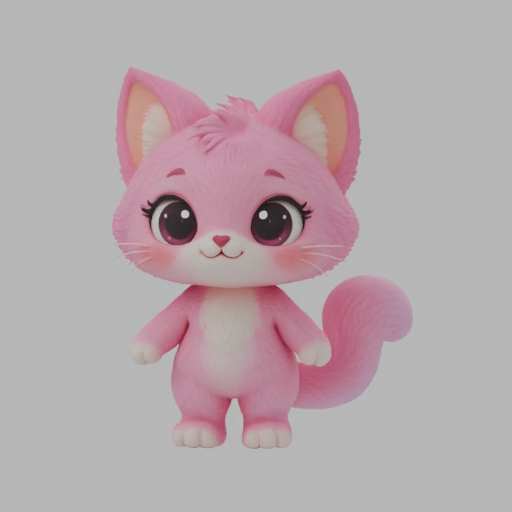
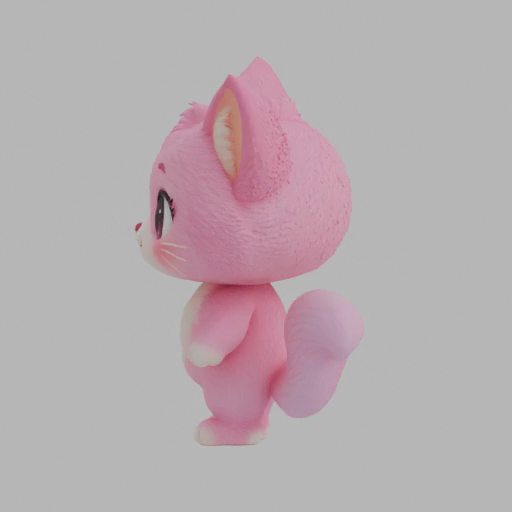
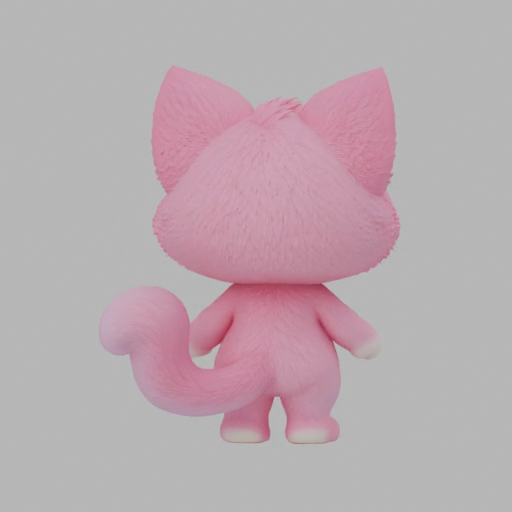
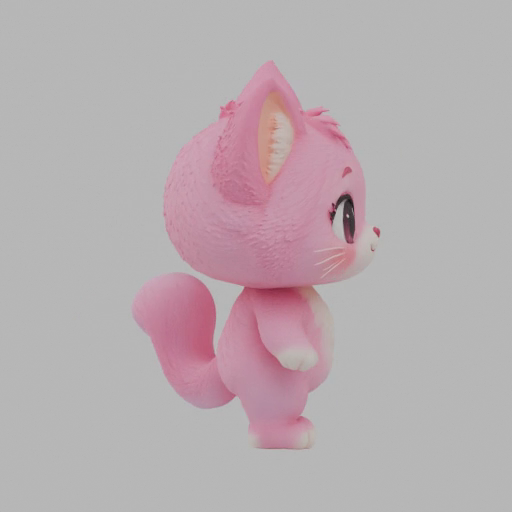
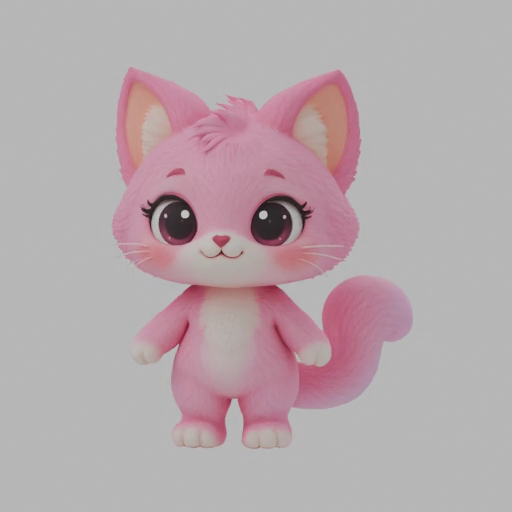
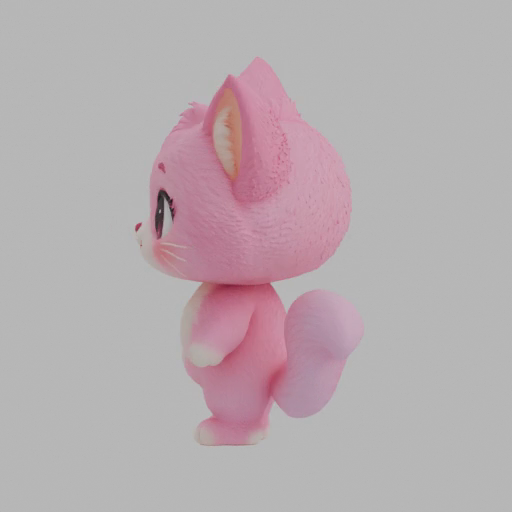
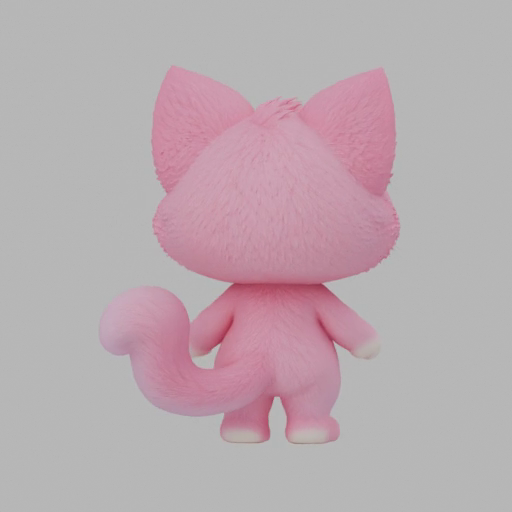
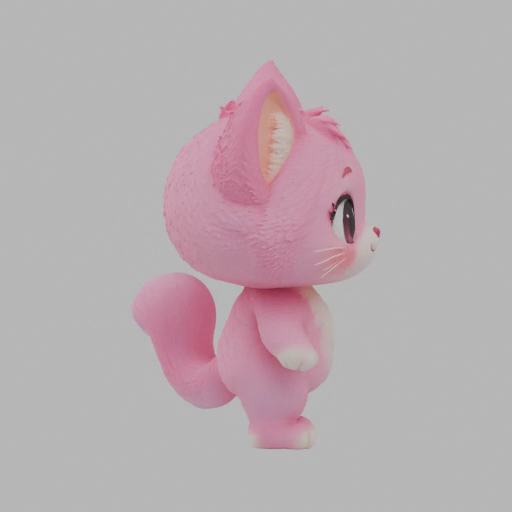
An AI model of one object
A few complementary frames can guide a generated mesh. The result still estimates surfaces and needs inspection.
See multi-image generation →Use sharp views from a short video to guide AI 3D generation. Extract frames here, then upload your selected images to the multi-view workspace.
This tool prepares PNG images on your device. The 3D model is generated in the next step.
Selected frames can be downloaded and added to Multi-image to 3D.
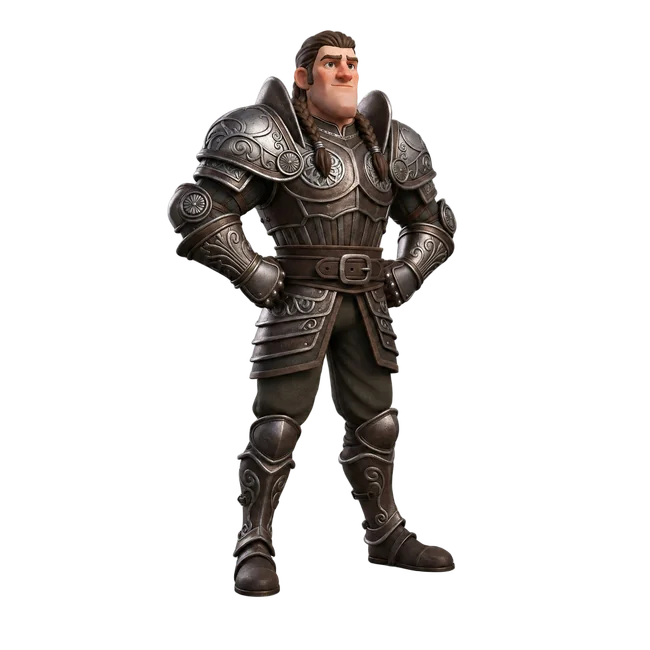
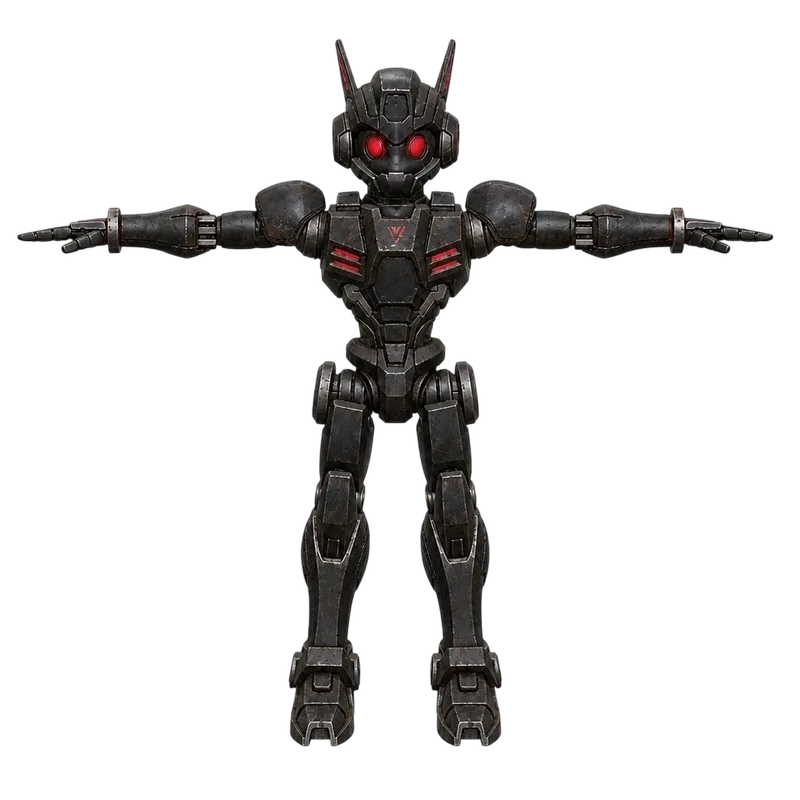
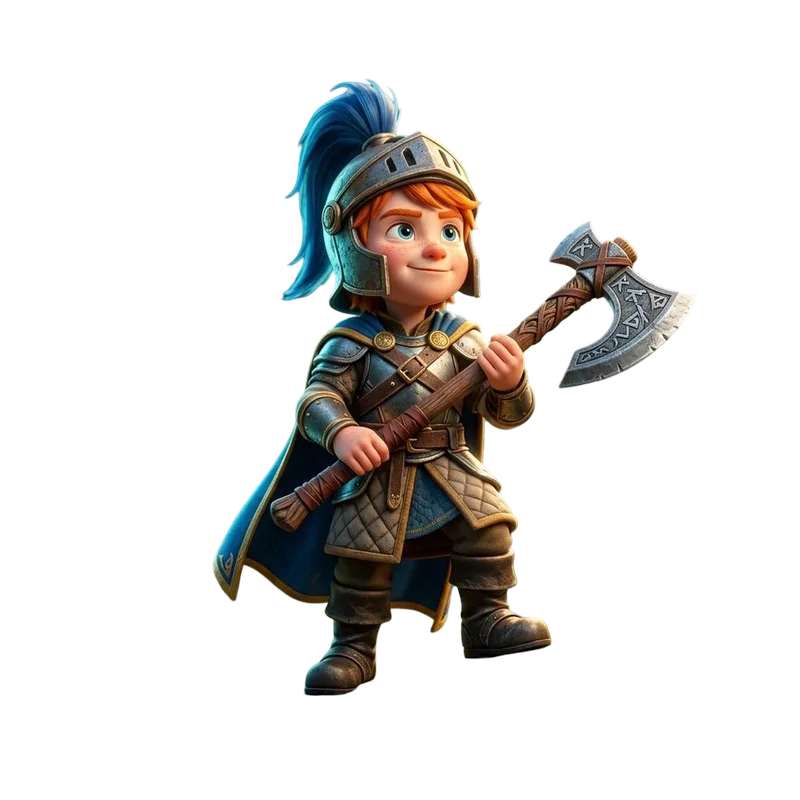
We took four views from this 4-second rendered turntable and used Tripo H3.1 to generate a new model. This demonstrates the frame-based workflow; it is not a scan of a physical object.
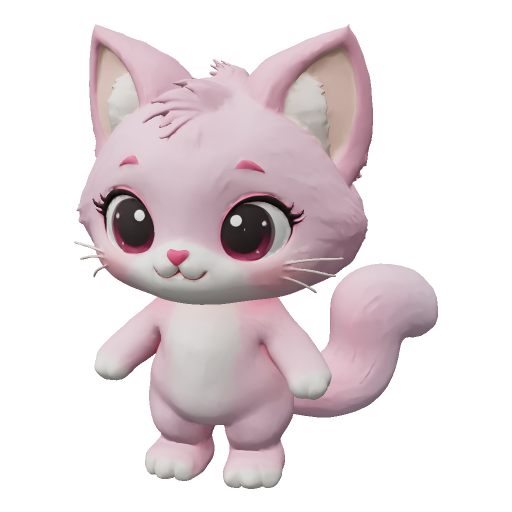
Texture enabled · 30,000-face target · Standard quality. Compare the new model’s ears, paws, and tail with the selected frames.
Move slowly around a stationary subject. Keep the whole object in view and use consistent lighting.
Load your video in the frame extractor. Keep sharp, distinct angles of the same object and download the selected PNGs.
Upload the PNGs to Multi-image to 3D, choose a supported model, and inspect the returned geometry and textures.
A few complementary frames can guide a generated mesh. The result still estimates surfaces and needs inspection.
See multi-image generation →Photogrammetry and neural reconstruction use many overlapping views and camera information. This frame tool does not reconstruct a measured scan.
Motion capture follows movement over time. Extracting object views is a different task from animating a rigged character.
Explore character animation →Prefer front, side, and rear views that reveal new surfaces. Reject motion blur, changing poses, cropped parts, reflections, and large lighting changes. Four clear views are more useful than many inconsistent ones.
No. It prepares selected image frames locally for a later image or multi-view generation workflow.
Keep only distinct, sharp views that reveal useful geometry. More frames are not better when they conflict.
Motion blur, occlusion, a changing subject, extreme perspective, or lighting that hides the silhouette.