











Kimi 3D Make Tutorial with K3.1 Pro
Explore real examples, choose the right 3D workflow, and try a precise prompt. Then check what you can actually edit, download, or print.
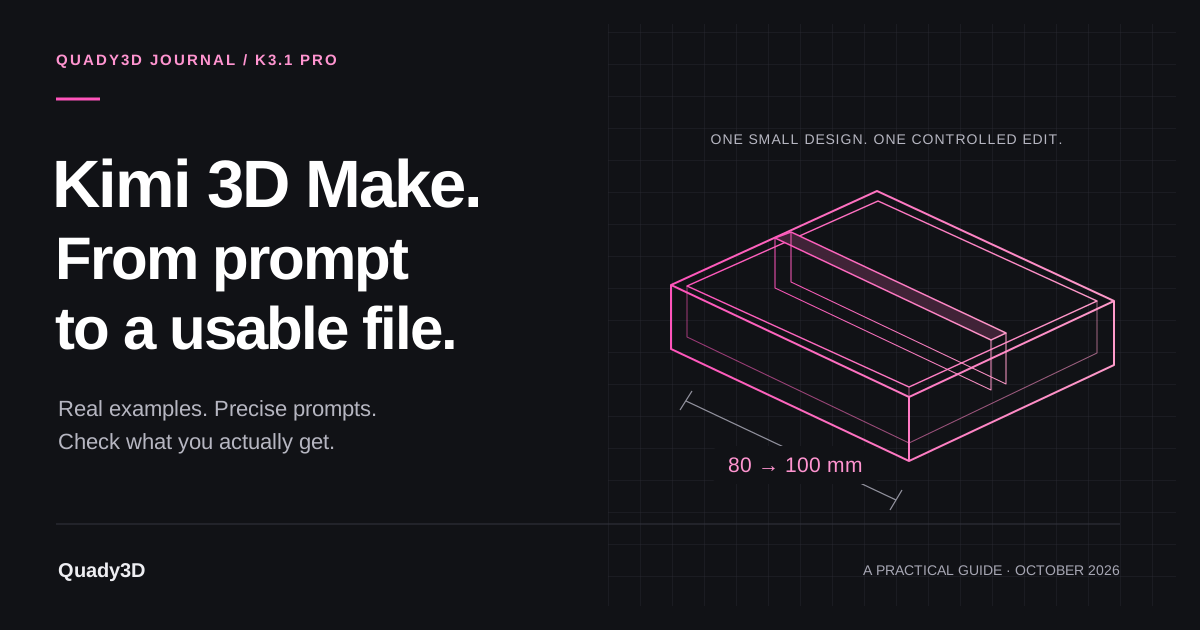
To use Kimi 3D Make, start by choosing the deliverable: an interactive webpage, a 3D model, or an object for printing. Then describe a small design, revise it, and reopen the actual result in the tool where you will use it.
Moonshot’s launch announcement describes stronger parametric modeling and Blender/CAD scripting. It also introduces 3D Make on the Kimi website and app, with online previews, editing, model downloads for printing, and video or Live Photo exports.
Real Kimi 3D examples: what each workflow delivers
A rotating 3D webpage, a Blender scene, and a printable object are different deliverables. These creator examples make that distinction useful before you start.
An interactive robotic hand
Crystal (@crystalsssup), Kimi team
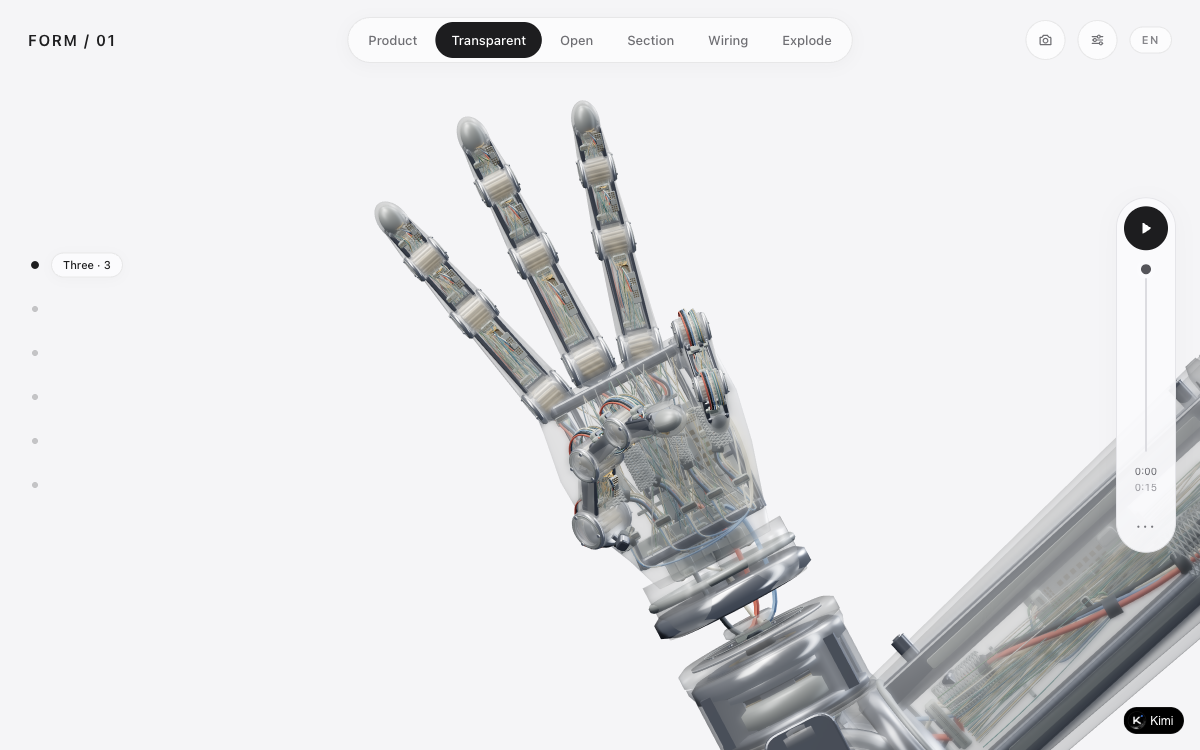
Crystal shared a K3.1 Pro project with a transparent robotic hand and assembly views. The public project lets you switch display modes and explore the mechanism in a browser.
What to take from it: Try it for interactive product explanations. A live webpage does not establish that an editable CAD file or printable model is available.
Several 3D scenes, compared on screen
Arena / Peter Gostev
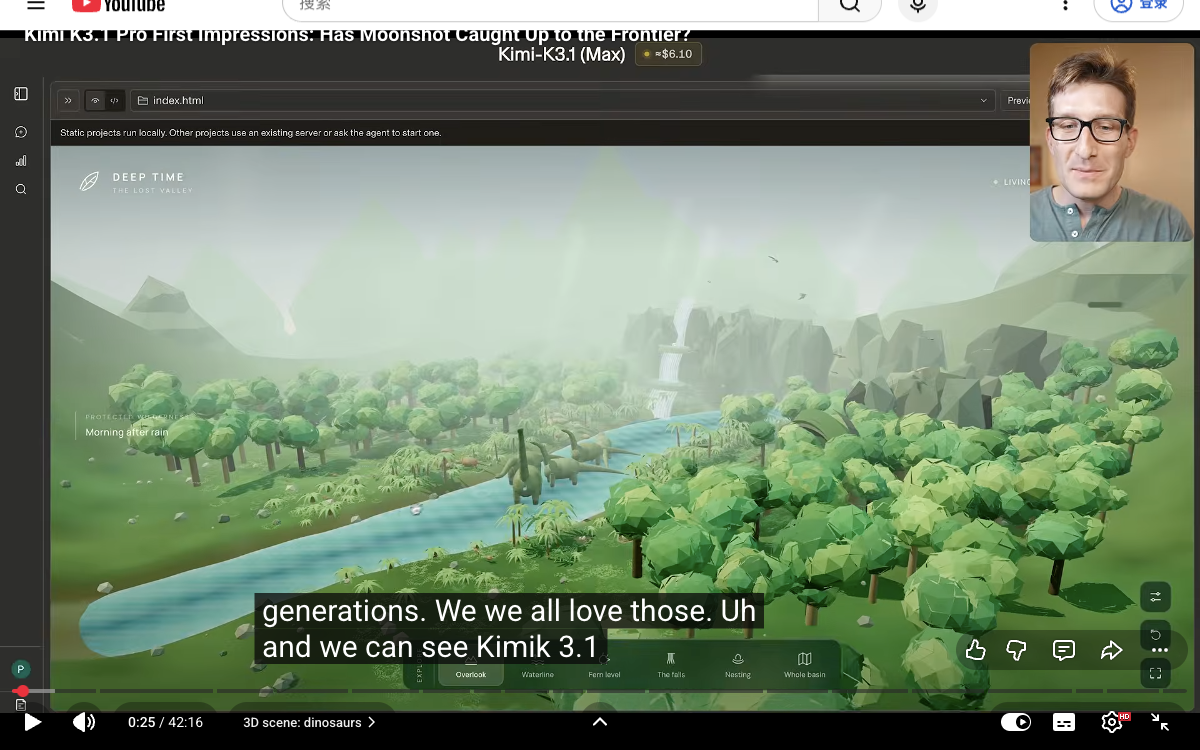
Peter Gostev’s K3.1 Pro first-impressions video starts with a dinosaur scene and continues through other 3D scene prompts. It shows why you should compare construction, composition, and motion across more than one subject.
What to take from it: Use the video to inspect rendered behavior. It is a scene review, not a demonstration of a 3D Make download or a print-ready file.
A pelican on a bicycle, after several revisions
u/blaind0 / r/aigamedev
The author reports creating a pelican-riding-a-bicycle scene with K3.1 Pro in pi.dev. They also say the first prompt was insufficient and that several follow-up requests were needed to improve it.
What to take from it: Plan for iteration and keep each version. This is a reported agent workflow, not a consumer 3D Make run or a controlled comparison of model quality.
Creator posts and public demos show their reported workflows. We did not reproduce these generations, inspect their source models, or physically print their output. The first example comes from a Kimi team member.
To make a new model from your own product photo or character reference, explore Quady3D’s image-to-3D workflow.
The tutorial below uses a two-compartment desk tray, followed by one controlled size change. The dimensions describe the requested design, not measurements of a Kimi-generated sample.
Choose the kind of 3D work you need
Open Kimi 3D Make. In the Chinese-language interface checked on October 24, its type picker offers three options:
| Option | Choose it for |
|---|---|
| 3D 网页 / 3D webpage | An interactive browser scene or experience |
| 3D 建模 / 3D modeling | Creating and refining a model |
| 3D 打印 / 3D printing | An object intended for a physical print |
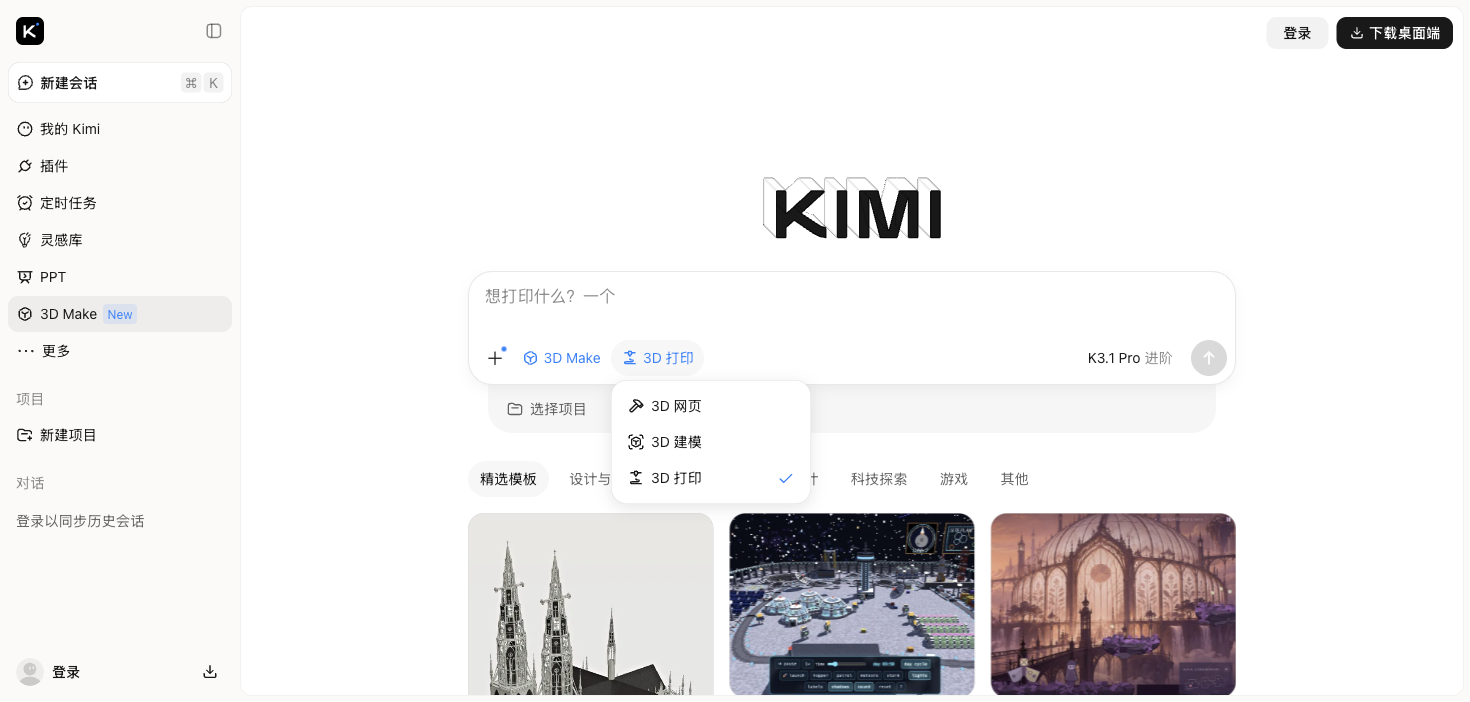
For this tray exercise, select 3D 打印 / 3D printing. Sign in if prompted, and check the access or usage conditions shown by your account before starting.
A browser scene, a rendered video, and a model file serve different purposes. Decide which result you want before asking for a detailed scene or animation.
Give Kimi a brief with a checkable result
For a first attempt, use a flat base, a simple outline, and a small number of parts. Specify the outside size and the features that should stay unchanged. Try this prompt:
Create a two-compartment, open-top desk tray intended for 3D printing.

Design dimensions, all in millimeters:
- Outside width: 80
- Outside depth: 50
- Outside height: 30
- Base thickness: 3
- Outer wall thickness: 2
- One centered divider, 2 mm thick, running from front to back

Keep a flat bottom and a rectangular footprint. Join the divider to the base
and the front and back walls. Do not add a lid, feet, lettering, or decoration.

Show the outside dimensions and explain the resulting compartment dimensions.
Provide a downloadable model file if this workflow supports one, and retain
editable parameters or source when available. Tell me what deliverable you
actually created rather than substituting a picture for a model file.
The simple shape makes mistakes easier to spot. Check for two open compartments, a connected divider, and the requested outside dimensions.
For straight walls without fillets, each compartment’s intended inside width is (80 − 2 × 2 − 2) ÷ 2 = 37 mm. The intended inside depth is 46 mm; the usable height above the base is 27 mm. These are calculations from the brief, not proof that the output satisfies it.
Change one dimension and check what stays fixed
Ask for a controlled revision instead of “make it better”:
Revise the same tray. Change only its outside width from 80 mm to 100 mm.

Keep the outside depth at 50 mm, height at 30 mm, base at 3 mm, outer walls
at 2 mm, and divider at 2 mm. Keep two equal compartments.

Recompute the compartment widths. Do not uniformly scale the whole object.
Show the revised dimensions and identify which parameters changed.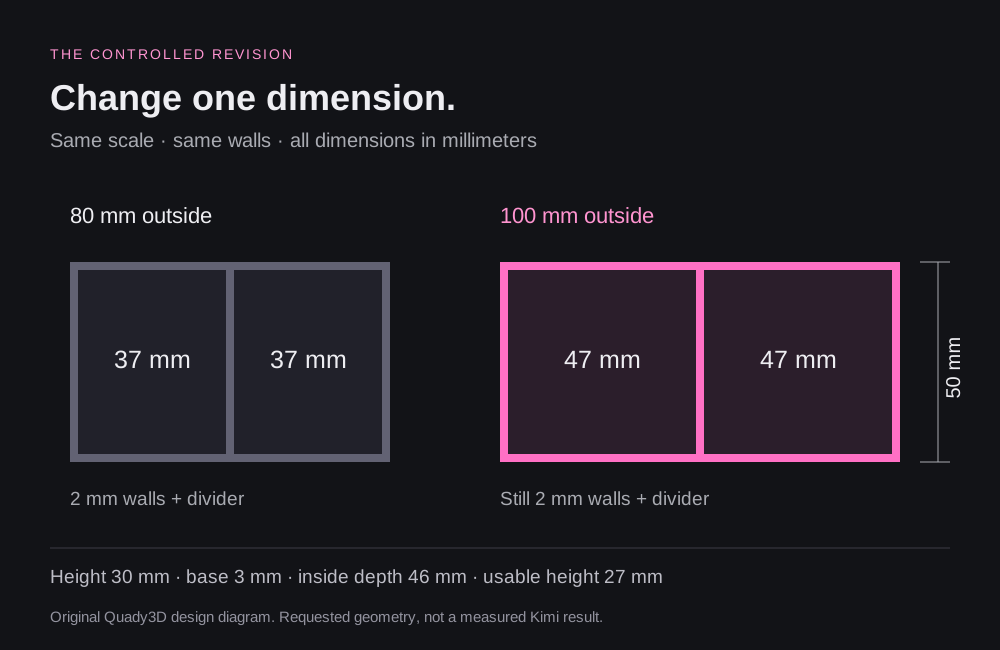
| Dimension | First brief | Revised brief |
|---|---|---|
| Outside width | 80 mm | 100 mm |
| Outside depth | 50 mm | 50 mm |
| Outside height | 30 mm | 30 mm |
| Walls / divider | 2 mm | 2 mm |
| Base | 3 mm | 3 mm |
| Each inside width | 37 mm | 47 mm |
If the walls become thicker as the object gets wider, ask Kimi to revise the construction parameters rather than scale the completed shape. If only a label changes, check the actual geometry before continuing.
Check what you downloaded
Use the export choices actually available in your result. A video or Live Photo can demonstrate appearance; a slicer or editor needs a compatible model file. Keep the first and revised versions separately, then reopen both outside the original preview.
| Actual result | Useful next step |
|---|---|
| STL | Inspect the shape and overall bounds in an STL viewer, then open it in your slicer. |
| GLB, glTF, OBJ | Open a compatible 3D model viewer and check geometry and appearance. |
| Editable CAD / CAD exchange | Open it in software that supports that specific format; inspect construction and dimensions there. |
| Image, video, or webpage only | Return to the task and request the model or source deliverable you need. |
This table describes how to handle a result; it does not mean Kimi always exports every listed format. Changing a filename extension does not convert a file.
STL does not record a physical-unit label. Confirm how your next application interprets its coordinates. Quady3D’s STL viewer shows overall X/Y/Z bounds, not individual wall thickness or the distance between two chosen points. Check those in appropriate CAD, mesh-editing, or slicer software.
Review the object in the tool that will use it
For a print, open the actual exported model in your slicer and check:
- The intended outside size after import.
- The base, divider, and walls in the layer preview.
- Unexpected gaps, separate pieces, or internal surfaces.
- Orientation, supports, and small features for your printer and material.
A clean render does not verify a successful print. Fitted or load-bearing parts need more dimensional checks and physical testing than this introductory tray exercise provides. Our 3D printing workflow covers further preparation.
For a digital asset, import the file into the destination editor or engine. Inspect scale, materials, object separation, and geometry you plan to modify. An attractive camera angle can hide an unfinished back or an intersecting surface.
Where Blender fits
Moonshot reports that K3.1 Pro can write and run scripts for Blender and CAD software. This is useful for explicit construction parameters or a repeatable scene setup, and is a separate workflow from the consumer 3D Make interface.
Specify your installed application version, intended dimensions, output folder, and required deliverables. Inspect the script before running it, then verify the files it produces. Reuse the tray brief and revision table as concrete checks. For imports and preparation, see our Blender workflow guide.
Common questions
Can Kimi K3.1 Pro make models for 3D printing?
Moonshot announces downloadable models for printing through 3D Make. Check the actual file, scale, geometry, and sliced layers for your project. A capability announcement does not certify every generated result.
Does a 3D webpage give me an editable model file?
A webpage may display a scene without supplying the editable model or format you need. Check the delivered files. Ask for model data or source separately when your next step requires it.
Does Kimi 3D Make export STL, GLB, STEP, and Blender files?
The launch announcement does not provide a complete export-format matrix. Use the options in your completed result, and confirm the file opens in its destination application. This guide does not guarantee those formats are all available.
How can I test whether the modeling result is accurate?
Keep the original prompt, exact model and workflow, revision instructions, downloaded files, and measured dimensions. Compare the actual output with the brief. One successful tray demonstrates that run, not a general accuracy or print-success rate.
Sources & image notes
Sources checked October 24, 2026. This is a workflow guide, not a benchmark or a report of a completed print.
- Moonshot: Kimi K3.1 Pro announcement — modeling, scripting, and 3D Make capabilities.
- Kimi 3D Make — public interface and three mode labels; screenshot captured while signed out.
- Kimi Code release notes — October 23 rollout context. Code membership rules are not 3D Make access rules.
The tray illustrations and example prompts are original Quady3D editorial material. They describe a proposed design, not a Kimi-generated asset. We have not verified a complete Kimi export-format list or physically printed this example.
Make something you can keep working on
Starting with a reference image?
Use Quady3D to generate a new model from a product photo, character reference, or sketch. Choose a model, review the result, and check the available export options.
Explore image to 3D →Already have a model file?
Open a supported GLB, glTF, OBJ, or STL in the browser to inspect its shape. For printing, continue with the dimensions and geometry checks in your slicer.
Inspect your model →