


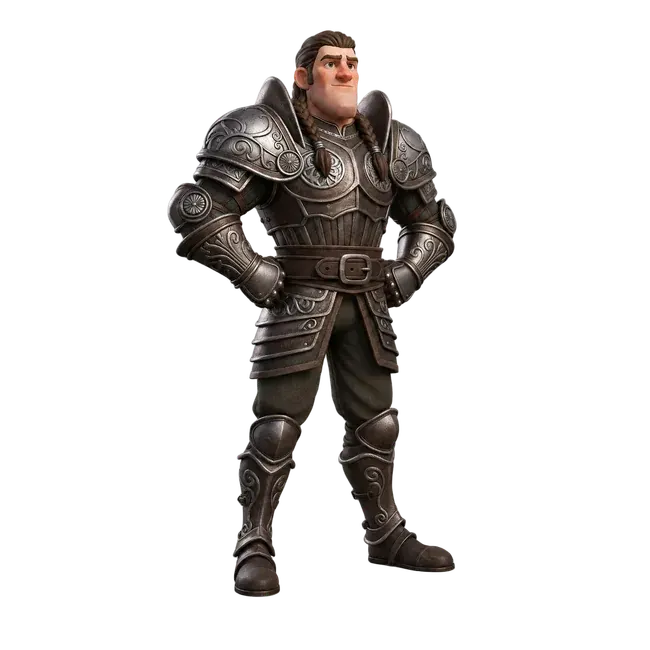


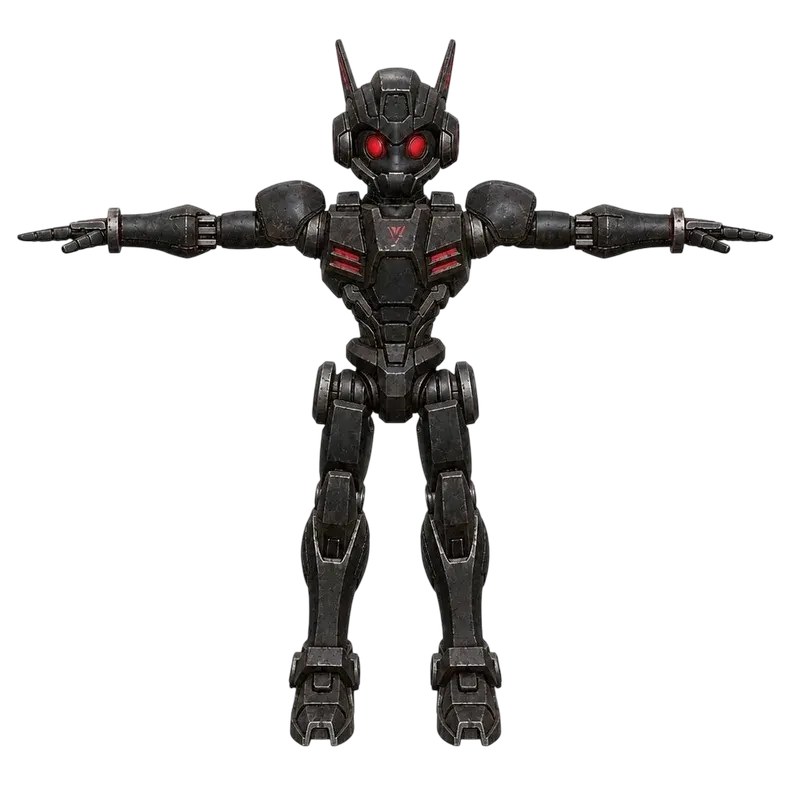


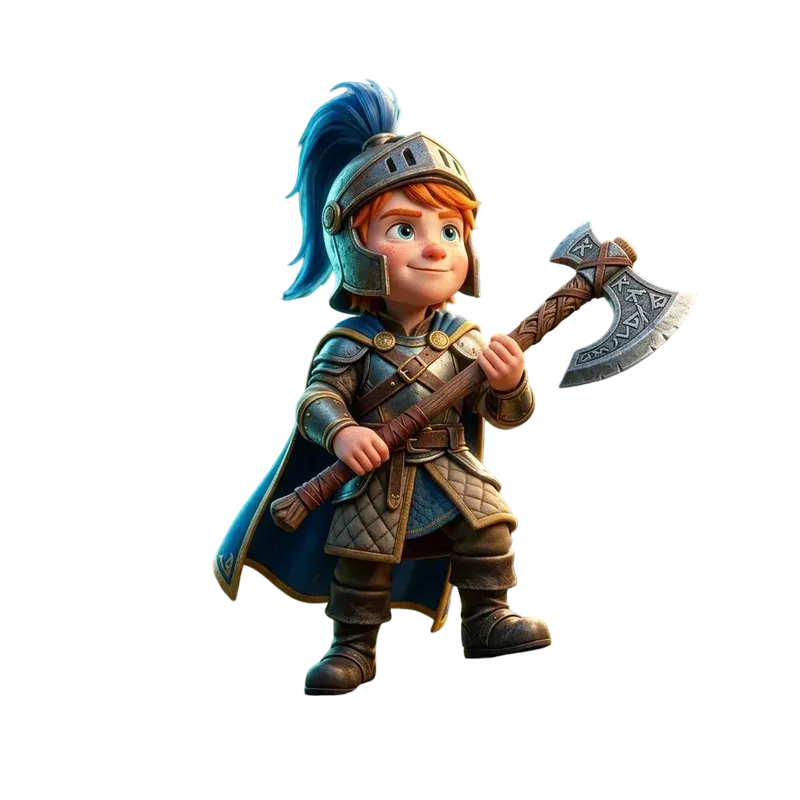





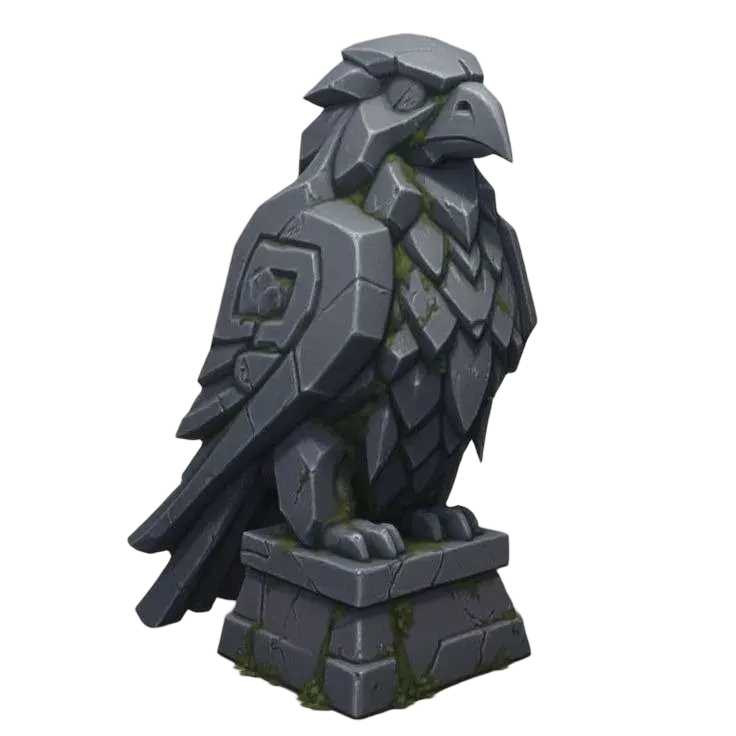
Remove the background. Keep the subject.
Isolate an object from its image background, inspect the edges and download a transparent PNG. Keep the focus on the subject you want to turn into 3D.
- Add a reference image
Choose an image with a clearly visible subject. Check the upload control for accepted formats and the current file-size limit.
- Remove the background
Review the displayed credit cost and run the task. The original image stays available for comparison.
- Check the edges
Compare before and after, inspect the transparent areas and download the PNG when the visible subject is preserved.
Prepare your next editing step
| Remove visual distractions | Separate the visible subject from its background. A cleaner reference can help you evaluate its outline before choosing an image-to-3D model. |
|---|---|
| Inspect difficult edges | Check thin branches, hair, handles and translucent surfaces against the preview backgrounds. Keep the original when removal loses part of the subject. |
| Continue with a PNG | Download the transparent result or continue with it as a reference. Inspect the next model's input requirements and avoid adding an unintended background. |
Formats, compatibility and processing limits
| Image processing | This tool removes a background from a 2D image. It does not delete objects from an existing 3D scene or edit mesh geometry. |
|---|---|
| Fine details | Transparent objects, thin features, shadows and similar foreground/background colors can be difficult. Inspect the result rather than assuming every edge is preserved. |
| Hidden surfaces | Removing a background cannot recover the back of an object, separate heavily overlapping subjects or guarantee the quality of a later 3D generation. |
Questions about AI Background Remover
Can I remove a background before image-to-3D generation?
Yes. Upload the image, remove its background and inspect the transparent result. Use it as a reference if the complete visible subject and important edges have been preserved.
Does it make the background transparent?
The result is a PNG with transparency. Compare the output with the original and use the preview backgrounds to inspect the subject's edge.
Will this improve every 3D model?
No. Input quality, visible surfaces and the selected 3D model still matter. Keep the original image and compare references if background removal removes useful details.
Can it remove a background from a GLB or a 3D scene?
No. This is an image-background tool. Use a 3D editor to remove scene objects or geometry from a model.
More questions (1)
Is background removal free?
New background-removal tasks use credits and require an account. The tool displays the cost before you run so you can decide whether to continue.