












 For Bambu Studio
QUADY3D / BAMBU STUDIO BRIDGE
Bambu Studio Bridge. Compare before printing.
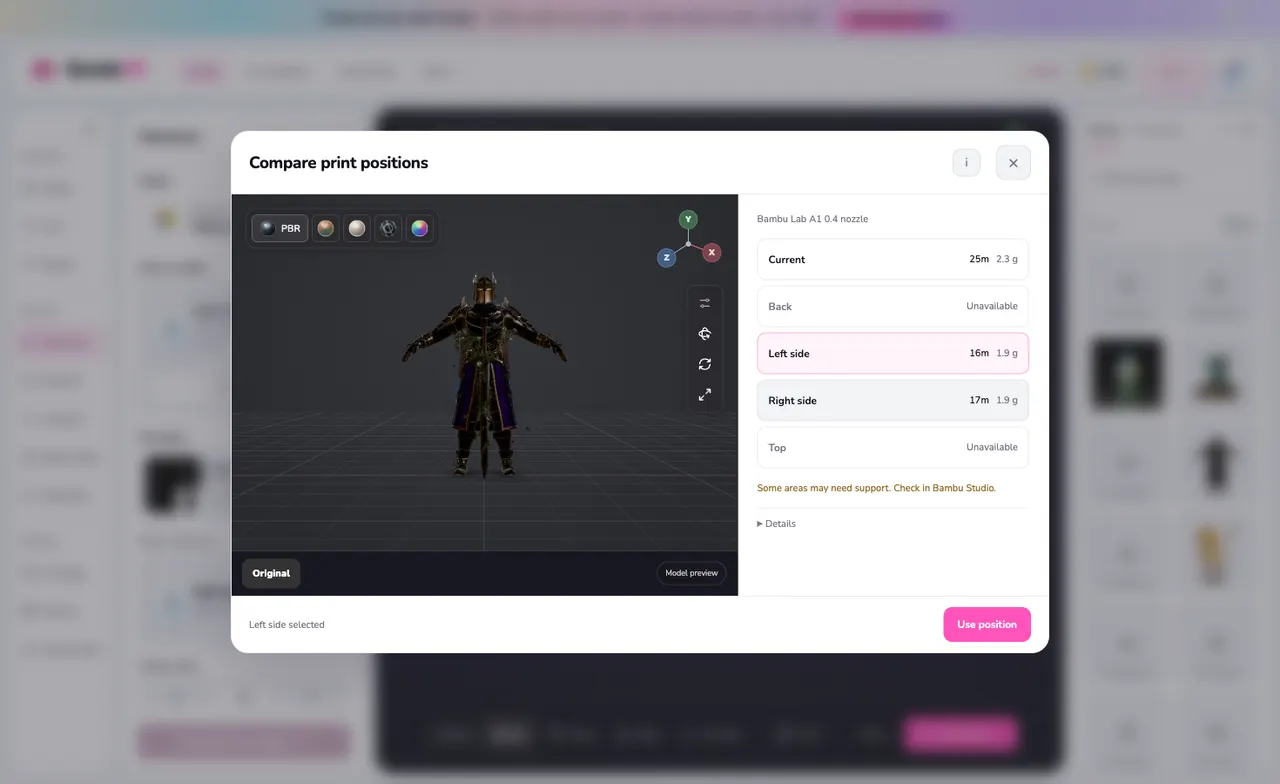
Compare five positions for your Quady3D model using Bambu Studio on your Mac. Review time, material and support warnings before choosing how to print.
KEEP YOUR WORK MOVING
A useful next step for your model.
Compare five positions
Review the current, back, left, right and top orientations in the same workflow.
See more than time
Compare material estimates and review the slicer’s warnings before selecting a position.
Finish in your slicer
Keep control of supports, adhesion and printer settings in Bambu Studio. The Bridge does not start a print.
FROM DOWNLOAD TO YOUR WORKSPACE
Set up. Connect. Keep creating.
Follow the steps for this tool. Your source files, application and account settings stay under your control.
Download for Mac- 01
Prepare your Mac
Install Bambu Studio in Applications and open it once to finish setup. The Bridge also requires Python 3.
- 02
Start the Bridge
Extract the ZIP and open Start Quady3D.command. Review any macOS prompt for the downloaded file, then keep the connection window open.
- 03
Connect the model result
Copy the six-character code into your Quady3D result’s Bambu Studio connection panel and choose Connect to Bambu Studio.
- 04
Compare, then review
Select Compare positions. Review the estimates and warnings, choose a position, and inspect the result in Bambu Studio with the printer and filament settings you intend to use.
KNOW THE HANDOFF
The files and features you can use.
- Compared positions
- Current, back, left, right, top
- Estimate profile
- Bambu Lab A1 · 0.4 mm nozzle
- Process / material
- 0.20 mm Standard · Generic PLA
- Starts a printer?
- No
Before you continue
- The Bridge currently targets macOS with Bambu Studio and Python 3. It is not a Windows or Linux installer.
- Its estimate profile is Bambu Lab A1, 0.4 mm nozzle, 0.20 mm Standard and Generic PLA. Other setups need their own slicing review.
- The fastest or lightest estimate can still contain unsupported regions. Compare quality, supports, strength and adhesion as well.
- This is an optional Quady3D comparison workflow. Bambu Studio’s built-in Auto Orient works without this Bridge.
A FEW USEFUL DETAILS
Before you connect.
Is this Bambu Studio’s Auto Orient command?
No. Auto Orient is a native Bambu Studio operation. The Quady3D Bridge provides a separate five-position comparison for a selected Quady3D result.
Can I print directly from Quady3D?
The Bridge does not start a printer. Inspect the chosen position, settings, supports and sliced layers in Bambu Studio before sending a print.
How do I reconnect or stop it?
Close the connection window to stop the Bridge. If the code has expired, reopen Start Quady3D.command and connect with the new code.
Do I need credits to compare positions?
The Bridge download is free and comparing an existing result does not submit a new model generation. Generating and downloading protected models follow your Quady3D account access.
CONTINUE YOUR WORKFLOW