












 BAMBU STUDIO / ORIENTATION
Bambu Studio Auto Orient.
Then inspect the layers.
Use Bambu Studio’s native Auto Orient to find a starting position. Then compare supports, surface quality and strength before you decide how to print.
Start with Bambu Studio’s built-in tool
You do not need a Quady3D plugin to use Auto Orient.
- Choose the right printer and process. Import your model and review nozzle, material, layer height and physical dimensions.
- Select the object you intend to change. Use the Auto Orient tool. The official Bambu shortcut reference lists Shift + R; check your version’s Help → Keyboard Shortcuts. With no selection, the command can orient all objects.
- Check build-plate contact. Inspect the base, floating parts, thin details and visible faces. Rotate manually when another position better fits the model.
- Slice and inspect layers. Review unsupported areas, supports, adhesion and the actual toolpaths before sending a print.
Orientation changes which way the object faces. Arrange changes how objects are placed on the plate; neither replaces a sliced-layer review.
Choose for the part you are making
Supports and contact
Look for unsupported islands, overhangs, bridges and a stable base. Consider whether support removal will damage delicate details.
Visible surfaces
Choose which faces need a clean finish. Supports and layer steps can affect an otherwise attractive orientation.
Strength and fit
Layer direction matters for loads and thin features. Inspect dimensions and joints for their intended use.
Time and material
Compare estimates after the printer, filament and supports are set. Treat time and weight as inputs to a decision, alongside print quality.
Five positions. One recorded model.
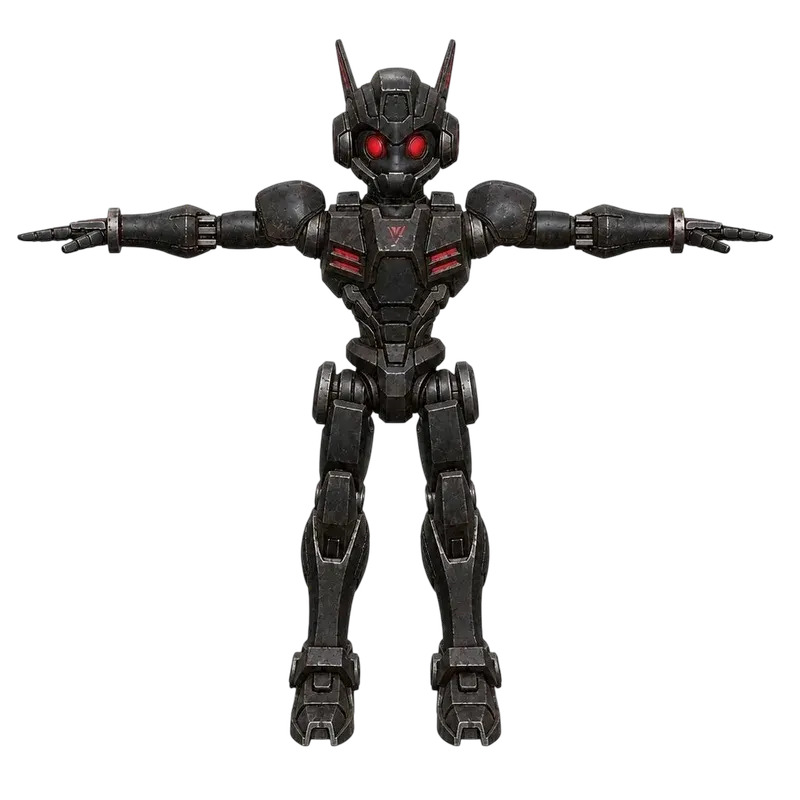
This archived knight sample was sliced in Bambu Studio 02.08.02.61, using Bambu Lab A1, a 0.4 mm nozzle, 0.20 mm Standard and Generic PLA. Supports were off.
| Position | Estimated time | Material | Layers | Review |
|---|---|---|---|---|
| Current | 45m 53s | 9.09 g | 183 | Floating regions |
| Back | 46m 09s | 9.13 g | 183 | Floating regions |
| Left | 48m 13s | 9.07 g | 140 | Floating regions |
| Right | 48m 15s | 9.09 g | 140 | Floating regions |
| Top | 62m 02s | 9.28 g | 400 | Floating regions |
The slicer warned about floating regions in every position. These are estimates from a saved case, not a successful physical print or a recommendation to choose the fastest row.
Compare a Quady3D result with the optional Bridge
If your model is a completed Quady3D result, the Mac Bridge can compare its current, back, left, right and top positions. It reports Bambu Studio estimates for its supported A1 profile. Keep the connection open while comparing, then review the chosen setup in your slicer.
This comparison does not run a new model generation or start your printer. Creating and downloading protected models follow your account’s credits and download access.
Questions about Bambu Studio Auto Orient
Where is Auto Orient in Bambu Studio?
Select the object or objects you want to orient, then use the Auto Orient tool. Bambu’s official shortcut reference lists Shift + R. Check Help → Keyboard Shortcuts in your version. With no object selected, the command can apply to all objects.
Is Auto Orient the same as Auto Arrange?
No. Orientation changes how the model faces the build plate. Arrangement places objects on the plate. Review both orientation and spacing before slicing.
Does the shortest print time mean the best position?
No. Inspect unsupported regions, build-plate contact, visible surface quality, material strength and support removal. A quick estimate with floating regions is not a safe print recommendation.
Do I need a Quady3D plugin for Auto Orient?
No. Auto Orient is built into Bambu Studio. The optional Quady3D Bridge compares five positions for a selected Quady3D result and reports their slicer estimates.
Can I compare the example for my printer?
Download the original sample and slice it using your own printer, nozzle, process, filament and supports. The recorded A1 estimates are a separate case and do not predict another setup.