











How to import GLB into Unity
Import a static GLB with glTFast, then check its materials, size and object structure in your game scene. If you exported a Quady3D scene package, use the additional helper steps to restore its saved layout, collision choices and LOD variants.
Import one GLB into Unity
Start with a supported static file. These steps do not require a Quady3D account, API key or generation request.
Follow along with the same asset: download the treasure chest GLB (304 KB). The screenshots below are captured from Unity Editor. Open any screenshot to read its controls at full size.
Install a compatible glTFast package
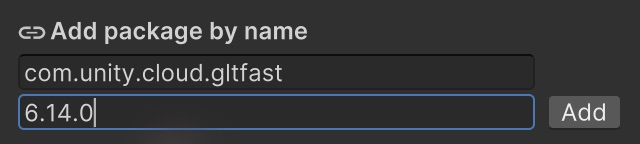
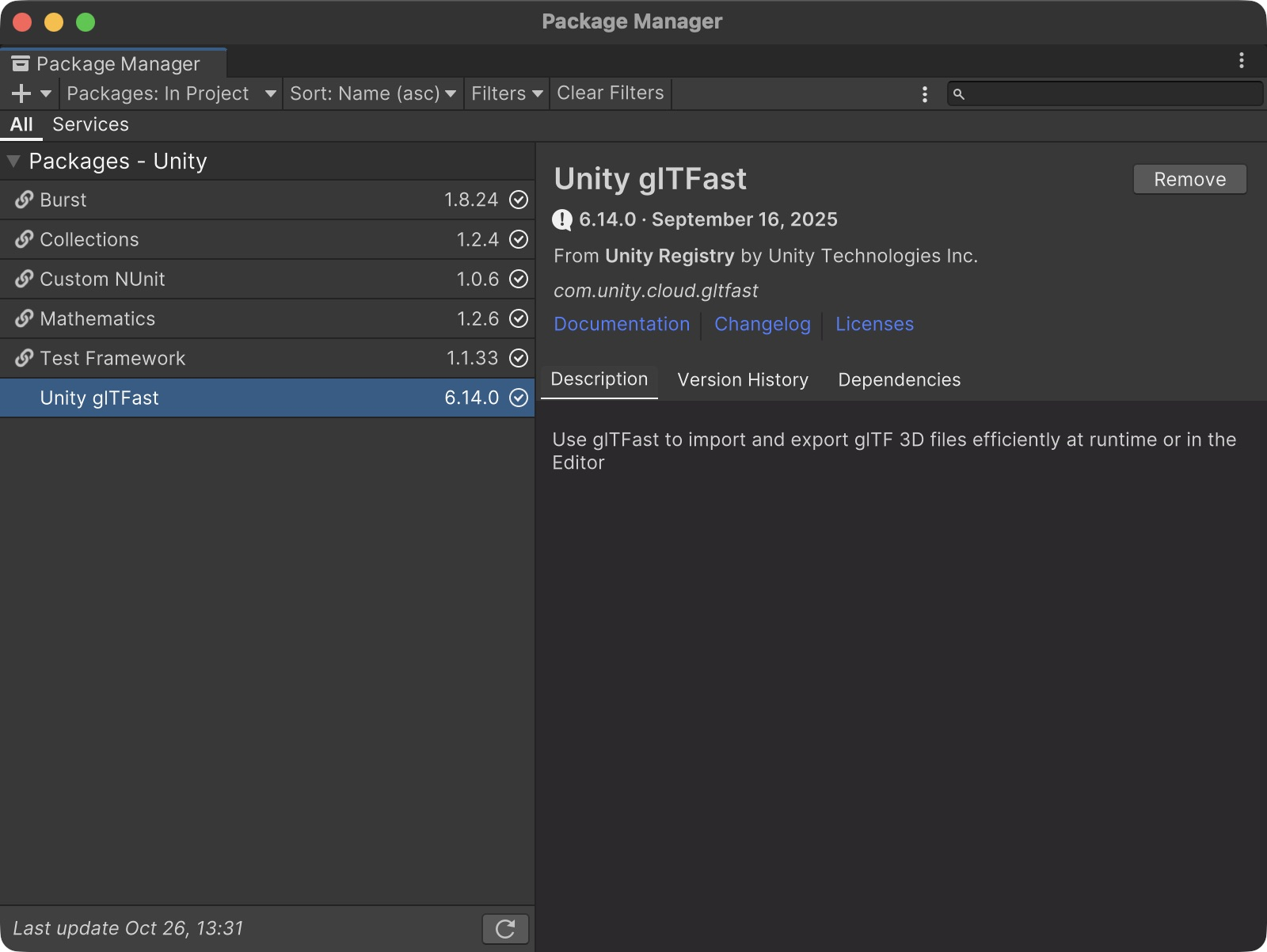
Choose Window → Package Manager, then + → Add package by name. Enter com.unity.cloud.gltfast and a compatible version, then click Add. The screenshots show version 6.14.0 installed with Unity 2022.3.62f3c1 and the Built-in render pipeline.
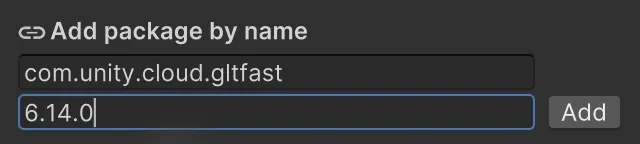
Enter the official package name and a compatible version, then choose Add. 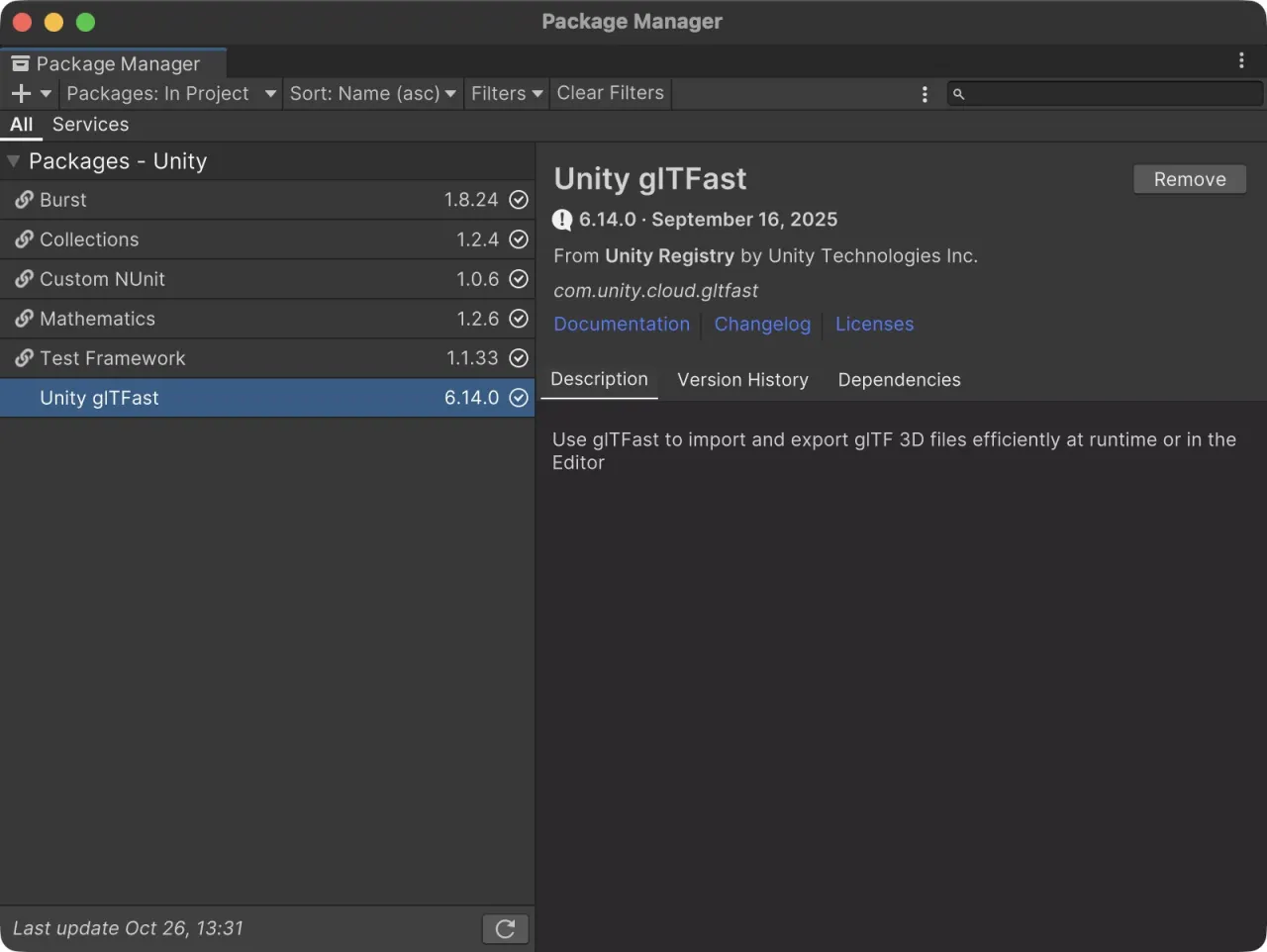
The installed package appears under Packages: In Project. Check the package name and version before importing your GLB. Copy the static GLB into Assets
Keep the source file, then copy a working GLB into a folder under your project's Assets. This example uses Assets/QuadyImportGuide/TreasureChest.glb. Choose Assets → Refresh if it has not appeared, wait for import, then select the GLB to inspect its glTF Settings and import report.
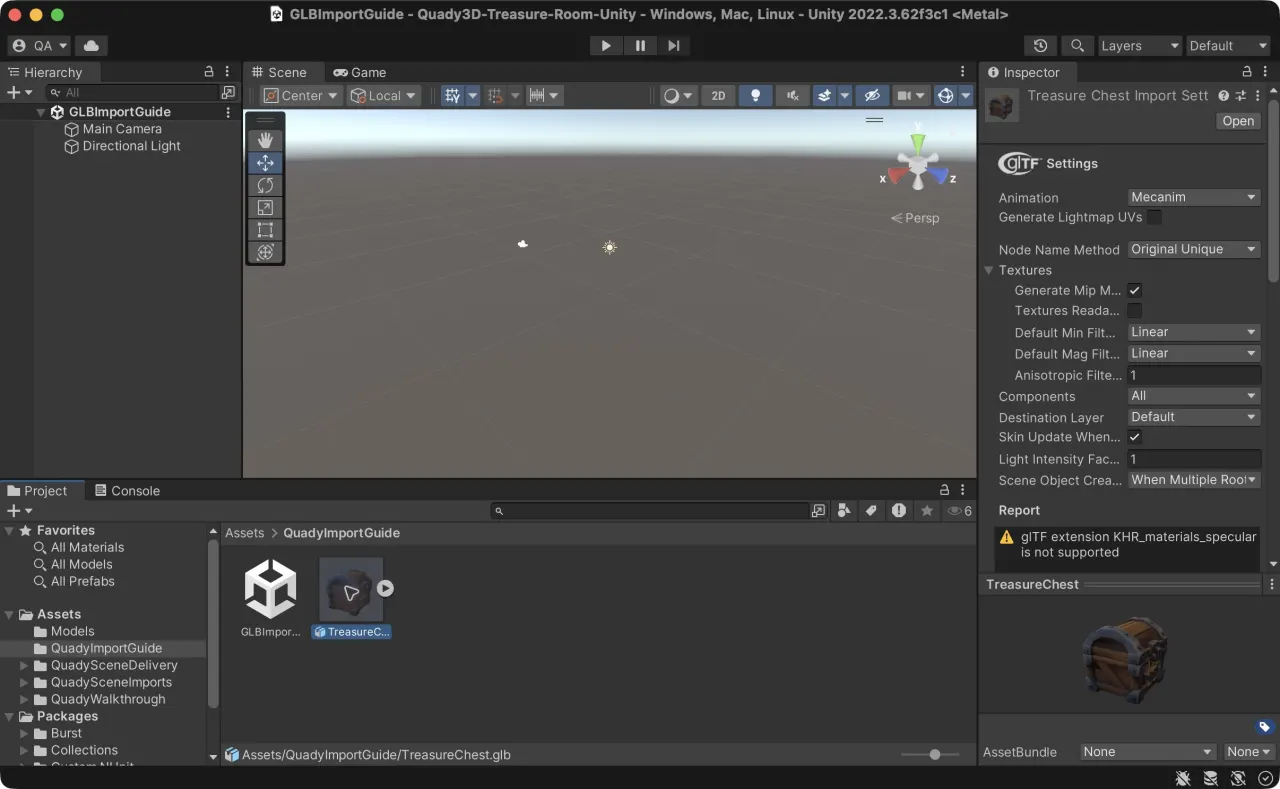
Select the imported GLB to review its settings and report. This chest loads its mesh and texture, but its KHR_materials_specular extension is not supported in this configuration. Place the imported prefab in the scene
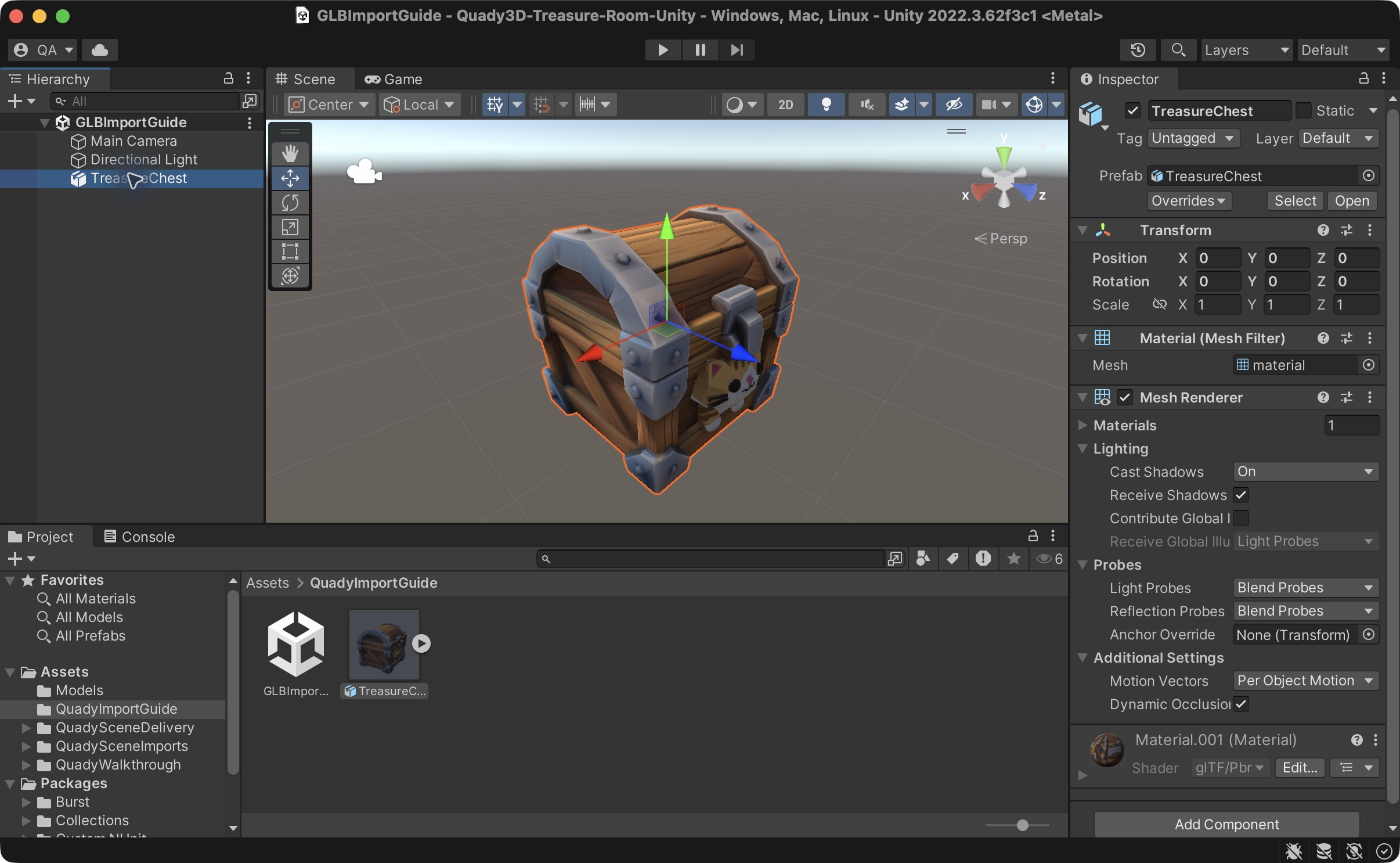
Create and save a Basic (Built-in) test scene. Drag the imported model prefab from Project into the Hierarchy or Scene view. Reset its Transform to position 0, rotation 0 and scale 1 for this example, then double-click it in the Hierarchy to frame it. Check its mesh, material and texture; compare its size with a known-size object before using it in your game.
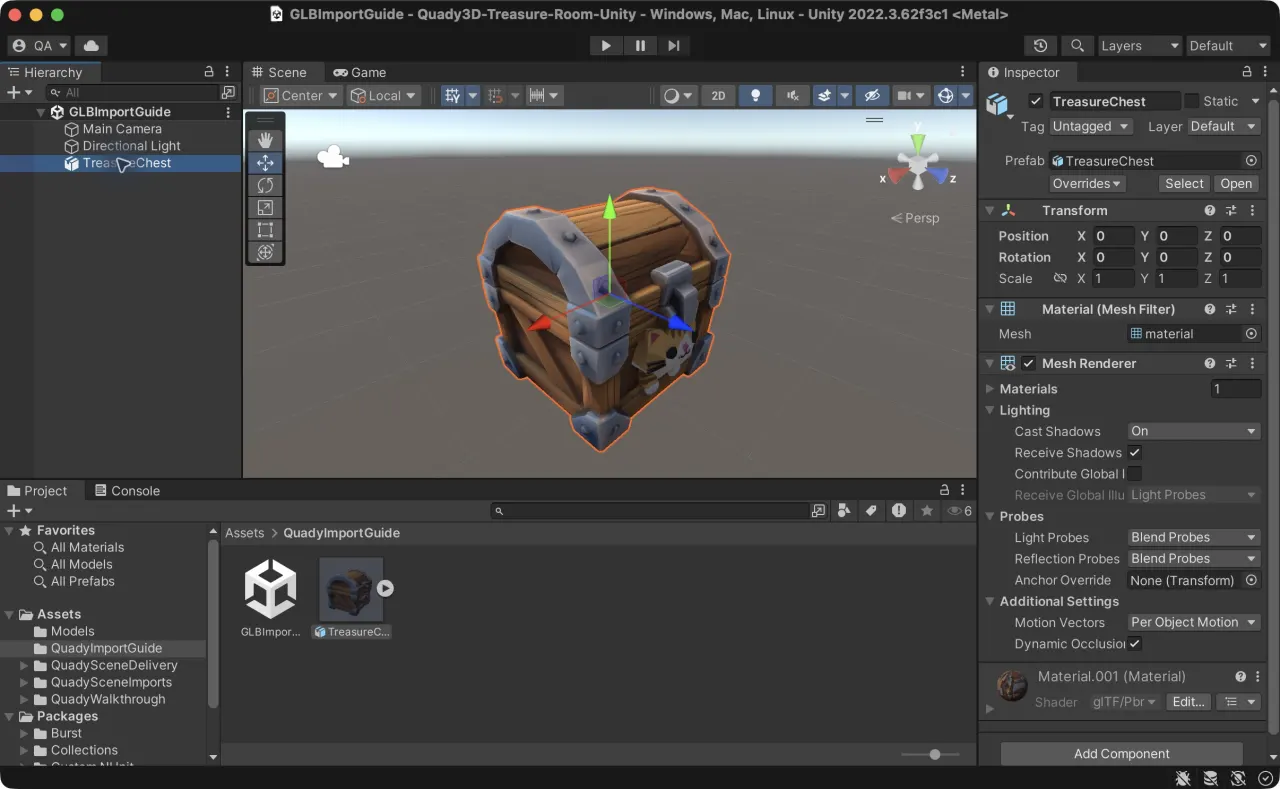
After dragging the prefab into the scene, reset its Transform and frame the selection. The Hierarchy entry and Prefab reference confirm that this is a placed instance. Add the setup your game needs
A plain GLB is visual geometry, not a Unity physics or LOD setup. Add and check the colliders and LOD Group your game requires. For a Game Scene Builder project ZIP, follow the package-helper steps below to apply its saved choices.
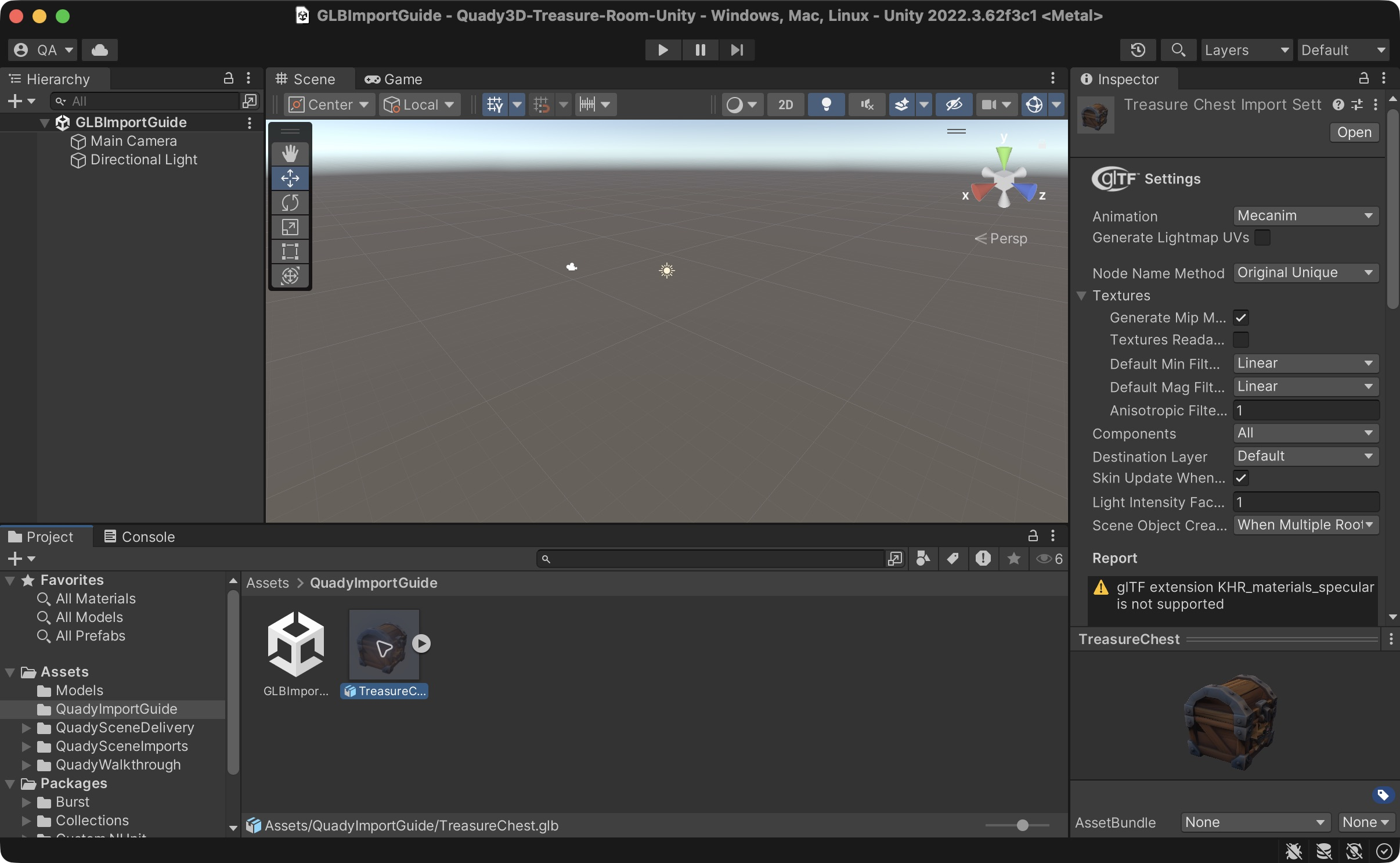
Check the material report. This example imports and displays the chest, but does not preserve its unsupported specular extension. Compare surface highlights and reflections with the source, and adjust the Unity material if your scene depends on that appearance.
Official glTFast Editor import instructions ↗Choose a scene package or a complete example
Your arranged scene
Export a project ZIP from Game Scene Builder. It includes the source GLBs, project.json, an assembled scene.glb, optional LOD variants and an Editor import helper. Keep the ZIP to return to the editable browser layout.
The Unity walkthrough
The separate example ZIP is already a Unity project. Add its folder in Unity Hub, restore the pinned packages, open TreasureRoomWalkthrough.unity and enter Play Mode. Use WASD, Tab and R to explore it.
Your existing game
Import into a working copy first. Check scale, origin, lighting and collision against your characters and game camera. The helper creates a new prefab so you can compare before adopting it.
Restore a Game Scene Builder package
Use these additional steps for the editable project ZIP. A plain GLB does not contain the helper's layout and collision metadata.
Arrange and export the scene
Use Game Scene Builder to place static GLBs and choose collision per object. Generate LOD variants if needed, then download and extract the project ZIP.
Prepare your Unity project
Use a compatible Unity project and install com.unity.cloud.gltfast 6.14.0 through Package Manager. The worked example uses Unity 2022.3.62f3c1 and Built-in rendering on Apple Silicon.
Install the package import helper
Copy Unity/Editor/QuadySceneImporter.cs from the extracted package into Assets/Editor in your Unity project, then wait for compilation.
Import without replacing existing work
Choose Quady3D → Import scene package folder and select the extracted folder containing project.json and scene.glb. The helper creates a new asset folder and prefab and places a new scene root. Existing scene objects are preserved.
Review collision, LOD and runtime behavior
Inspect materials, metre scale and collider shapes. If both LOD variants are present, review the scene-wide LOD Group at near and far camera distances. Save, close and reopen the scene, then test it on the hardware your game targets.
An arranged scene imported into Unity
This example places three copies of the existing chest alongside editable floor and wall modules. The exported package was imported into Unity 2022.3.62f3c1 with glTFast 6.14.0, using Built-in rendering on an Apple M5.
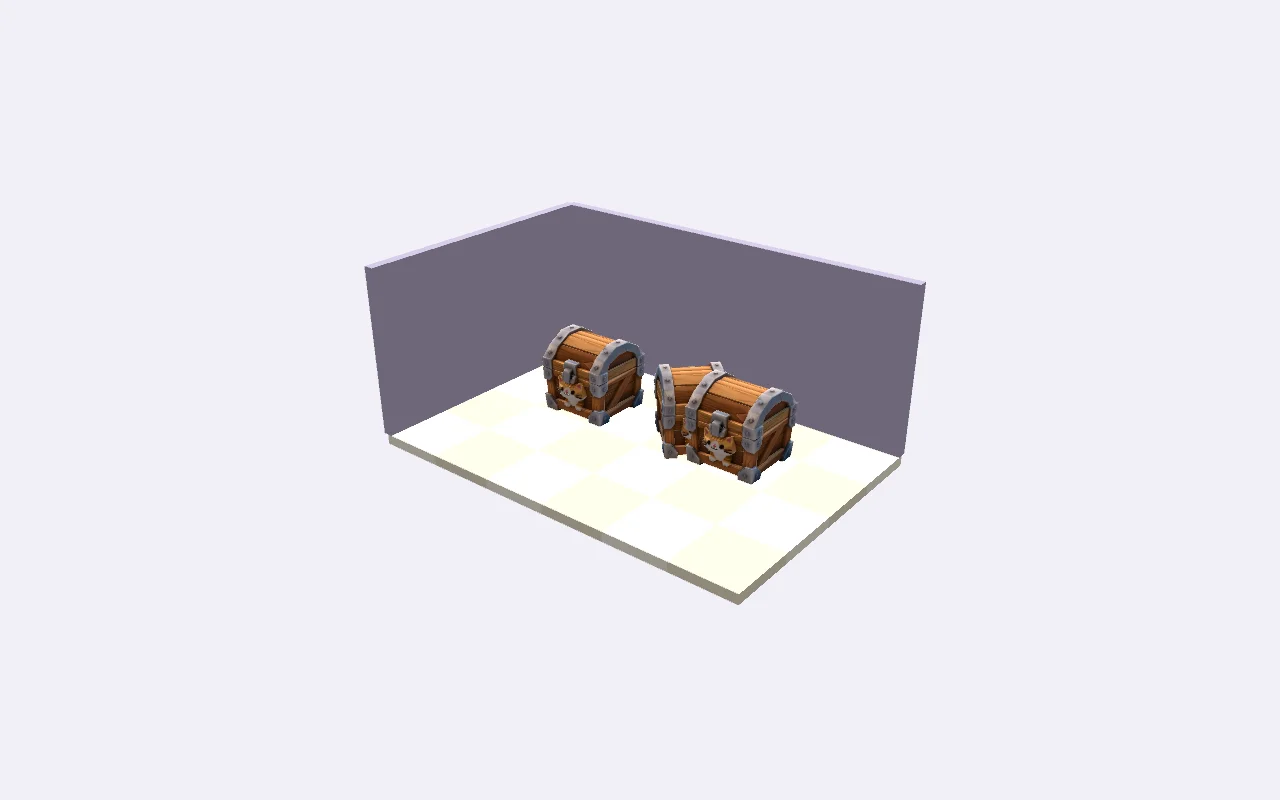
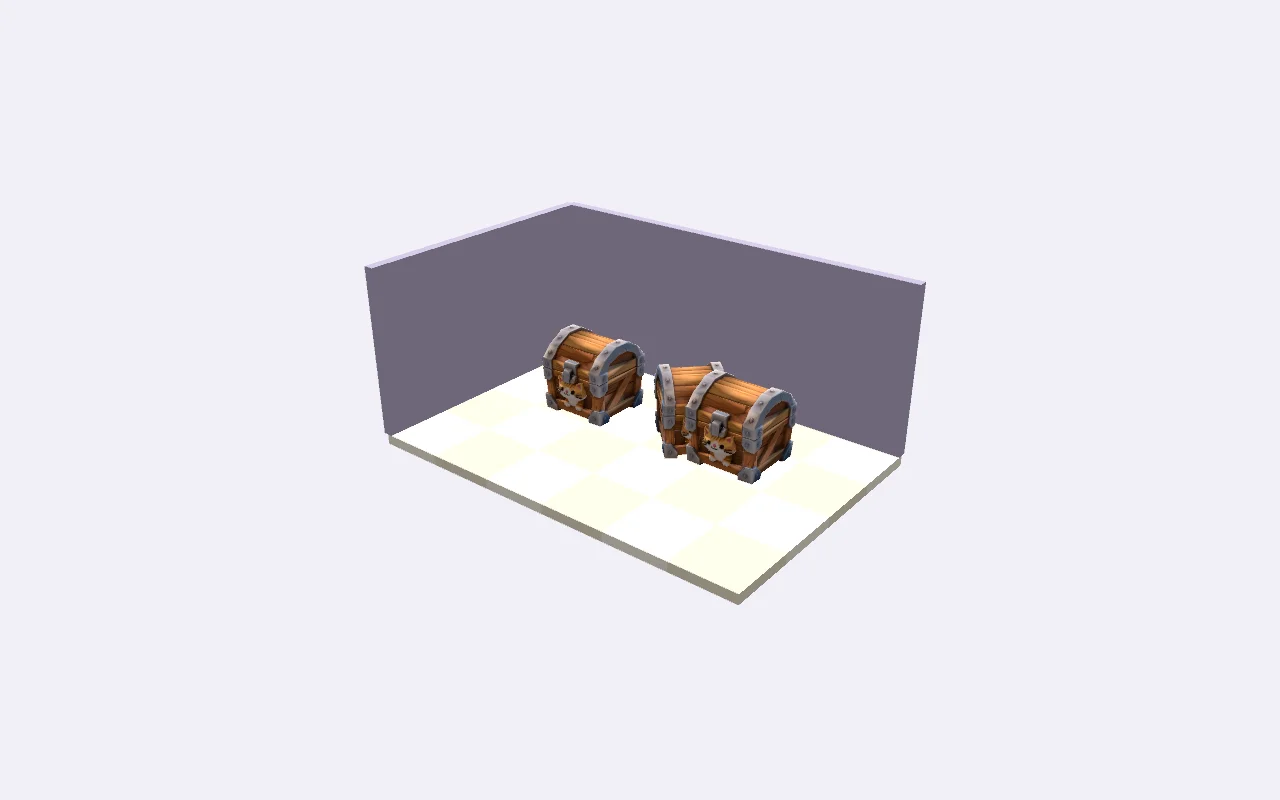
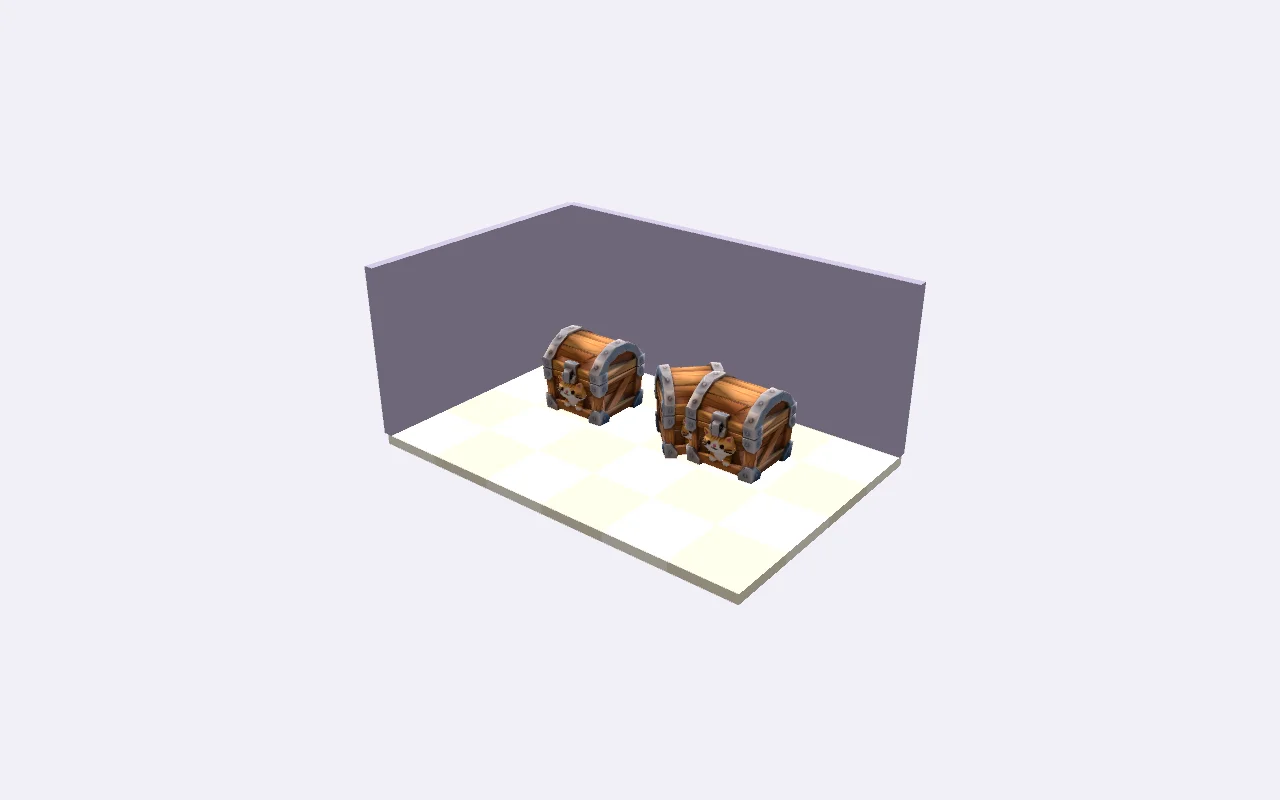
All 37 placements, four materials and the chest texture were retained. The example applies 35 box colliders, one original-detail static mesh collider and one object with no collider. A physics drop test settled on the floor, and the saved scene and prefab reopened with their references intact.
The pictures use forced LOD levels so the geometry can be compared at the same view. They do not measure automatic transition behavior, target-device performance or compatibility with other render pipelines.
Check the common import problems
Pink or missing materials
Check the active render pipeline and the importer's material setup first. Confirm that the source contains its textures and inspect base color and normal-map settings. The recorded example uses Built-in; other pipelines need their own setup.
Unexpected size or direction
Compare the model with a known-size object before changing its scale. Check the source export units, object transforms and intended pivot. The browser builder uses metres and Y up; another source may use different conventions.
No collision or LOD switching
Importing visible geometry does not create the physics and distance settings your game needs. Add suitable Unity components, or import the complete scene package with its helper. Verify collider fit and transitions in Play Mode.
What the walkthrough actually demonstrated
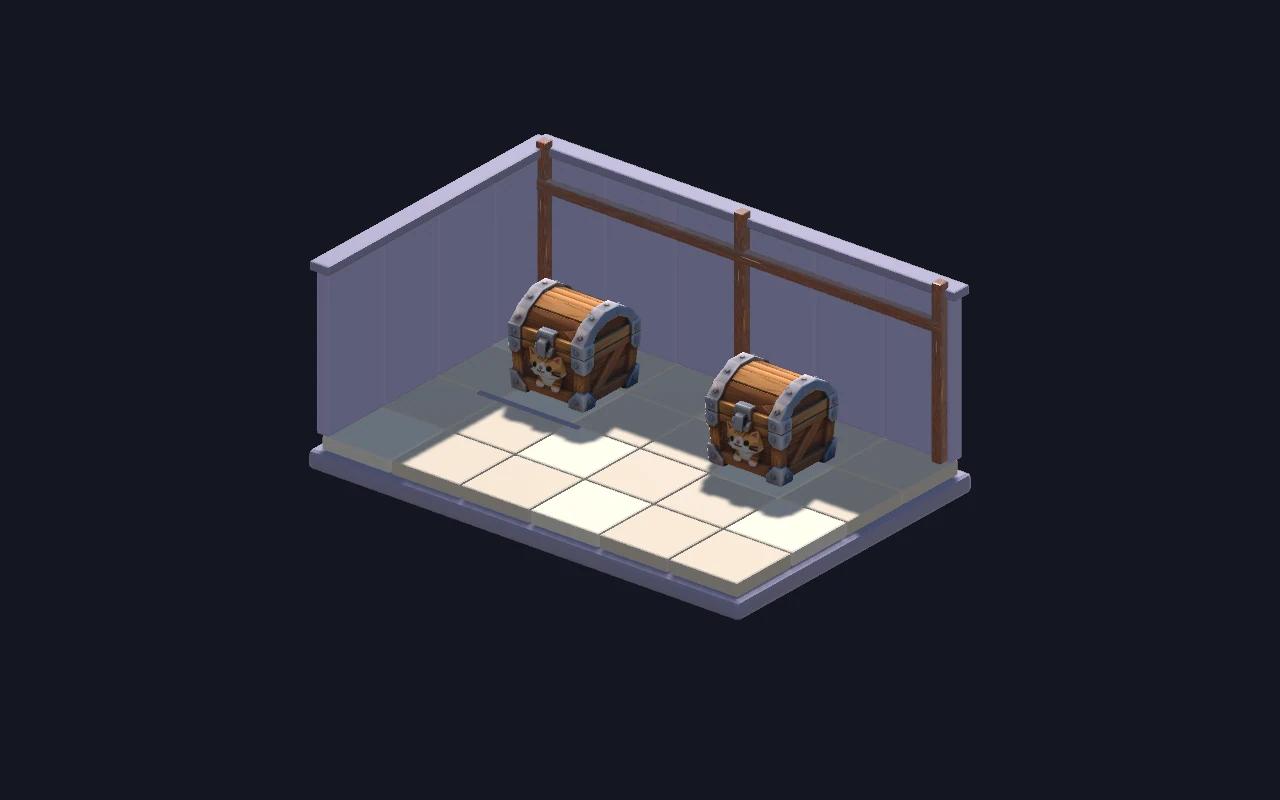
The existing prepared room was imported with glTFast 6.14.0, its six materials and one-metre floor spacing were checked, and a separate walking sample was built. The walking sample adds simple collision and two safety rails; it does not change the source GLB.
WASD movement, wall blocking, Tab view switching and R reset were exercised in the native macOS build. The source project ZIP was also opened with a fresh Unity cache to check its saved scene, materials and prefab references. These results apply to this example and configuration.
Explore the Unity asset workflow →Checks before using the scene in a game
Review texture color space and normal maps under your actual lighting. Use box collision for simple blocking shapes; review the cost and contact behavior of a detailed static mesh before using it widely. Collision remains based on the original level even when a lower visual LOD is displayed.
The browser budget is an estimate for planning. Repeated placements add visible geometry, material slots do not predict draw calls, and texture estimates are not measured VRAM. Profile a representative scene on your target device and run a longer session before deciding on a production budget.
The recorded walkthrough configuration is Unity 2022.3.62f3c1, Built-in rendering, Apple Silicon and Metal. Windows, other devices and URP/HDRP require their own checks. The source ZIP does not include an Editor license.
Questions about Unity scene delivery
Does importing preserve every GLB material feature?
No. The chest in these screenshots imports its mesh and texture, but glTFast 6.14.0 in this Built-in example reports KHR_materials_specular as unsupported. Review the import report and compare highlights and reflections with the source. A visible model does not prove that every material extension is preserved.
Can I use this guide for a GLB from another tool?
Yes. The basic glTFast import steps apply to a compatible static GLB with its resources available. The optional Quady3D package helper requires a Game Scene Builder ZIP containing project.json; it does not infer that metadata from an arbitrary GLB.
Do I have to convert GLB to FBX first?
The tested route imports GLB directly with glTFast, so FBX conversion is not required for this example. If your existing production pipeline requires FBX, prepare and verify that export separately in your modeling software.
Do I need a Quady3D API key to import this package?
No. This package contains static scene files and a local Unity Editor helper. It does not submit generation jobs, spend credits or require a Quady3D connection.
Will importing replace objects I already edited?
Each import creates a new folder, prefab and scene root. Existing objects are not replaced. Undo removes the newly placed root; the imported asset files remain available in the project.
Does a downloaded GLB already contain Unity colliders?
No. The helper reads collision choices from project.json after importing the GLB. It creates no collider, a fitted box or static mesh colliders for each object as selected. Static mesh collision is intended for non-moving environment geometry.
How are the LOD variants applied?
If scene-lod1.glb and scene-lod2.glb are both present, the helper creates a scene-wide LOD Group with the original and two variant scenes. This is a small-scene starting setup, not a per-object streaming or large-world optimization system. Check transition distances and silhouettes in your project.
Is the sample a finished game level?
The walkthrough sample demonstrates a small static room, simple collision and a walking capsule. It has no navigation, chest interactions, character animation or complete gameplay. It does not establish compatibility or performance for other hardware or render pipelines.