











3MF to STL converter
Convert 3MF to one STL or separate objects and parts. Preview the geometry and check millimeter dimensions before downloading.
Open a 3MF or try one of the sample files.
What changes: colors, textures, named-object structure and slicer settings are omitted from STL. Coordinates are converted to millimeters. Geometry is not repaired or joined.
Open a 3MF to inspect its objects and dimensions.
Rotate and zoom to inspect the shape. The preview uses a neutral material; the downloaded STL keeps the selected geometry and its original placement.
From a two-part 3MF to a usable STL
An actual browser conversion: two parts keep their size and alignment in the downloaded STL.
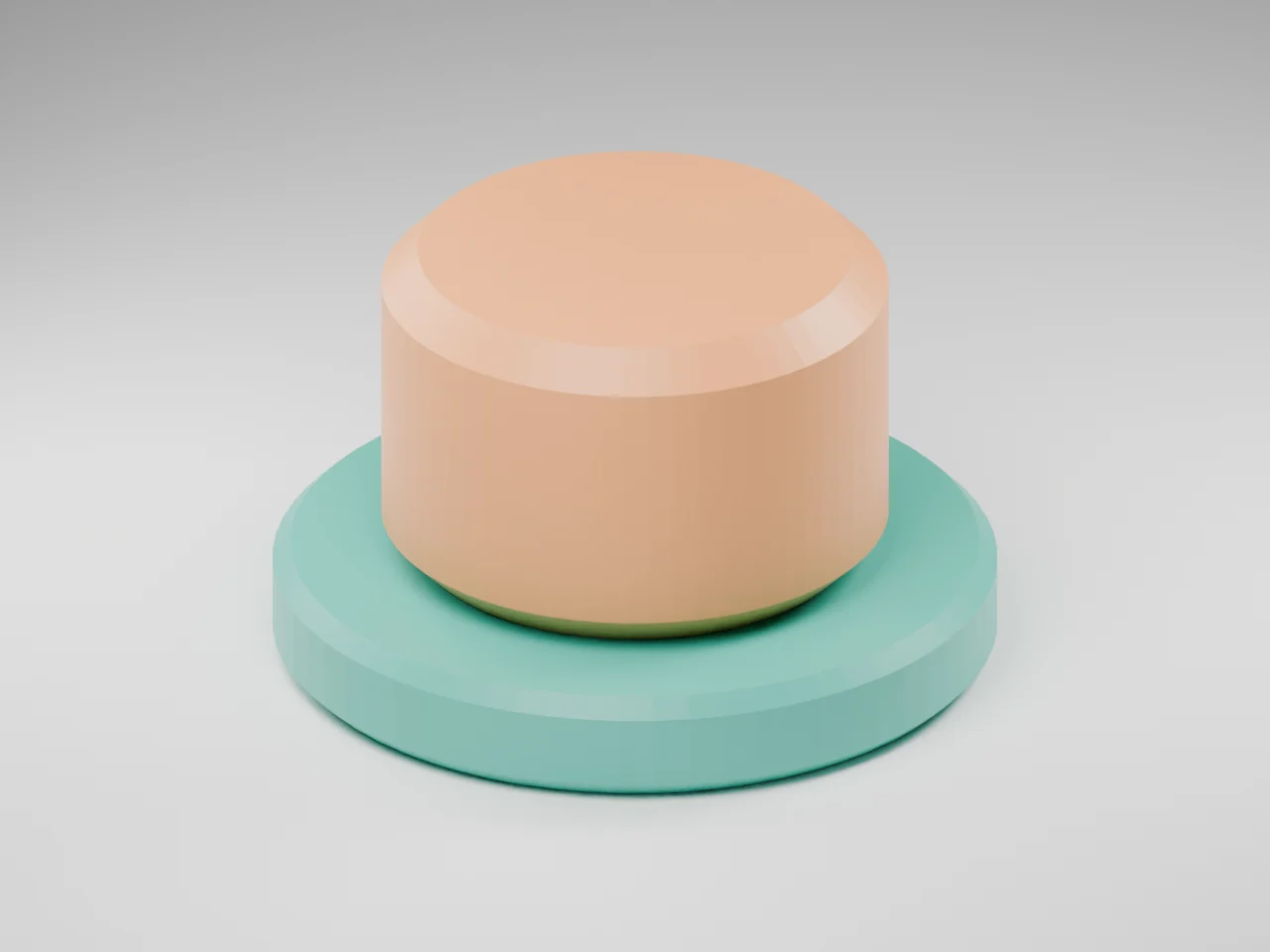
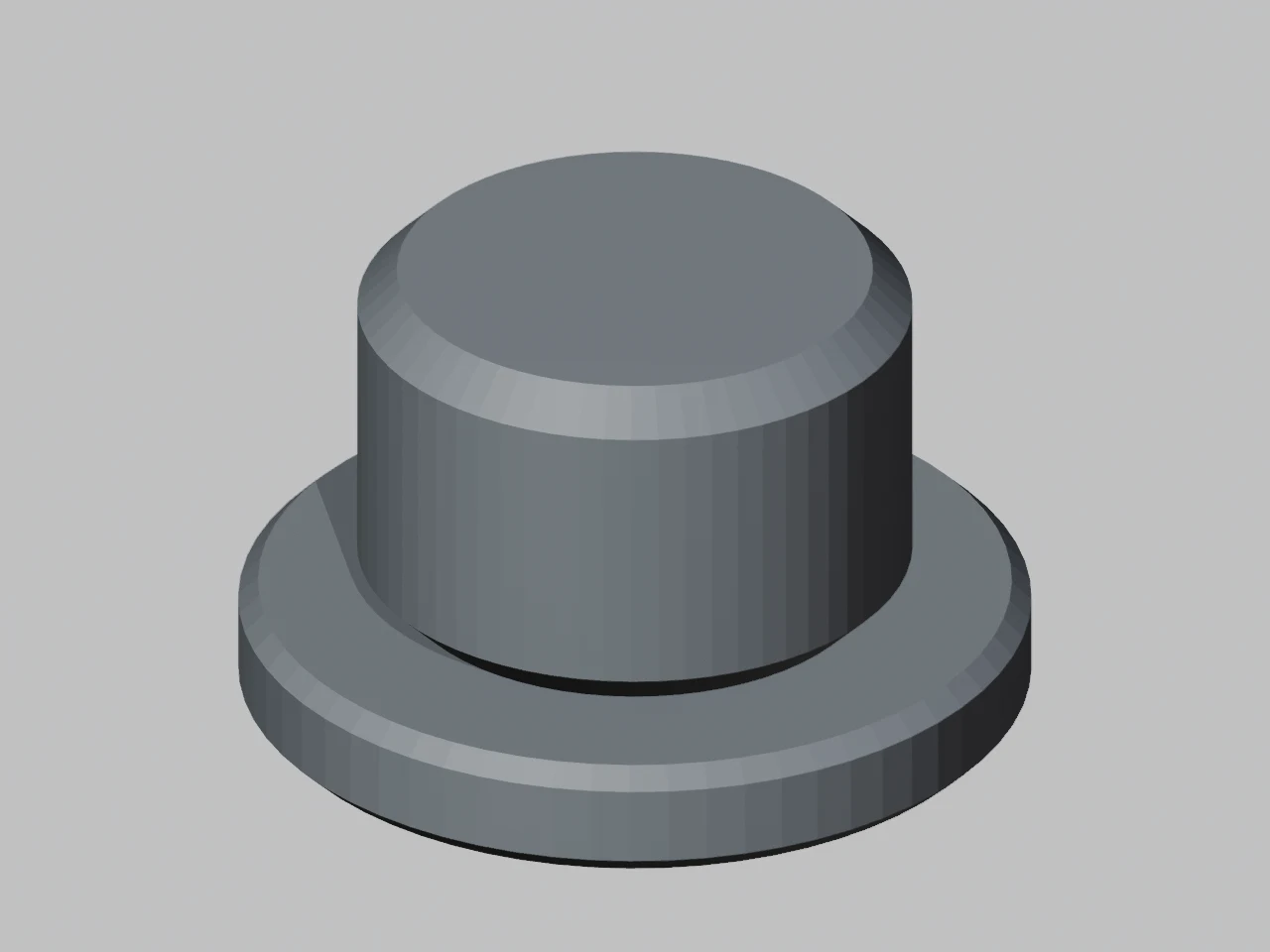
- Input / output
- 3MF → STL
- Dimensions retained
- 40 × 40 × 24 mm
- Output triangles
- 1,024
- Cap starts at Z
- 6 mm
How this example was made
The conversion
The base and cap keep their relative position. One STL contains both triangle surfaces; it does not Boolean-union them into a single solid. The same converter can export the existing objects or mesh parts into a ZIP.
What to check after download
Open the STL in the receiving app as millimeter coordinates. Colors and slicer settings are absent, so retain the original 3MF for that information. The output has also been opened with an independent mesh loader and Bambu Studio.
Quady3D AI original CC0 geometry. Result image rendered from the browser download, not an invented conversion mockup.
Keep the assembly or take its parts
Use the same two meshes to see what placement changes.
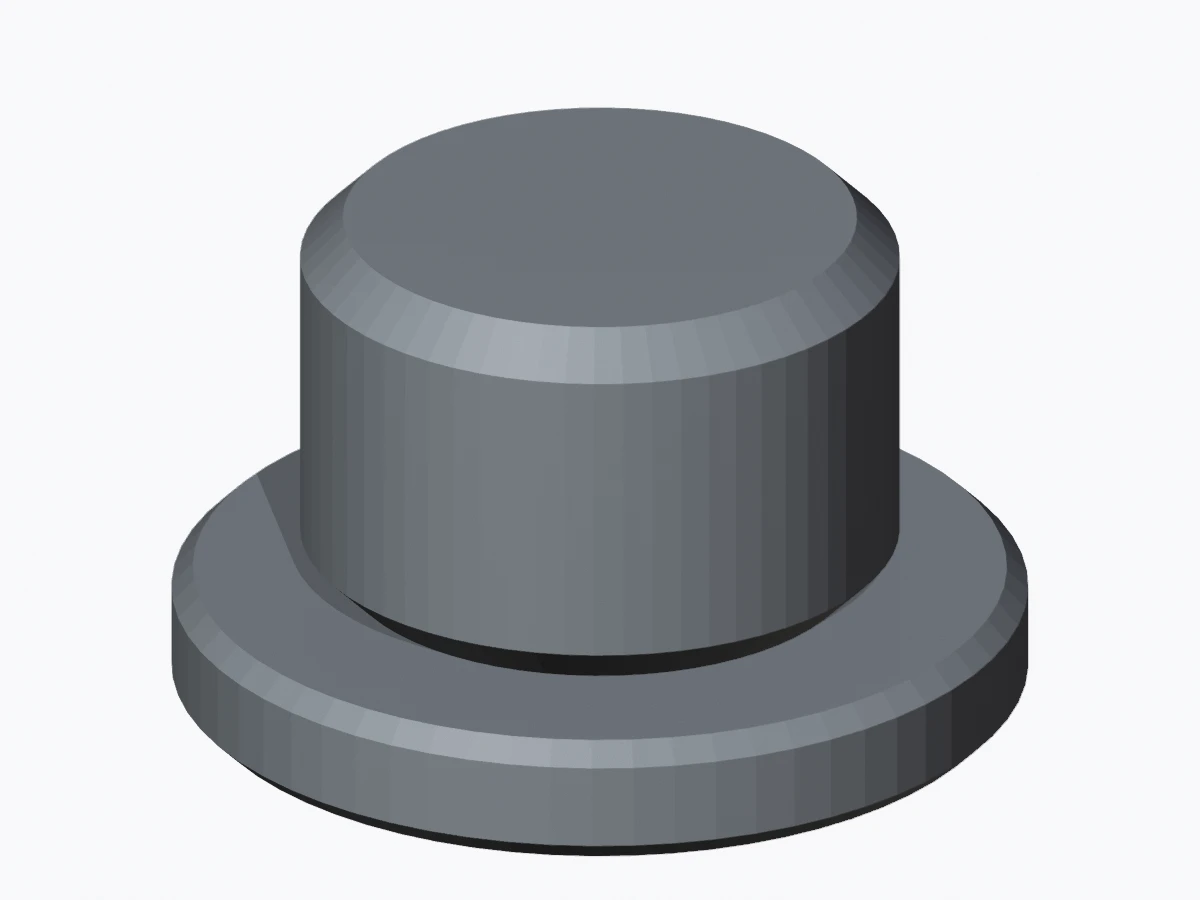
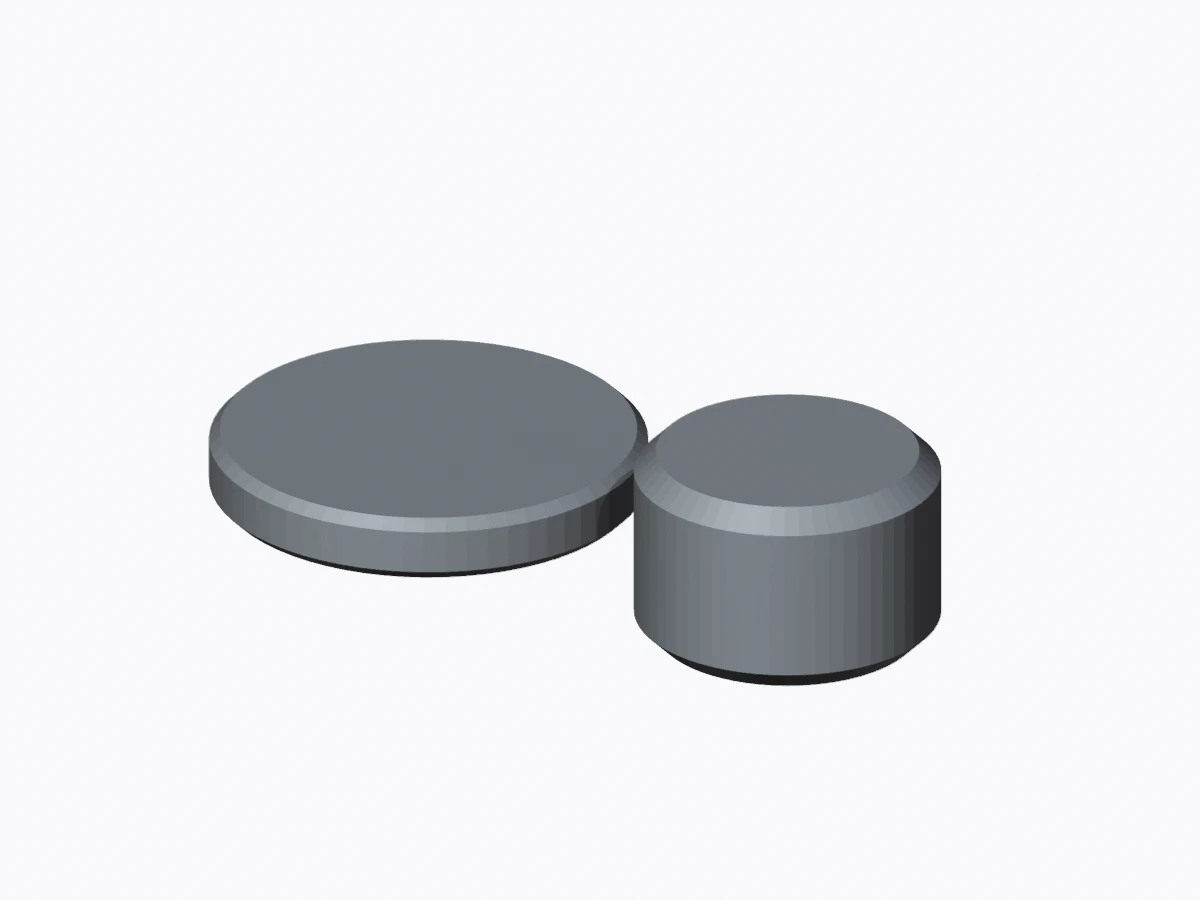
The ZIP below contains the original aligned parts. The right image illustrates a deliberately rearranged 3MF; a slicer can also reposition separate STL files.
How to convert a 3MF file to STL
Open a 3MF
Choose a file up to 100 MB, or try a model or Bambu project sample.
Check your selection
Select objects, rotate the preview and confirm millimeter dimensions.
Export STL or ZIP
Download one file, or separate STLs for objects or existing mesh parts.
Choose how to export
One STL
All selected triangles, with their original placement. Overlapping parts stay separate surfaces.
Per print object
One STL per placed object, keeping its existing assembly together.
Per mesh part
A ZIP of existing component meshes. Painted colors are not split into new parts.
STL drops colors, unit labels and slicer settings. Keep the source 3MF and import the STL as millimeters.
Bambu 3MF to STL, scale and files that will not open
Bambu projects and placement
The converter follows embedded model references and applies component and build transforms. The desk-marker sample remains 40 × 40 × 24 mm with 1,024 triangles. Inches and centimeters become millimeters.
Separate STL files may be repositioned by a slicer; use its assembly-preserving import mode. Compare the original model and Bambu project files.
File limits
Toolpath-only .gcode.3mf files cannot recover a mesh. Export a model 3MF or STL from the source app. Unsupported required extensions or missing object references stop conversion. Limits: 100 MB input, one million placed triangles and 128 MB extracted model data.
Check the download in the STL viewer before preparing a print.
3MF to STL questions
How do I convert a 3MF file to STL?
Open your 3MF or try a sample. Check the object list, geometry preview and dimensions. Select the objects you need, choose one merged STL or a ZIP per object or mesh part, and download. Import the resulting coordinates as millimeters in your slicer.
Can I convert a Bambu Studio 3MF to STL?
Yes, when the file contains supported triangle meshes and build information. The downloadable Bambu Studio 2.8.2.61 sample is supported, including mesh parts referenced in other files within its package. Printer profiles, painted colors and sliced toolpaths do not transfer to STL. Keep your original project.
Can I export multiple objects as separate STL files?
Yes. Select ZIP · one STL per print object to preserve the object's assembled parts together, or ZIP · one STL per mesh part to separate its existing component meshes. The ZIP includes numbered filenames and a note with millimeter dimensions. Original placement is retained.
Does conversion preserve scale and object position?
The converter applies component and build-item transforms and converts the declared 3MF unit to millimeter coordinates. Parts retain their placement; they are not automatically centered or moved to the bed. Standard STL has no unit declaration, so import it as millimeters and check the dimensions again.
More questions (6)
Will the STL keep colors, textures or print settings?
No. This tool exports standard binary STL geometry. Colors, textures, material assignments, object hierarchy, printer profiles, supports configured by the slicer and process settings are omitted. Support geometry explicitly stored as a selected mesh can be exported like other geometry; toolpaths cannot.
Can this split a painted model or disconnected shells?
It can separate existing mesh parts in the 3MF structure. It does not divide a single mesh by painted color regions, split disconnected shells inside a mesh, add caps or connectors, or perform cuts. A one-part mesh remains one mesh-part STL.
Why will my .gcode.3mf file not convert?
Some packages contain sliced toolpaths without the original surface mesh. This converter needs mesh geometry and placed build objects. If those are absent, open the original project in your slicer and export a model 3MF or STL. Renaming the extension does not reconstruct the original model.
Are there file or geometry limits?
Files can be up to 100 MB, with up to one million placed triangles, 5,000 build objects and 128 MB of extracted model data. Large meshes may need more memory than your device has. Unsupported required geometry extensions and invalid coordinates or references are rejected. Resolve slicer modifier parts and negative volumes in the source app before exporting a standard mesh.
Is this converter free, and are my files uploaded?
Conversion is free, with no account or generation credits required. Your selected 3MF is read and processed on your device. The sample buttons fetch only the public example files. You can cancel processing or replace the file.
Does conversion repair a model or make it printable?
No. It extracts triangle geometry and applies its placement. Holes, overlapping parts and thin features can remain. Inspect the STL and review its layers, walls, supports and physical size in your slicer before printing.