











STL to 3MF converter
Package one STL or several parts into a 3MF. Choose units, check the size and keep aligned parts together.
Open one or more STL files, or try the two-part sample.
Your download: one 3MF model with millimeter units and one named mesh per STL. Original placement groups aligned parts in one assembly; side-by-side placement creates separate objects. Set your printer, filament, supports and process in your slicer. Conversion keeps the mesh; it does not repair it or recover colors.
Open your STL files to check the geometry and size of the package.
Rotate and zoom to inspect the same geometry used for the 3MF download. Keep original coordinates for aligned parts; side-by-side placement separates them.
Two aligned STL files, one 3MF assembly
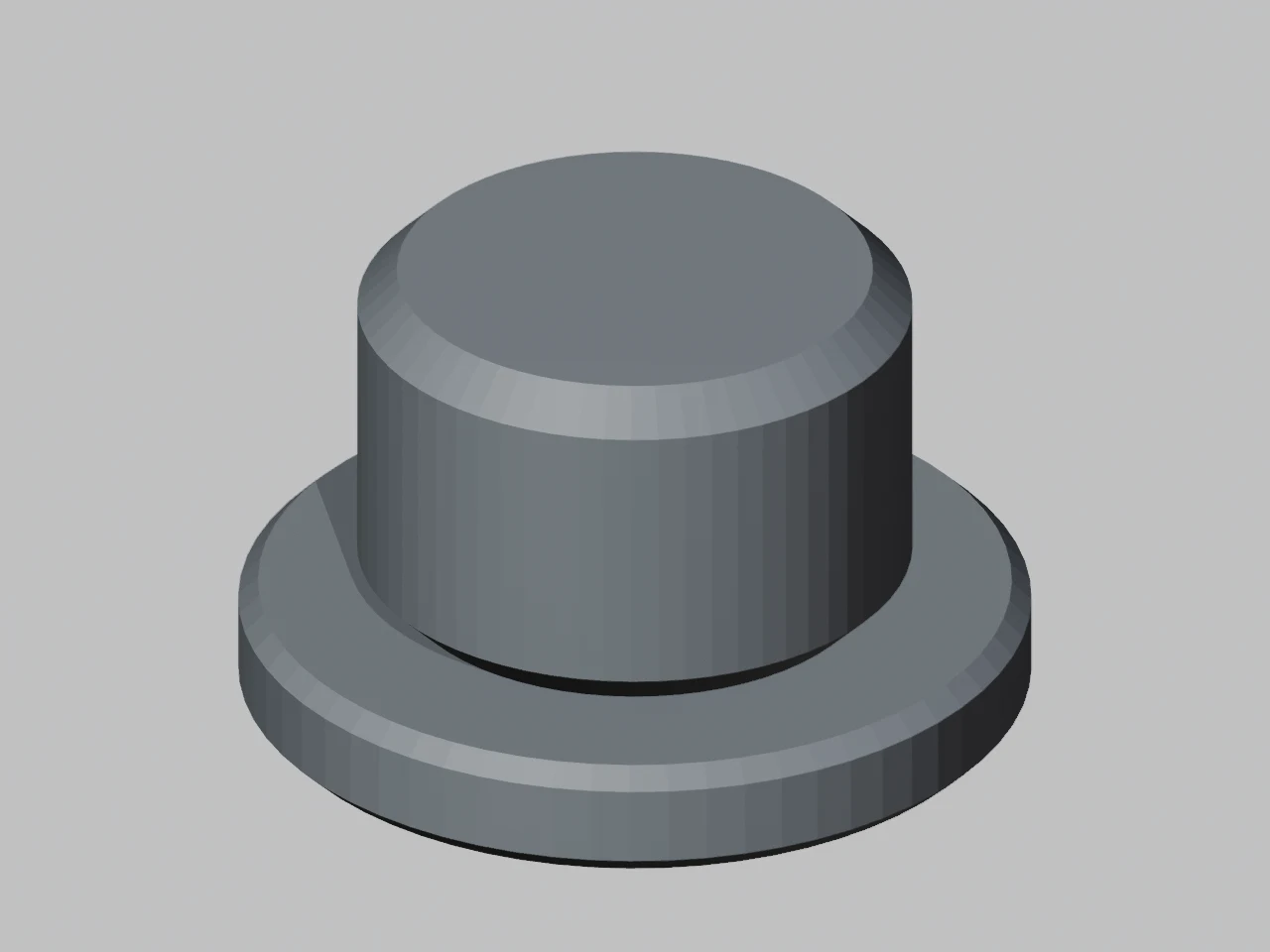
Two aligned STL files become named parts in one millimeter 3MF assembly.
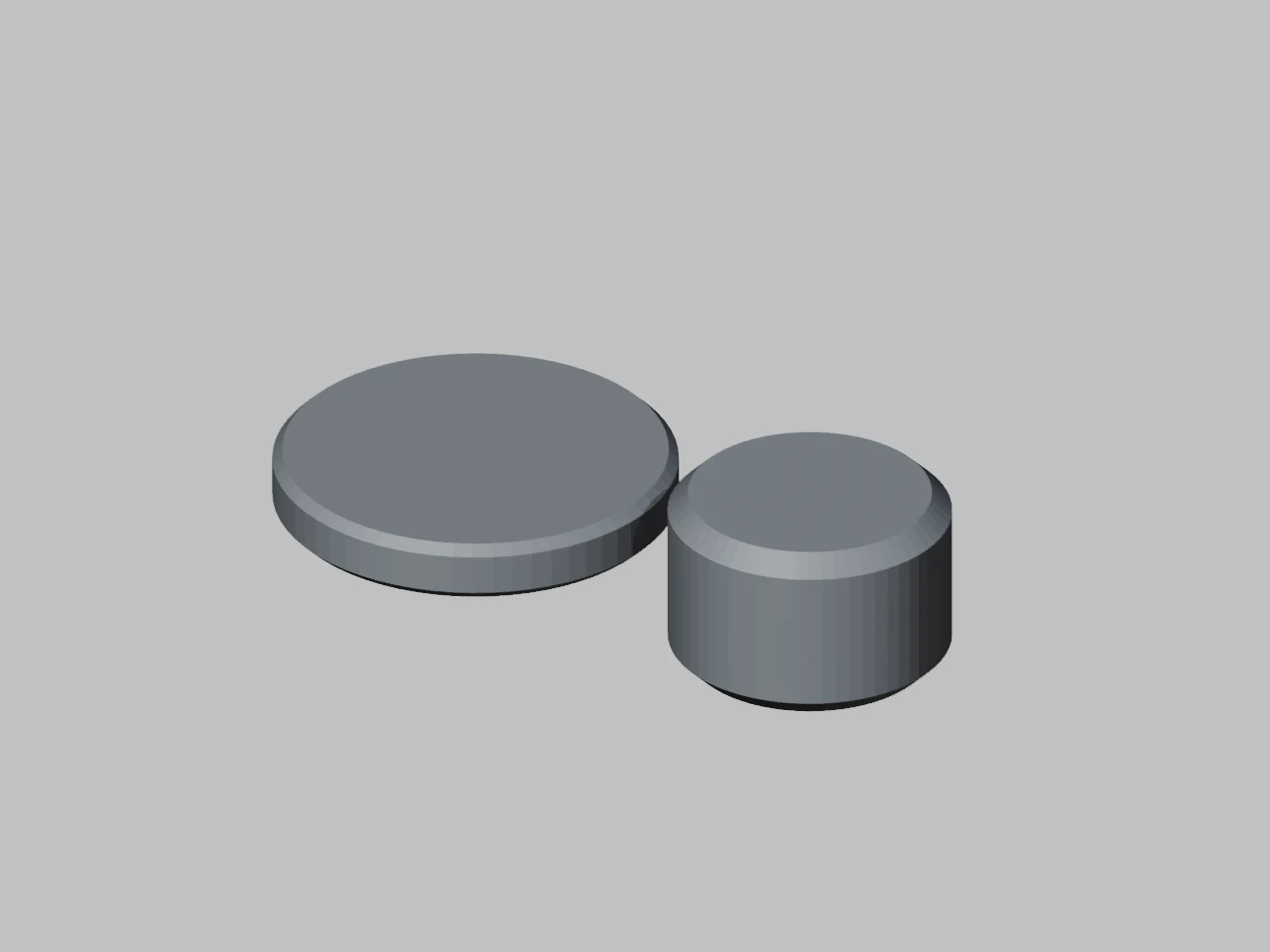
- Input files
- 2 STL files
- Output structure
- 1 assembly · 2 parts
- Final package
- 40 × 40 × 24 mm
- Cap’s lower surface
- Z = 6 mm
How this example was made
Preserve the intended assembly
The separate source files already share a coordinate system. Keeping original coordinates places the cap above the base inside one build assembly. Bambu Studio re-import and re-export preserved this arrangement.
Changing size or placement
An 80 mm longest side produces an 80 × 80 × 48 mm package. Side-by-side placement is useful for unrelated models; it deliberately changes their placement and writes independent build objects.
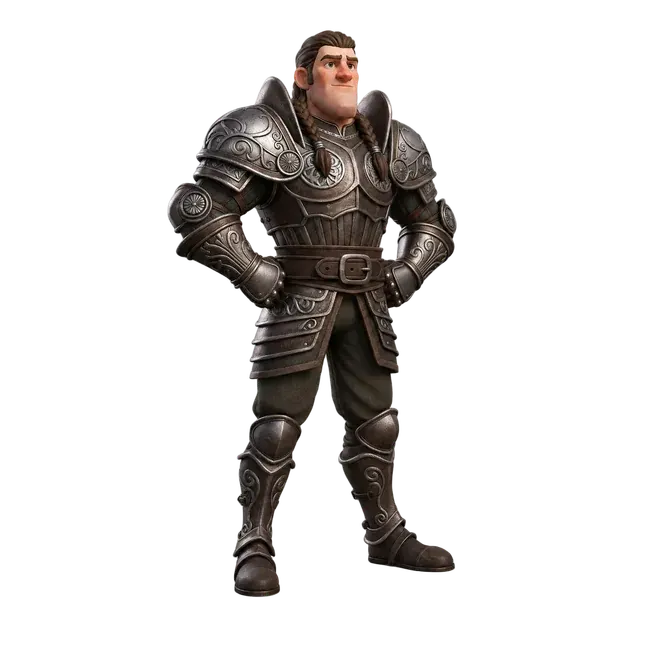
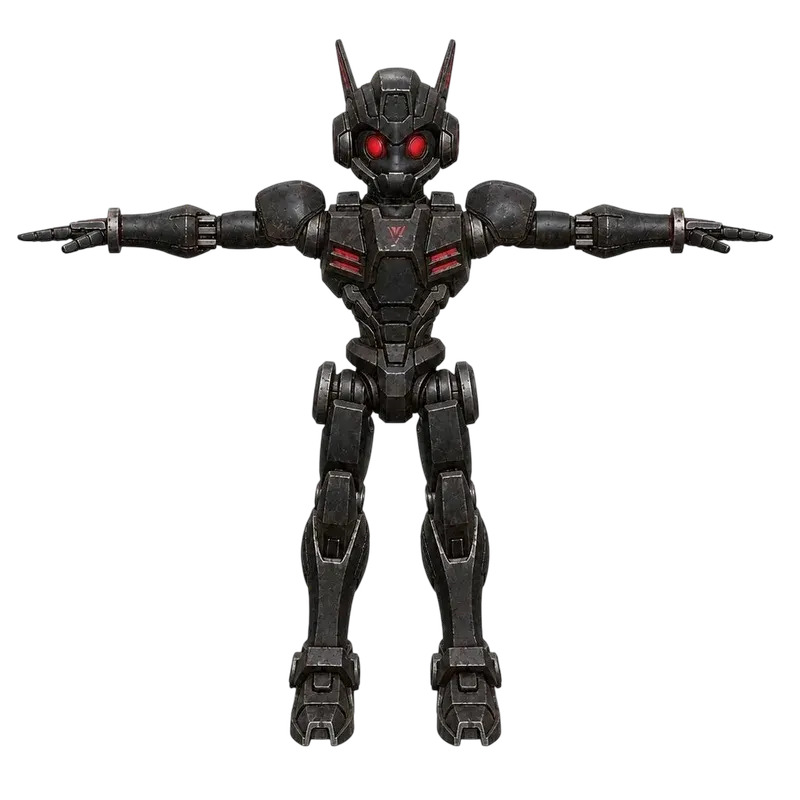
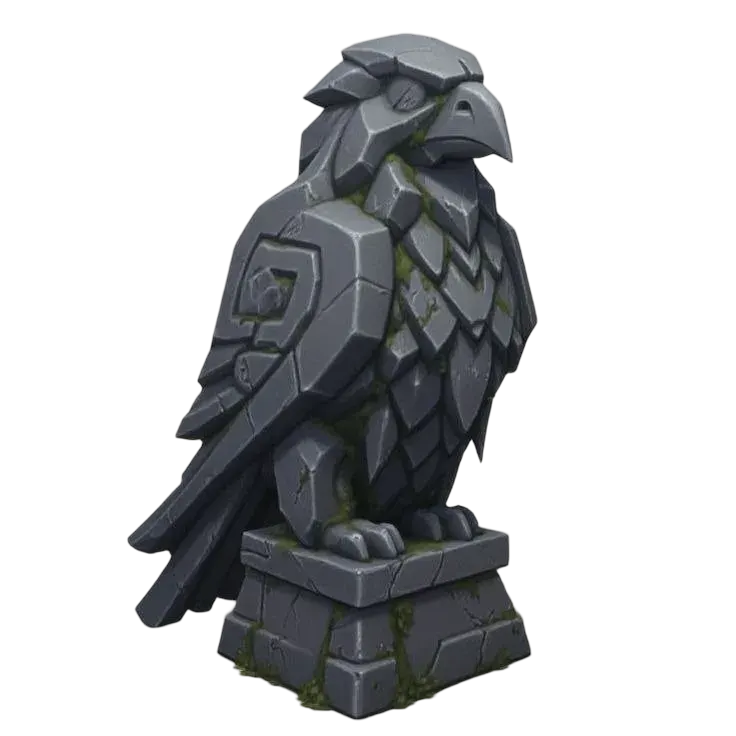
Original Quady3D AI CC0 meshes. Input parts are separated only in the identification image; the downloadable source files retain their original coordinates.
Aligned assembly or separate models?
Use the same two meshes to see what placement changes.
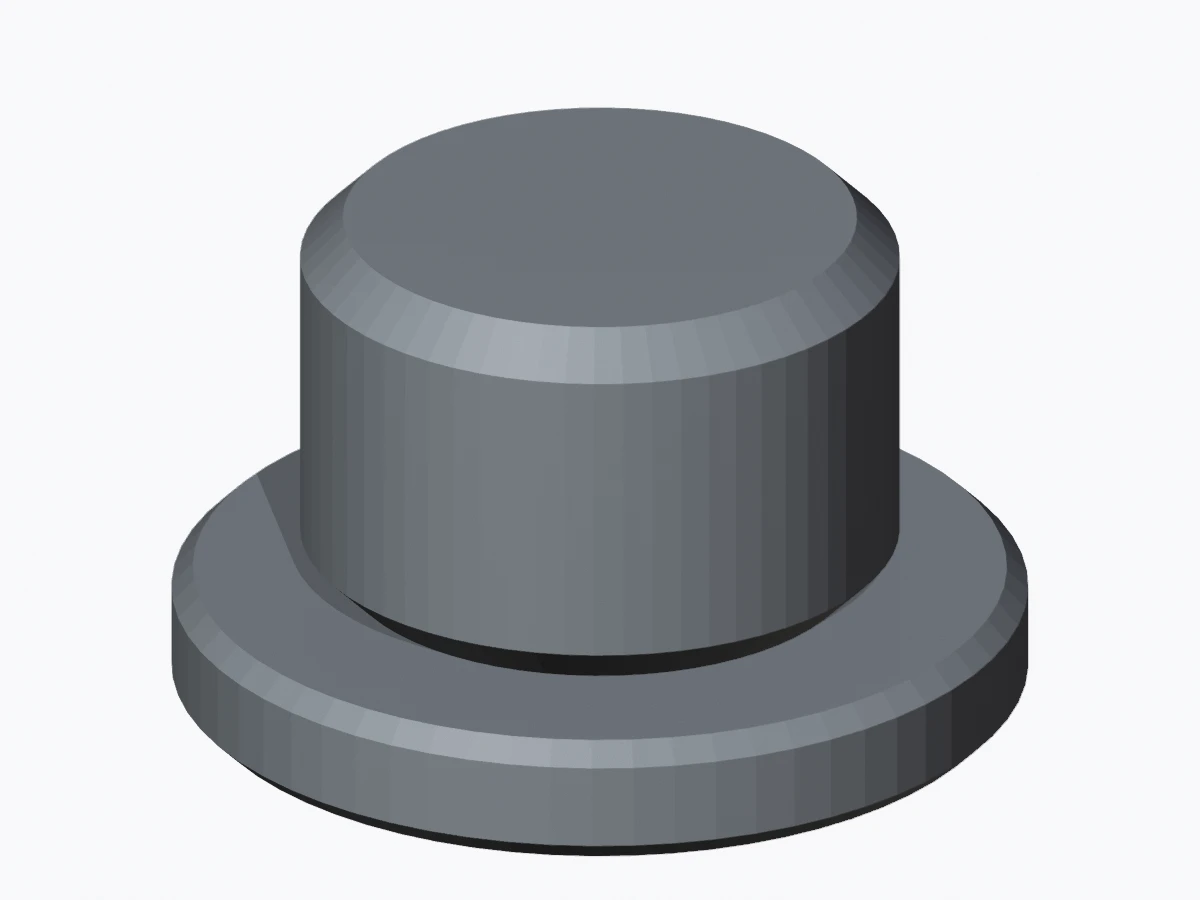
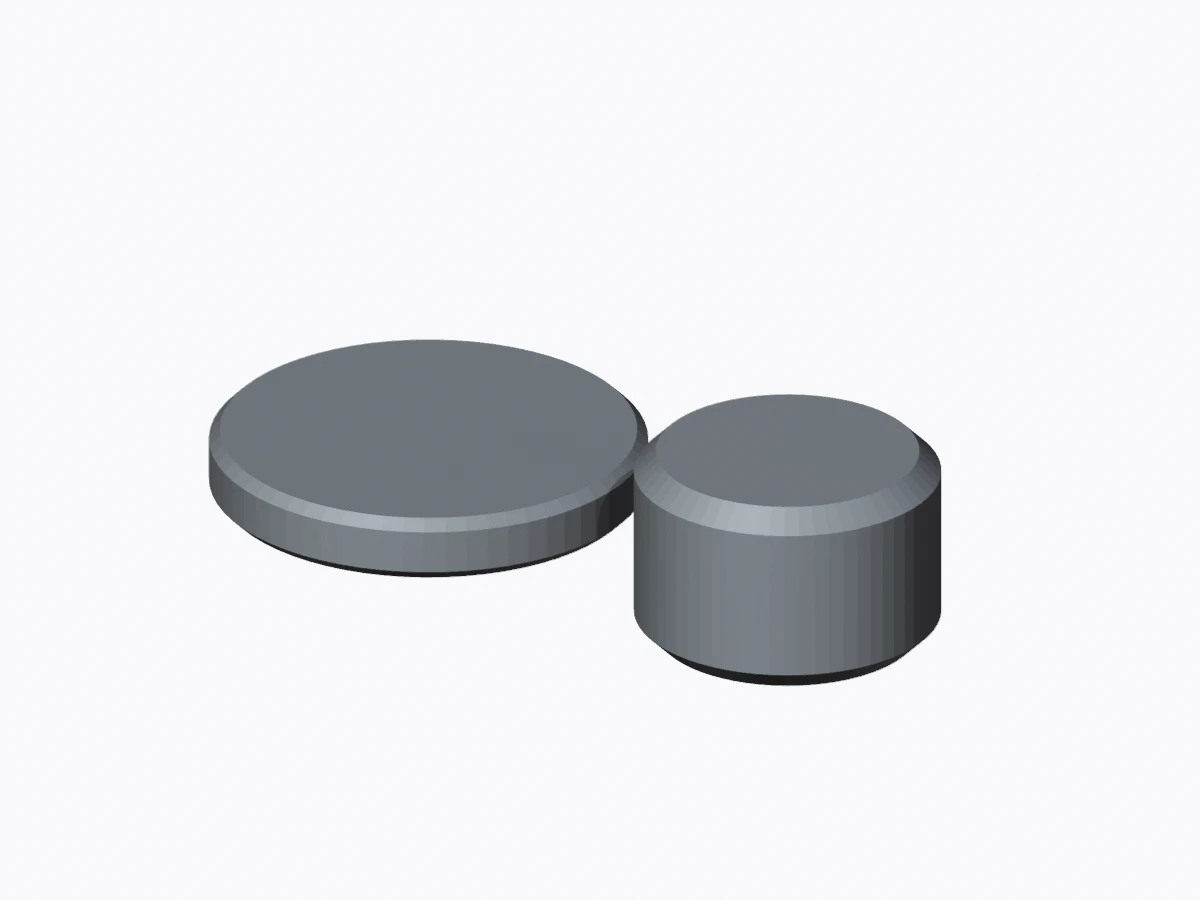
Keep an assembled design aligned. Place unrelated objects side by side for individual printing. Packaging does not fuse the triangle surfaces.
How to convert STL to 3MF online
Open STL files
Select one or more ASCII or binary STLs, up to 100 MB combined.
Set units and placement
Choose source units, preserve alignment or place models side by side.
Download one 3MF
Check the preview and dimensions, then import the geometry into your slicer.
Combine multiple STL files into one 3MF
Aligned parts
Keep original coordinates to preserve a base and cap as named parts in one assembly.
Separate models
Place side by side to arrange independent objects along X, each on Z = 0.
STL has no unit label. Choose the source unit; the output declares millimeters. Conversion preserves triangles without fusing parts, repairing meshes or recovering colors.
Sizing, mixed units and opening the 3MF in Bambu Studio
The target longest side scales the entire package and part offsets uniformly. An inch becomes 25.4 mm. Convert mixed-unit files in separate groups, then review the final bed layout in your slicer.
The download is a model 3MF. Choose your printer, filament, supports and process in Bambu Studio, then save a project there. No printer profile or toolpaths are included.
Inspect a source in the STL viewer, or convert back to STL. For existing material parts and base colors, use GLB to 3MF.
STL to 3MF questions
How do I convert STL to 3MF?
Open one or more ASCII or binary STL files. Confirm the unit used by the source app, check the dimensions and placement, and download the 3MF. If you change the unit, placement or optional target size, update the preview first. The output declares millimeters.
Can I combine multiple STL files into one 3MF?
Yes. Select up to 100 STL files, totaling up to 100 MB and one million triangles. Each file becomes its own named mesh part in one 3MF. The parts are not fused into a solid. Default placement groups them in one build assembly to keep aligned parts together. Side-by-side placement writes separate build objects.
How do I convert STL to 3MF with units?
STL has no standard unit declaration. Choose millimeters, centimeters, inches or meters to match the source app. Coordinates are converted to millimeters and the 3MF explicitly records that unit. One inch becomes 25.4 mm. Files with different source units should be converted separately.
Can I set the final model size?
Yes. Enter the longest side of the full package in millimeters, then update the preview. The entire package scales uniformly, preserving proportions and scaling spacing too. For example, the two-part desk marker measures 40 × 40 × 24 mm; an 80 mm longest side makes it 80 × 80 × 48 mm.
More questions (5)
Will the parts keep their original position?
Keep original coordinates preserves their relative positions inside one assembly. Use this for assembled parts exported from the same design. Side-by-side placement instead moves each file onto Z = 0 and separates them along X, with 10 mm gaps before any optional package resizing. Check the arrangement in your slicer as well.
Is the download a Bambu Studio print project?
It is a standard 3MF model containing named mesh parts, triangle geometry and millimeter units. It does not include a printer preset, filament assignment, support settings, process settings or G-code. Import it as geometry in Bambu Studio, choose your own settings, and save a project there if you need those settings stored.
Will converting recover colors or improve print quality?
No. This converter keeps the source triangle surfaces; it does not restore painted colors, textures, CAD history or printer settings from STL. It also does not repair holes, unite overlapping parts or increase mesh detail. Inspect the geometry and sliced layers before printing.
Does this support both ASCII and binary STL?
Yes. Both encodings are supported. A binary header that starts with solid is still recognized by its triangle count and file length. Incomplete facets, invalid coordinates and inconsistent binary lengths are rejected. Nonstandard color data in binary STL is not carried into the 3MF.
Is conversion free and private?
Yes. Your files are processed on this device without an account or generation credits. Sample buttons load only public example files. You can cancel processing or replace your selected files. Large models may require more memory than your device has.