














Blender MCP: connect, inspect, then build
Connect your AI client to Blender with a current configuration, then test a small scene before attempting a complex model. A local exercise gives you a starting point without a model request.
What actually connects to what?
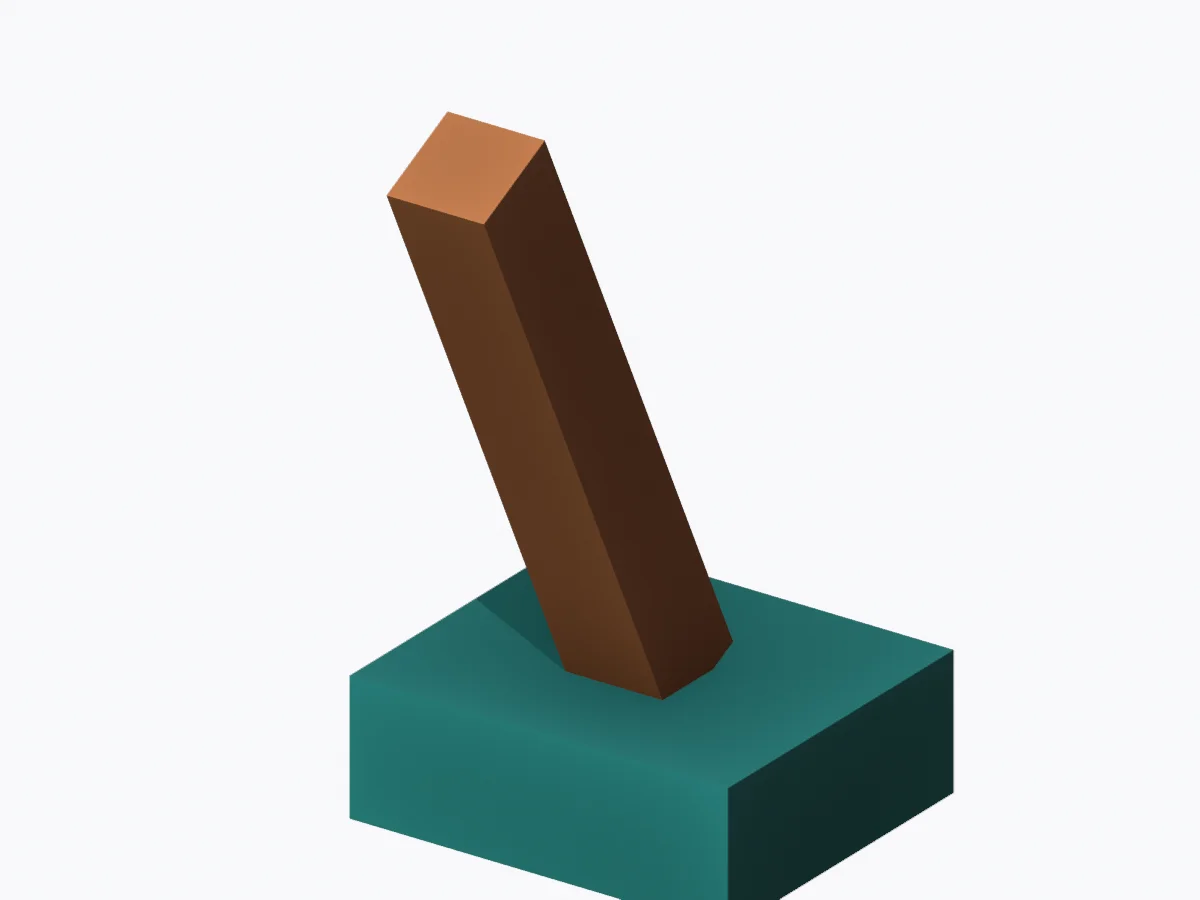
The community project formerly called blender-mcp now publishes as mcp-for-blender. Its server translates tool requests; Blender creates and edits the scene. The upstream repository is the installation source reviewed here.
Quady3D’s Blender handoff opens exported files in your local application. It is a separate workflow; installing that bridge does not install an MCP server.
Blender MCP setup, step by step
- Install the local tools
Install Blender and uv from their official distributions. Confirm
uvx --versionworks in your terminal. - Add the server and add-on
Use
uvx mcp-for-blender install-addon, enable the add-on in Blender, then merge the generated client configuration below. - Restart and inspect
Restart the MCP client. Open Blender’s sidebar and check the MCP server is running. Begin with scene inspection before asking for changes.
Build your local MCP configuration
{
  "mcpServers": {
    "blender": {
      "command": "uvx",
      "args": [
        "mcp-for-blender"
      ],
      "env": {
        "BLENDER_HOST": "localhost",
        "BLENDER_PORT": "9876"
      }
    }
  }
}
Match the port in your Blender add-on. If your desktop app cannot find uvx, use its absolute path. Merge this entry with your existing configuration. This builder does not install or connect software.
The upstream setup command can also configure supported clients. The manual builder above keeps the entry visible so you can review and merge it. For client-specific settings, follow the current upstream guide.
Start with a small, inspectable scene
Download the Blender scene ↓
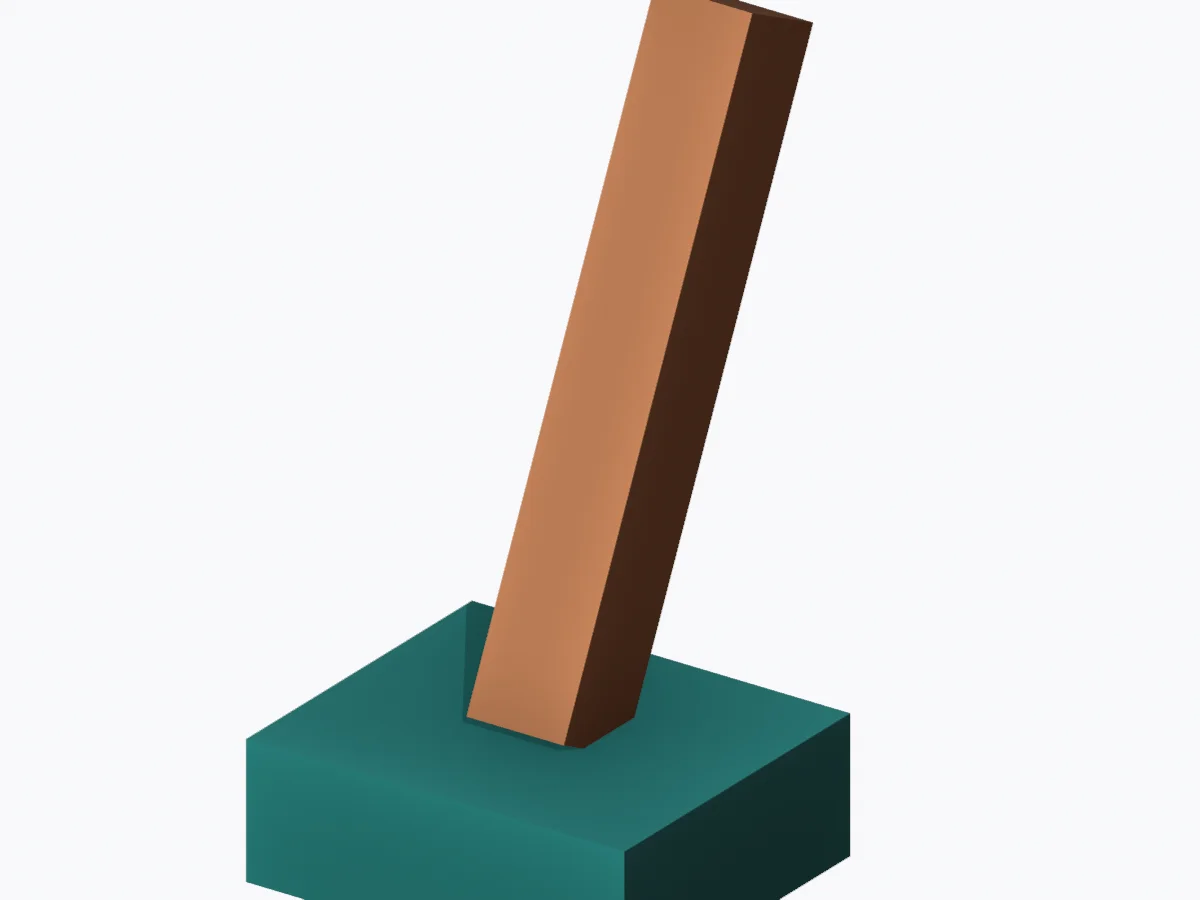
Download the reference GLB ↓
A focused first tool request
Inspect the open scene. List mesh objects, armatures, animation clips and scene units. Do not change anything yet. Then describe how to add a separate cube beside the pedestal while preserving the existing rig.
This is a suggested exercise prompt, not a recorded AI response. To build the sample without any AI client, download and run the local Blender exercise script. Use the FBX to GLB converter to inspect its interchange output.
Diagnose the layer that failed
| uvx not found | Use an absolute executable path in the config. Confirm it works outside your shell profile. |
|---|---|
| Connection refused | Keep Blender open, enable the add-on and match its local port to BLENDER_PORT. |
| Tools appear but scene requests fail | Check the add-on status, selected scene and upstream version. Start with one inspection request. |
| Generation asks for external credentials | That is an optional service integration. The local scene exercise and file conversion do not require it. |
Review code-execution tool requests before granting access to scenes you care about. Keep the socket local and keep a copy of your source scene.
Questions about Blender MCP
What is Blender MCP?
It connects an MCP client to Blender through a local server and add-on. The ahujasid community project now uses the package name mcp-for-blender. It is separate from Quady3D’s Blender file handoff bridge.
Can I try the scene without paying for an AI model?
Yes. Download the original inspection-arm Blender scene, or run its local Python exercise. No model request is required. A conversation in your own AI client may use that provider’s subscription or API allowance.
Why does my client say uvx was not found?
Desktop applications can have a different PATH from your terminal. Find the full uvx executable path and put it in the configuration builder. Fully restart the client after changing its config.